Hello,Ahmet-Furkan57
Welcome to Microsoft Community.
It seems you're referring to the Windows 10 Automatic TRIM feature for SSDs (Solid State Drives). Normally, TRIM commands help to maintain the performance of the SSD by letting the drive know which blocks of data are no longer considered in use and can be wiped internally.
If you've noticed that your SSD hasn't been trimmed in 21 days, despite the setting being configured for weekly TRIM operations, there could be a few reasons:
- Manual vs. Automatic TRIM: Even if automatic TRIM is set, if the system doesn't think it's necessary, it might not perform the operation. The system's algorithms might determine that the SSD doesn't need trimming at that time.
- Power and Usage Conditions: TRIM may not operate if the system isn't on or in the right state (like idle or low usage) when the scheduled task tries to run. Sometimes, if it is a laptop, the built-in computer manager or additional power optimization software will interfere with disk defragmentation. Of course, the power plan may also be related.
- Task Scheduler Issues: The Windows Task Scheduler, which handles automatic TRIM, could have an error or misconfiguration.
Here are some steps of checking the Automatic TRIM operation through the Windows Task Scheduler, see:
- Press Windows Key + R to open the Run dialog, type taskschd.msc, and press Enter.
- In the Task Scheduler, go to the Task Scheduler Library in the left pane.
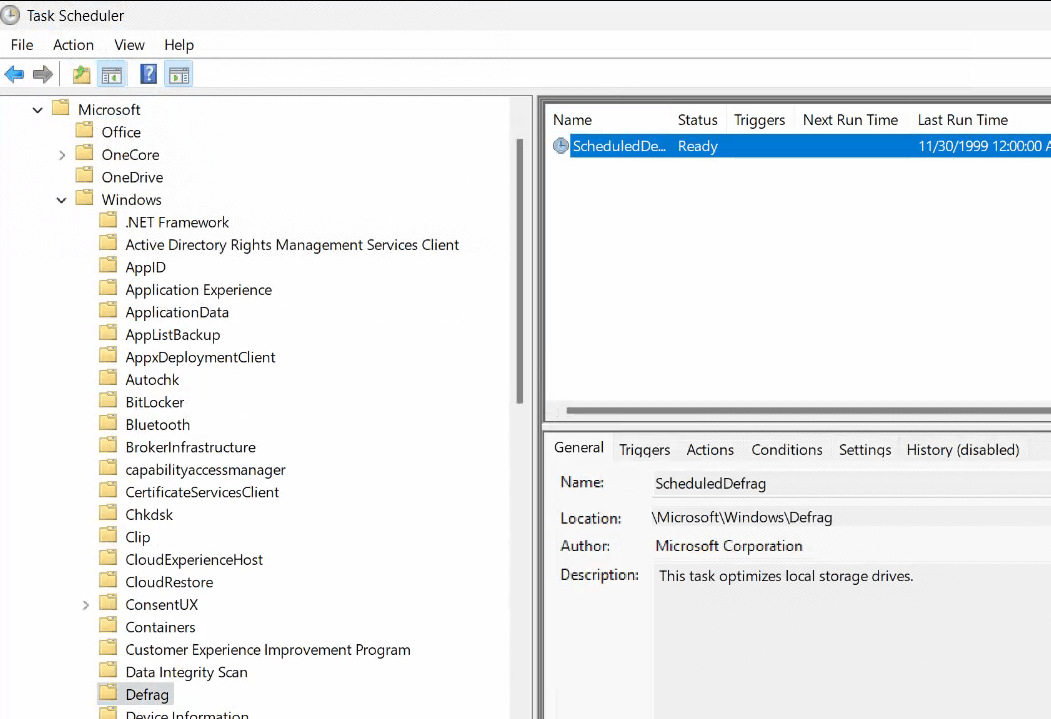
- Navigate through the library: Task Scheduler Library -> Microsoft -> Windows -> Defrag.
- In the middle pane, you should see a task named ScheduledDefrag.
- Click on this task to highlight it. With the ScheduledDefrag task highlighted, select the Triggers tab in the lower middle pane. As shown here:
 6. Also, check the Actions tab to ensure that the action is to start the defrag program.
7. In the Conditions tab, there might be conditions that need to be met for the task to run (like the computer being idle).
8. You can see the "Last Run Time" in the top middle pane to see when the task was last executed.
6. Also, check the Actions tab to ensure that the action is to start the defrag program.
7. In the Conditions tab, there might be conditions that need to be met for the task to run (like the computer being idle).
8. You can see the "Last Run Time" in the top middle pane to see when the task was last executed.
Please try to check if there is any other software in History that interferes with its operation. If the operation is interfered with, please share it with me.
Let me know the status.
Chandy |Microsoft Community Support Specialist
' cx='32' cy='32' r='32' /%3E%3Ctext x='50%25' y='55%25' dominant-baseline='middle' text-anchor='middle' fill='%23FFF' %3EA%3C/text%3E%3C/svg%3E)
