Share via

Windows 10: Intel(R) Wireless-AC 9560 160MHz wifi driver/adapter keeps crashing ONLY on my PC for no real reason ?

Anonymous
2023-05-18T18:09:28+00:00

So my wifi adapter/driver (IDK what i would say cause im still not sure what the issue is) has been working just fine up until now. My main problem is that my wifi driver/adapter at random times just stops working/crashes. IDK whats causing this cause it just started for no apparent reason.

SOME MAIN INFO I HAVE SO FAR ABOUT THE PROBLEM:

  • this ONLY happens on my pc, the actual wifi works just fine, and i know this because theres other people in my house who do not experience the same problem.
  • the crashes/disconnects happen at random times
  • everything related to my wifi has been completely normal until up AROUND 1 week to a not even a few days ago
  • When the problem does happen, my computer will become extremely slow, and my blue-tooth headphones will start to act weird (cutting out, lowering in quality, etc). I would need to turn my headphones on and off again sometimes.

My temporary fix for this at the moment is to just restart my computer. When i do this my Wifi will work just fine (maybe a bit slowly) but then after some time the problem occurs. Sometimes itll happen a few hours after i restart my computer, and sometimes itll happen in just a few minutes, its random.

ILL BE SHOWING SOME IMAGES THAT I HAVE THAT COULD POSSIBLY BE RELATED TO THIS PROBLEM AND ILL EXPLAIN THEM
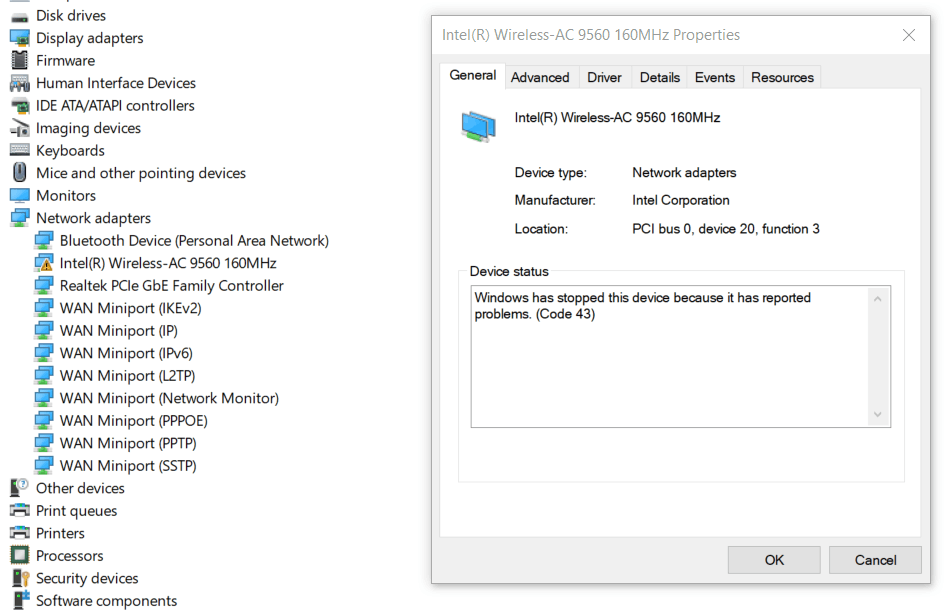
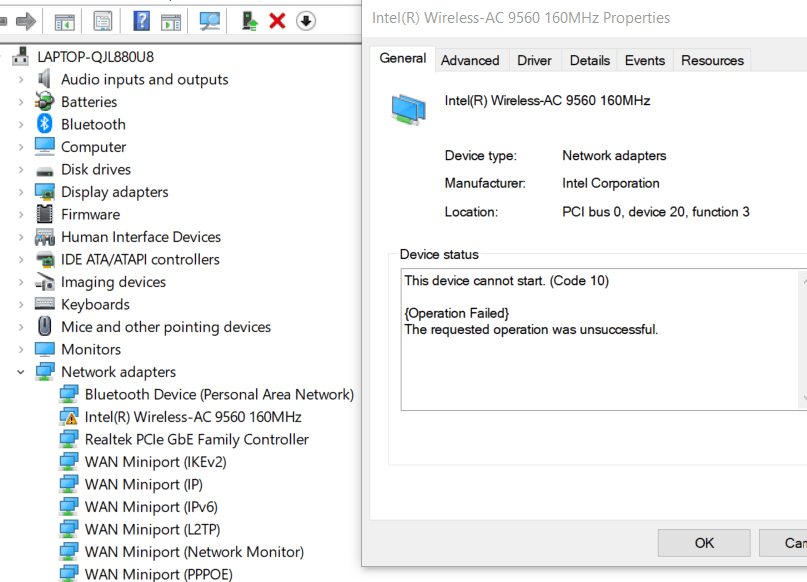
So here's what shows in Device Manager, and Event Viewer when the problem does happen. My internet stops working, and Device Manager will refresh. When i click on my Intel Wifi adapter/driver, some sort of error will show. Its always codes 10, 43, or 45.

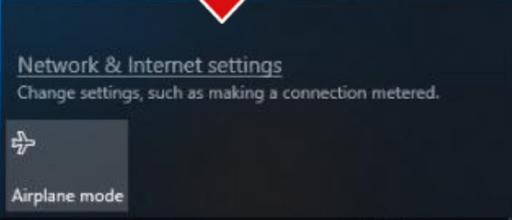
Usually what also happens when the adapters/drivers stop working is when i click on my taskbar's wifi icon, the "Wi-Fi" and the "Mobile Hotspot" button disappear and the only button that shows is the "Airplane mode" button. What will also happen is that any wifi networks nearby just dont show (INCLUDING my own) and the only thing that shows there is this:
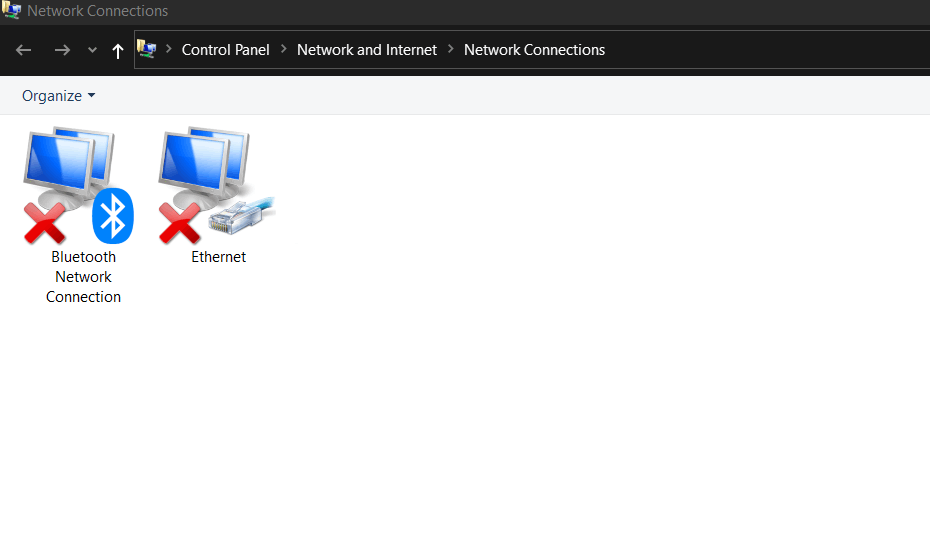
Another thing that also happens is when i go to "Change adapter settings" in Control Panel the "Wi-Fi" titled icon that looks like 2 computers will just disappear.
Sometimes though when the problem occurs, it will act WAY differently which includes:

  • the intel driver in device manager staying the same, when i click it it says it works properly, and that yellow sign doesnt show above the icon, despite the fact the wifi doesnt work on my pc.
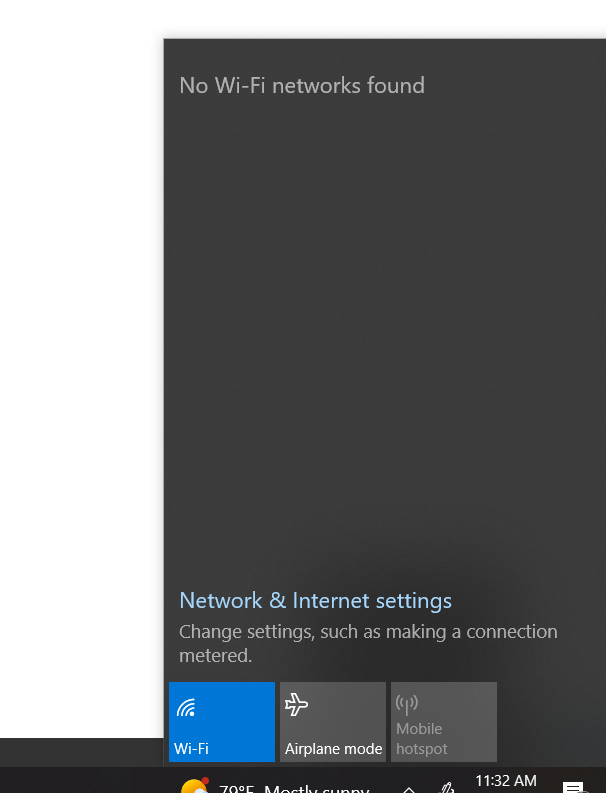
  • When i click on the taskbar wifi icon, instead what will happen is that all the buttons show like normal, no networks show, and i still cant access the internet. FOR EXAMPLE:
  • When i go to "Change adapter settings" in Control Panel, the "Wi-Fi" titled icon that looks like 2 computers instead of disappearing, will just gray out, and i cant do anything with it. I could try and enable it but it doesnt do anything.

SOME FIXES IVE TRIED FOR THIS ENTIRE PROBLEM INCLUDE:

  • Restarting
  • Uninstalling and Reinstalling drivers.
  • Doing some things in command prompt. Such as resetting my ip
  • Updating my drivers

they still dont work though

Thats all i have so far. i dont really know whats wrong with my pc, my drivers/adapters, and my wifi but i hope someone can help me cuz i need the internet to work on alot of my stuff.

Windows for home | Windows 10 | Internet and connectivity

Locked Question. This question was migrated from the Microsoft Support Community. You can vote on whether it's helpful, but you can't add comments or replies or follow the question.

0 comments No comments

13 answers

Sort by: Most helpful
  1. Anonymous
    2024-01-27T00:02:12+00:00

    My name is Matias and I'm having a problem with the same thing. Mine is Intel (R) Wireless AC 9560 160 MHz. I have a Windows 11 64 operating system version 23H2. The wifi sometimes drops went back and forth with device manager disabling and enabling nothing switching the driver. I don't know know what is the issue if I mistakenly did an update wrong. It keeps bugging me and need help.

    10+ people found this answer helpful.
    0 comments No comments
  2. Anonymous
    2023-05-18T18:53:15+00:00

    Hi, . I'm sorry to hear you're having this problem, and I hope I can assist you to find a satisfactory solution.

    When you updated the driver, did you use windows update or did you use the latest version from the manufacturer?

    If you haven't used the latest version, believe it is in the link below:

    https://www.intel.com.br/content/www/br/pt/prod...

    Can you send the motherboard model?

    Please note: This is a user-to-user community forum. We are users just like you who help others. We are not employees of Microsoft.

    4 people found this answer helpful.
    0 comments No comments
  3. Anonymous
    2023-11-09T23:56:59+00:00

    Hi, I'm sorry but I've been through the same problem here and I already did the whole step, but it doesn't work out. Could you help to assist me in this?

    This is my baseboard type:

    BaseBoard Manufacturer: TIMI

    Baseboard Product: TM2039

    Baseboard Version: 1124V04

    Sure, this errors is related to driver not being updated
    On the motherboard page we can download all the drivers and install them manually.
    Enter the page and select the bios model: G531GT
    Select OS, and download and install one by one.
    The last brings improvements to the wifi network card.

    Link
    https://rog.asus.com/laptops/rog-strix/rog-stri...

    3 people found this answer helpful.
    0 comments No comments
  4. Virginia M 40,495 Reputation points Independent Advisor
    2023-05-21T18:45:41+00:00

    Hello, I’m Virginia, a fellow user like yourself.

    Sorry to hear you’re experiencing problems. May I ask which Windows 10/11 build are you running - 21H2 or 22H2?

    How old is the pc? It may be that the Wi-Fi card is failing & therefore the connection is intermittent.

    Have you tried deleing the drivers under device manager then choosing view>scan for hardware changes to reinstall them again?

    Have you deleted the device itself then scanned for hardware changes?

    Have you tried an older driver? I would roll back to a driver which you know worked.

    You might have to reinstall an older driver via the device’s entry within device manager if it doesn’t show then check under View>Show hidden devices.

    Right click device.

    Choose update driver.

    Choose ‘browse my computer for drivers’.

    Choose ‘let me pick from a list of available drivers on my computer’.

    Choose the compatible hardware from the list, then choose next.

    Choose one of the older drivers from the list shown, then click next.

    This will then reinstall the driver.

    2 people found this answer helpful.
    0 comments No comments
  5. Anonymous
    2023-05-19T00:32:46+00:00

    Hi, . I'm sorry to hear you're having this problem, and I hope I can assist you to find a satisfactory solution.

    When you updated the driver, did you use windows update or did you use the latest version from the manufacturer?

    If you haven't used the latest version, believe it is in the link below:
    https://www.intel.com.br/content/www/br/pt/prod...

    Can you send the motherboard model?

    Please note: This is a user-to-user community forum. We are users just like you who help others. We are not employees of Microsoft.

    To update my driver, im pretty sure i used the actual website.

    For my motherboard model, i went to system information and this is what it showed:

    BaseBoard Manufacturer: ASUSTeK COMPUTER INC.

    BaseBoard Product: G531GT

    BaseBoard Version: 1.0

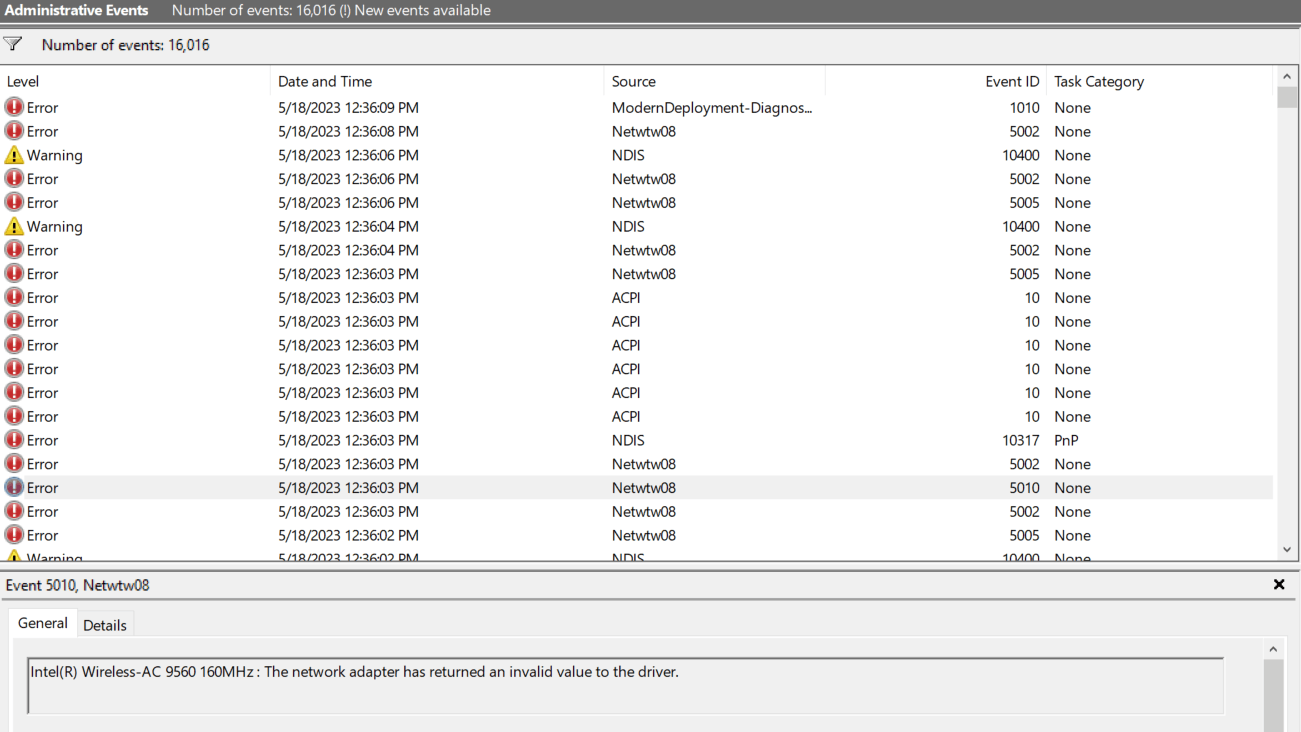
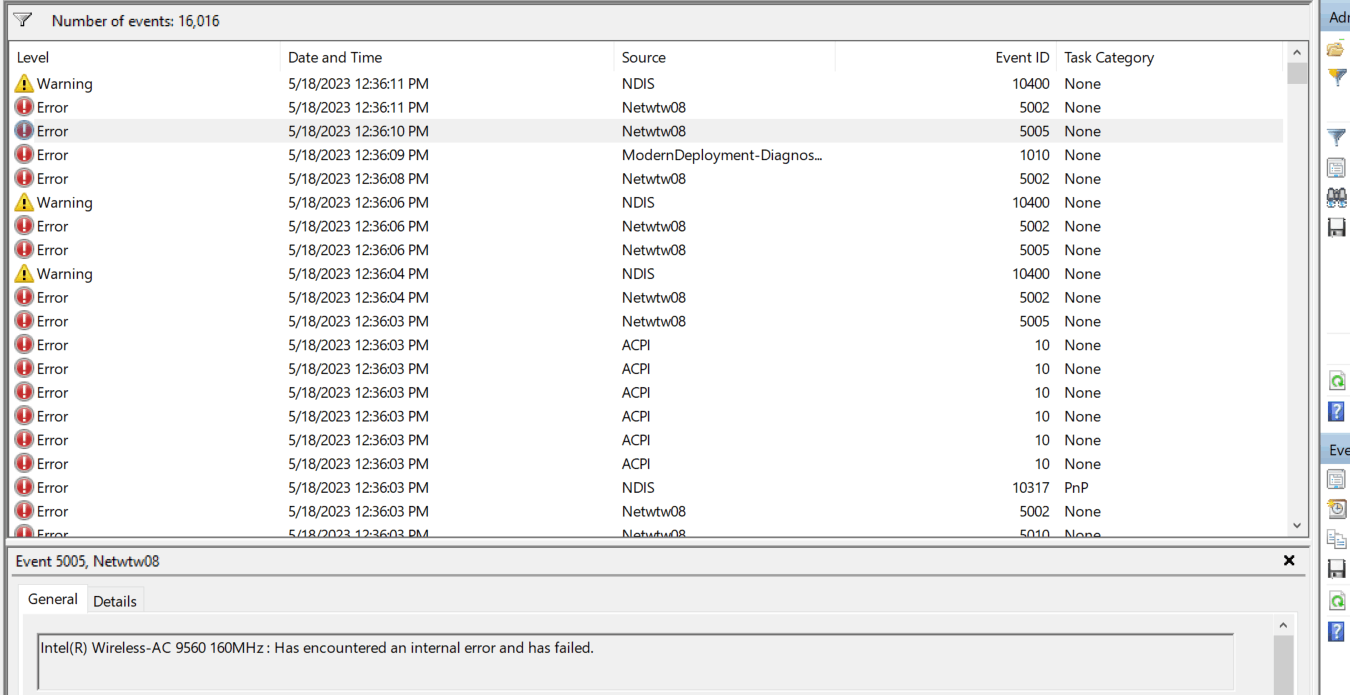
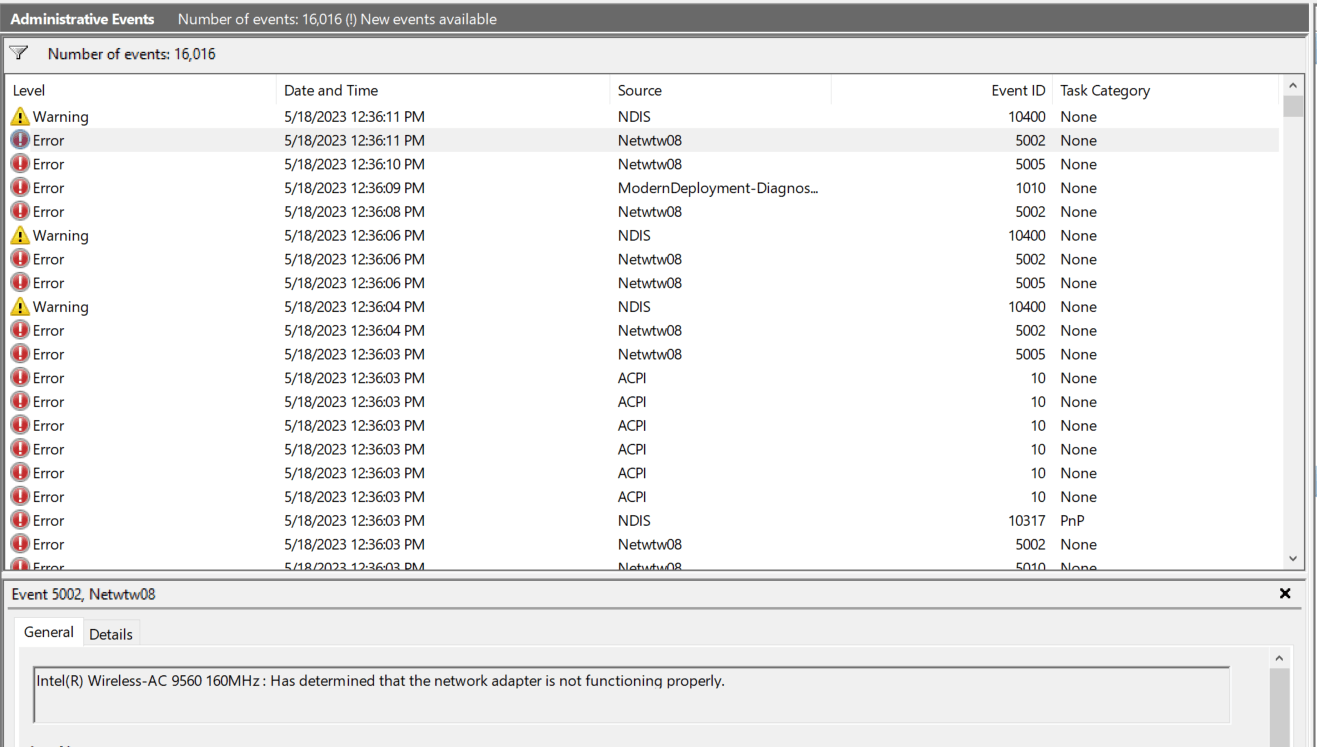
    I also found these errors in Event Viewer. these were prolly there when the problem started but now im aware of them.

    2 people found this answer helpful.
    0 comments No comments