Share via

Other user accounts not showing up on the side when logging into my computer

Anonymous
2024-03-06T03:51:10+00:00

I turn on my computer and there use to be 4 accounts that showed up. Now it doesn't show any and I can only access the main account. I was using my other account a couple days ago and now I cannot see them. Please help

Windows for home | Windows 10 | Windows Hello, lock screen and sign-in

Locked Question. This question was migrated from the Microsoft Support Community. You can vote on whether it's helpful, but you can't add comments or replies or follow the question.

0 comments No comments

13 answers

Sort by: Most helpful
  1. Anonymous
    2024-03-06T05:39:06+00:00

    Just found this method as well. Give it a shot

    Why does my Windows 10 login screen not show other users

    How do I show all users on my login screen,.?

    **Show all users that are added to a computer:**1. click on the Start menu and search for "gpedit.msc." 2. Open "gpedit.msc." 3. Navigate to the following path : Computer Configuration ->

    >> Administrative Templates -> System -> Logon.
    
    1. Find the setting "Enumerate local users
                             on domain-joined computers."
      
    2. Enable this setting.
    10+ people found this answer helpful.
    0 comments No comments
  2. Anonymous
    2024-03-06T04:44:36+00:00

    Greetings, Riley! My name is Arif, and I will assist you today.

    To assist you more effectively, kindly navigate to the Control Panel on your computer. Go to 'User Accounts,' then select 'User Accounts' again, and proceed to 'Manage another account.' Check if you can view other user account profiles. If possible, please take a screenshot of that page and send it to me. Thank you!

    Warm Regards,

    Arif

    4 people found this answer helpful.
    0 comments No comments
  3. Anonymous
    2024-03-06T05:00:49+00:00

    Forum helper

    Welcome : Also, you can try the following steps

        to add missed account names. Hope this helps,.?
    
               This means a system bug might have, removed some of your. Account names from the list.
    

    To tackle this issue, search for your other accounts on the “Local Users and Groups” tool through these steps:

    1. Press Win + R to open the Run command dialog box.
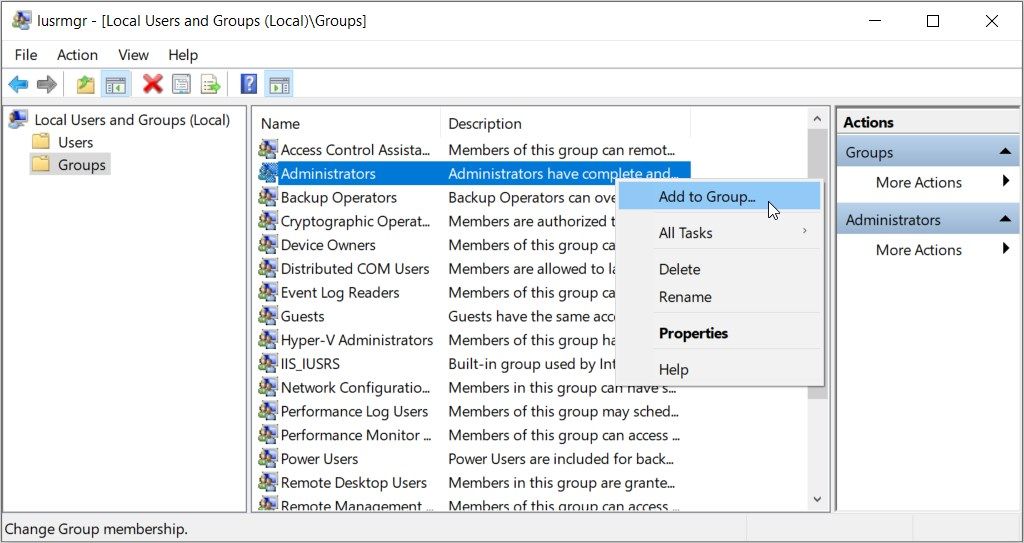
    2. Type lusrmgr.msc and press Enter to open the “Local Users and Groups” tool.
    3. click the Groups folder on the left-hand side.
    4. Right-click on the Administrators option in the middle pane.
    5. Select the Add to Group option.

    Selecting the Add to Group option in the Local Users and Groups tool From there, follow these steps

    1. click the Add button in the bottom-left corner of the screen.
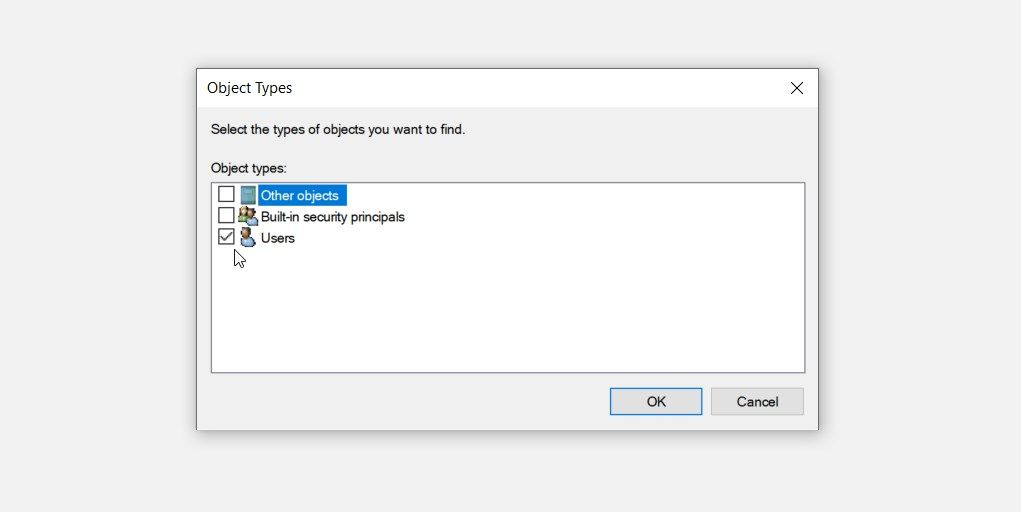
    2. Press the Object Types button on the "Select Users" screen.
    3. check the Users box and uncheck all the other boxes on the pop-up screen.
    4. Press OK to save these changes. This should take you back to the "Select Users" screen.

    Checking the Users box in the Object Types screen click the Advanced button and then click the Find Now button on the right-hand side of the screen. Clicking the Find Now button on the Select Users screen On the search results, select the username. That isn’t appearing on the login screen
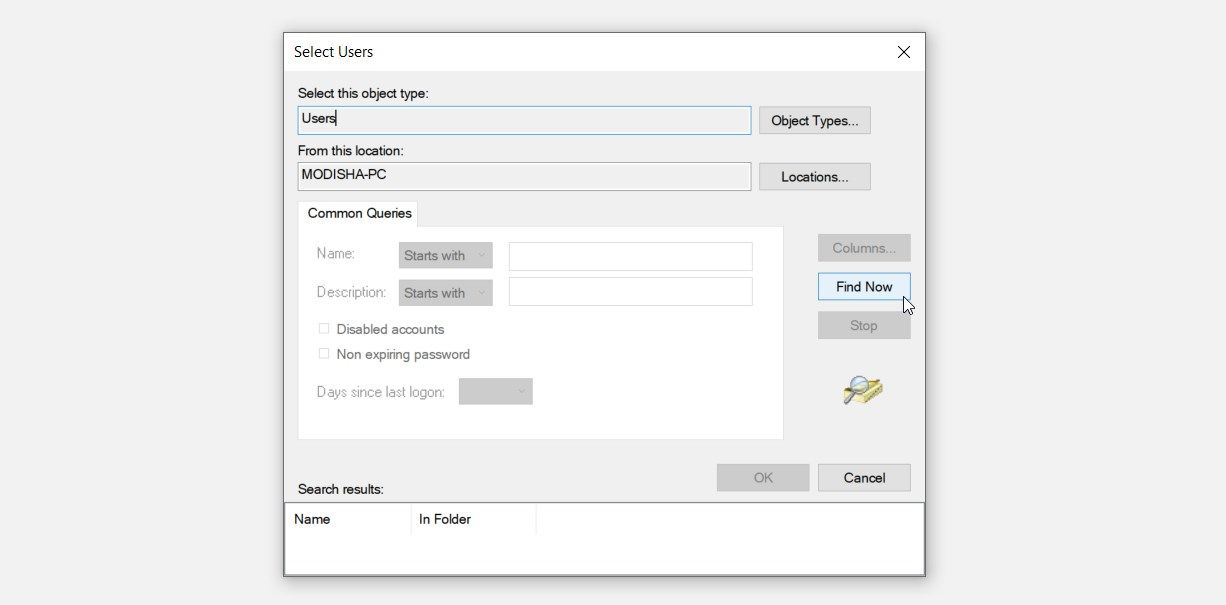
    and click OK. From there, restart your device to save these changes.

    2 people found this answer helpful.
    0 comments No comments
  4. Anonymous
    2024-03-06T14:26:16+00:00

    Hi Riley,

    Thank you for your prompt response and the screenshot!

    When you start your computer, you only see your own user account profile, In the left corner, do you see an option for 'Other Profile,' or does it only display your account?

    If it only shows your own user profile, please follow the steps below:

    • Use the search icon to find 'Control Panel.'
    • Navigate to 'System & Security' and then 'Windows Tools.'
    • Right-click on 'Computer Management' and run it as an administrator.

    A new window will open; click on 'Local Users and Groups,' then 'Users.' In the list of user profiles, locate each profile by name. Right-click on each profile, go to 'Properties,' and uncheck 'Account is Disabled.' Once you've done this for each profile, restart your computer, and you should see all those profiles reappear.

    Warm Regards,

    Arif

    1 person found this answer helpful.
    0 comments No comments
  5. Anonymous
    2024-03-06T05:11:57+00:00

    Accounts are from my family members. It is my dads computer, i'm just trying to play minecraft lol

    1 person found this answer helpful.
    0 comments No comments