Hello,Violet S.
Thank you for posting in the Microsoft community.
I see that you are currently unable to open videos, images, settings, shortcuts and other functions, and all prompt "Class not registered" error messages.
The "Class not registered" prompt usually appears when the application cannot find or access the specific DLL file required for its normal operation. It may be that the component service is not registered or has been deregistered. I see that you have such an error globally in the system. We will prioritize the method that can repair the system globally.
You can click on the link provided below to view the detailed steps.
Disclaimer: Let’s try performing an in-place install or in-place upgrade which will refresh your Windows files and operating system without removing files or applications. That being said, we always recommend that if you have important data, you should back it up before making large system changes. If you want to back up your data first, please do so. Once you are done backing up, you can follow the steps in the following guides:
Or you can check out the following simpler instructions:
Please rest assured that the in-place upgrade the system will theoretically not affect your data and applications (you need to choose to keep files and applications in the next steps), just update all the system files are the latest.
If you have important data, you may make additional backups to prevent accidental loss of your data. Also make sure there is enough free space in the system partition, at least 40GB.
1. Download Windows 11 ISO file
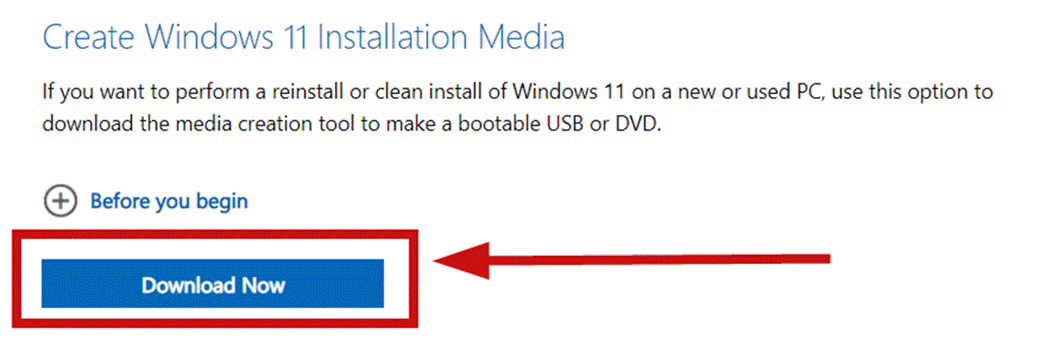
Visit Download Windows 11 (microsoft.com) and click "Download Now" under “Create Windows 11 Installation Media” to download MCT (Media Creation Tool).
Then run the program, select "Create installation media (USB flash drive, DVD or ISO file) for another PC”, and then choose Language, Version, Architecture(if you are not sure about these, choose "Use the recommended options for this PC"), then select "ISO file" in the "Select Media to Use" interface, and then a windows ISO file will be downloaded to your disk (about 4-5GB in size, it is recommended that you choose a non-system disk).
2. In-place upgrade the system
After the download is completed, double-click the ISO file, double-click to run "setup.exe" in the open file explorer, and select "Change how Windows Installer downloads updates" > "Download updates, drivers and optional features", Select "Keep personal files and apps" after accepting the terms of the agreement, then click "Next" > "Install". Then the system will reboot a few times, and then enter the welcome screen.
After you refer to the above steps, you can share some information in this thread, and I will investigate and provide further solutions for you. Thank you for your understanding and cooperation!
Best Regards,
Rota|Microsoft Community Support Specialist
' cx='32' cy='32' r='32' /%3E%3Ctext x='50%25' y='55%25' dominant-baseline='middle' text-anchor='middle' fill='%23FFF' %3EA%3C/text%3E%3C/svg%3E)
