Share via

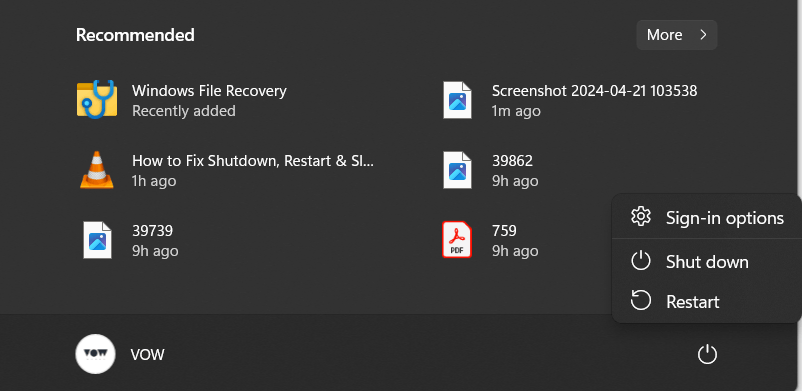
On my windows 11 laptop, the sleep option simply disappeared from the start menu.

Anonymous
2024-04-21T10:27:33+00:00

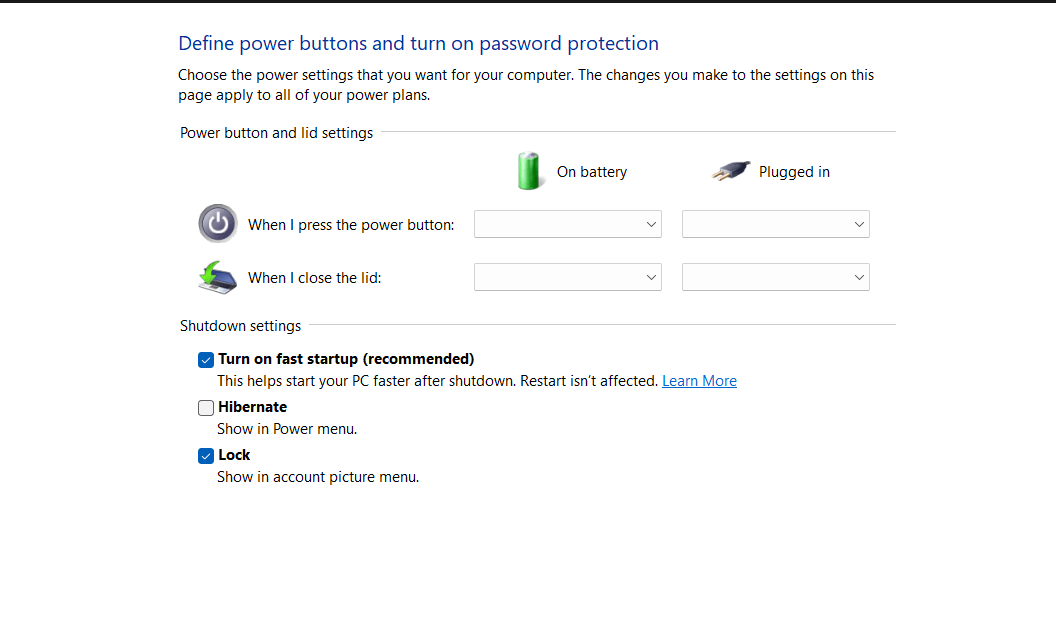
I then looked up on the internet for solutions but when explored the control panel and the settings, the sleep option was not available in Settings>System>Power and Sleep. It also wasn't available in Control Panel>Hardware and Sound>Power Options>Choose what the power button does>Change Settings that are currently unavailable. After going this deep, the only thing I found was shut down and hibernate. The sleep option has just gone

                            I FOLLOWED THE FOLLOWING METHODS BUT IT DOSN'T WORK, PLEASE HELP:                                                                                                                                                                                                                                  Method 1. Restore default power options  -Press Windows key + R then type: powercfg -restoredefaultschemes  -Restart PC and check. 

Method 2. Run power Troubleshooter - Press Windows key + R then type: msdt.exe /id PowerDiagnostic - Click OK then follow the prompt to run the power troubleshooter -Restart the device after

Method 3. Open Control Panel> Click Hardware and Sound > Click Power Options> then click Choose what the power buttons do > Click Change settings that are currently unavailable> Check Sleep (or uncheck then check it again) Click Save Changes then restart.

Method 4. Do clean boot A “clean boot” starts Windows with a minimal set of drivers and startup programs, so that you can determine whether a background program is interfering with your game or program. - In the search box on the taskbar, type msconfig and select System Configuration from the results. - On the Services tab of System Configuration, select Hide all Microsoft services, and then select Disable all. - On the Startup tab of System Configuration, select Open Task Manager. - Under Startup in Task Manager, for each startup item, select the item and then select Disable. - Close Task Manager. - On the Startup tab of System Configuration, select OK. When you restart the computer, it's in a clean boot environment.
Windows for home | Windows 11 | Sleep and Power on, off

Locked Question. This question was migrated from the Microsoft Support Community. You can vote on whether it's helpful, but you can't add comments or replies or follow the question.

0 comments No comments

22 answers

Sort by: Most helpful
  1. Anonymous
    2024-06-17T04:36:39+00:00

    The Sleep option should have not disappeared to began with, we pay high prices for computers, the Sleep option apparently was removed intentionally, but why? I have a feeling as to why, but that doesn't change the fact You, Microsoft, removed it intentionally and now want to frustrate the masses.

    Was this answer helpful?

    30+ people found this answer helpful.
    0 comments No comments
  2. Anonymous
    2024-06-17T04:38:30+00:00

    The Sleep option should have not disappeared to began with, we pay high prices for computers, the Sleep option apparently was removed intentionally, but why? I have a feeling as to why, but that doesn't change the fact You, Microsoft, removed it intentionally and now want to frustrate the masses. You want people to go without it by giving up the struggle.

    Was this answer helpful?

    20+ people found this answer helpful.
    0 comments No comments
  3. Anonymous
    2024-10-08T17:23:37+00:00

    have the same problem you do but when get to the "Hibernate/Sleep checkbox" it doesn't shows an option for sleep, it just shows "Hibernate" which isn't sleep at all. Did you got it to go to "Sleep" or just to "Hibernate"?

    Was this answer helpful?

    10+ people found this answer helpful.
    0 comments No comments
  4. Anonymous
    2024-09-23T15:35:55+00:00

    This video helped me solve it. Although in my latest update it's now called Hibernate.

    https://www.youtube.com/watch?v=FfpE2_lAwtA

    Control Panel\Hardware and Sound\Power Options\System Settings\

    then click on Change settings that are currently unavailable, then click on the Hibernate/Sleep checkbox and save changes.

    Was this answer helpful?

    9 people found this answer helpful.
    0 comments No comments
  5. DaveM121 881.2K Reputation points Independent Advisor
    2024-04-21T17:11:35+00:00

    After re-installing that driver, open the old Control Panel and go to Power Options - Choose what the power buttons do - Click Change settings that are currently unavailable

    Is the Sleep options available in there now?

    Was this answer helpful?

    1 person found this answer helpful.
    0 comments No comments