Share via

Super slow, laggy Windows 11 PC, despite fresh OS install, low resource usage

Anonymous
2024-06-28T00:07:21+00:00

I have the following laptop:

Dell Inspiron 16 7620 2-in-1

12th Gen Intel(R) Core(TM) i7-1260P, 12 Core(s), 16 Logical Processor(s)

Win 11, Version 10.0.22631 Build 22631 (up to date as of this posting)

BIOS Version/Date Dell Inc. 1.16.0, 11/14/2023

500gig m.2 with about 300gigs free

32 gigs of ram

NVIDIA GeForce MX550 (drivers up-to-date)

History

The laptop is about 2 yrs old. After about a year of light usage, things got very sluggish and slow. So I did a complete reset, keeping nothing, about 1 yr ago.

9 months later (About 3 months ago) things got sluggish again, so another reset.

It has now only been 3 months and the PC is pretty much unusable.

Since reset, apps installed and running on a regular basis are minimal:
Firefox with 5-7 tabs

Ring Central (work chat and phone app)

Discord

Signal

VSCode and IIS (working on a legacy VB app)

I had Bit Defender but removed it hoping that might improve things. Nope.

Office 365 is installed but rarely used.

Photoshop is installed, but rarely used.
That's it, nothing else

CPU rarely spikes over 50%, RAM is almost never over 50% usage, both are usually lower.

Symptoms

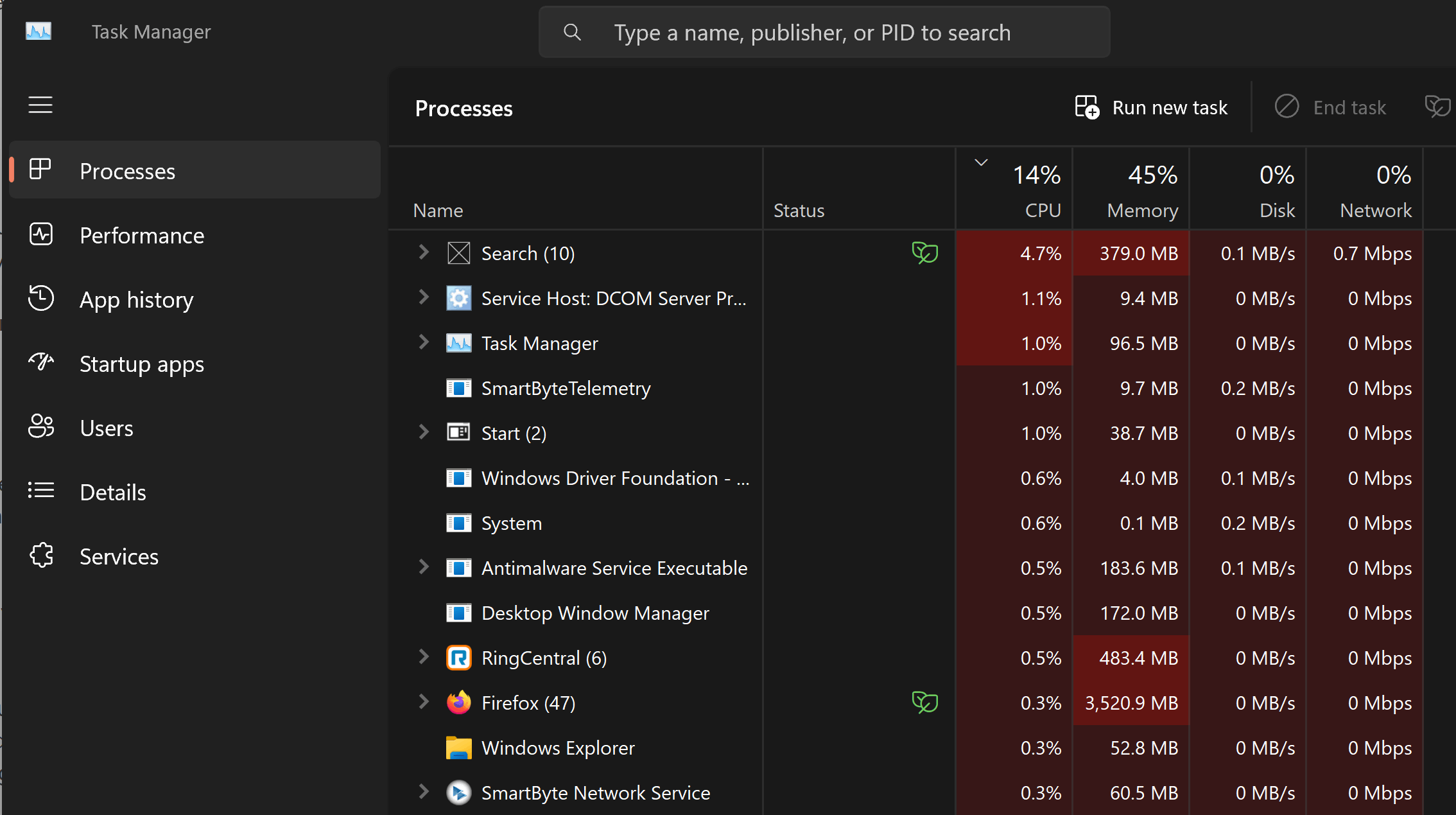
Most nights lately the system is barely usable. Mouse clicks take 20-30 seconds to register and often don't register at all. Typing a single letter can take 3-5 seconds to reflect on screen. Attempts to bring up task manager often don't work. I'll spend a solid 5 mins trying to get Task manager up either by right clicking on task bar or CTRL+SHIFT+ESC. Eventually it will come up and show nothing obvious. Ram low, CPU low, nothing taking up an abnormal amount of resources.

Upon rebooting, things seem zippy for a few mins, but always slows down to a crawl, bordering on unusable within 5-10 mins.

Recent Measures taken

I have run chkdisk

I have run sfc /scannow

I have run DISM /Online /Cleanup-Image /CheckHealth

I have run DISM /Online /Cleanup-Image /ScanHealth

Conclusion

Short of another reset, I am unsure what else to do.

I feel at this point it could be a hardware issue, however the laptop is out of warranty.

I am capable of replacing, soldering parts, but what would be suspect....bad RAM? Bad disk?

Other than that, I am at a loss as to what else I can do.

Here is a very typical screenshot of Task manager.
Windows for home | Windows 11 | Performance and system failures

Locked Question. This question was migrated from the Microsoft Support Community. You can vote on whether it's helpful, but you can't add comments or replies or follow the question.

0 comments No comments
Answer accepted by question author
  1. Sumit 43,621 Reputation points Volunteer Moderator
    2024-06-28T01:47:45+00:00

    The resource usage looks fine, to be fair.

    Try the PC in a clean boot state.

    Press the Windows key + R to open the Run dialog box.

    Type “msconfig” (without quotes) and press Enter.

    In the System Configuration window, select the Services tab.

    Check the box next to “Hide all Microsoft services”. Ensure you do it carefully, and not disable all Microsoft services.

    Click on “Disable all”.

    Select the Startup tab and click on “Open Task Manager”.

    In the Task Manager window, select each startup item and click on “Disable”.

    Close Task Manager and click on OK in the System Configuration window.
    Restart your computer.

    Hope that helps, and rely on us for any further inquiries. All the best.

    20+ people found this answer helpful.
    0 comments No comments

6 additional answers

Sort by: Most helpful
  1. Anonymous
    2024-11-13T22:32:18+00:00

    Let's be honest. Windows 11 just flat out is not performing well.

    It seems to have a memory leak somewhere or performance issue. When it starts to chug, even with minimal apps open, it takes SECONDS for an explorer window to open and fully render after pressing Win+E. (The shell of the window will open, then various elements "lazy load" in. The full render takes up to 3-4 seconds to be usable.) Forget moving windows, minimizing or switching apps, it crawls.

    I'm not a noob when it comes to building computers, optimizing windows configs, etc. I have done all of the standard/advanced tweaks. Disabled all effects, transparency, etc., etc., etc.

    This is not a user issue. Windows 11 simply does not perform well. I don't know specifically what it is, but folks at MS shouldn't be turning a blind eye to this.

    After upgrading from 10 to 11, I would expect Windows to perform better. It only does well for a little while after a fresh reboot. Then it crawls. Performance Tab seems in line with RAM & CPU usage as 10 did, but it simply crawls on the display. Using Outlook to update my Outlook calendar while on a Zoom call and attempting to load OneNote to take CRITICAL CLIENT NOTES was horrible earlier. ZOOM!! Ugh...

    I could go weeks without rebooting Windows 10. Using sleep mode only. And it flew in comparison with my "daily use". Opening a few apps on Windows 11, and I'm rebooting multiple times a day.

    To repeat. This did not happen in 10. Same computer. Same apps. Same services.

    70+ people found this answer helpful.
    0 comments No comments
  2. Anonymous
    2024-11-24T23:23:08+00:00

    I've only just discovered this now.

    Jumped on the pc, tried to open an app. Nothing. Tried again. This goes on a few times, then, some 90 SECONDS later, Windows spews out several instances of the app I was trying to open.

    Something is VERY wrong with Windows 11, and in 2024, this behavior is unacceptable.

    MS - stop trying to push your **** OneDrive or CoPilot or Edge or whatever else on us - AND FIX THE CORE OPERATING SYSTEM.

    40+ people found this answer helpful.
    0 comments No comments
  3. Anonymous
    2024-11-17T16:26:53+00:00

    I had similar issues recently with my Dell laptop (old model, Inspiron 5557). It was extremely laggy for playing even low demanding old games, watching YouTube videos and other stuff. I turned out that for me the issue was the battery! It was constantly switching from "fully charged" to "charging" and whenever the power adapter was connected, I had the lagging issue. I removed the battery to make sure that the power adapter wasn't the source of the problem, and bingo! No lag.

    Before physically removing the battery I tried to set the same configuration for the PC when connected to power and when running on battery, but no luck. The only solution was to completely remove the battery.

    2 people found this answer helpful.
    0 comments No comments
  4. Anonymous
    2024-09-20T20:28:53+00:00

    I was having similar performance issues with my Dell Laptop and Windows 11 for a long time. I reinstalled Windows 2x, to no avail. I recently discovered that the performance issues were being caused by a power supply that was not strong enough. The laptop will tell me that the power supply (from an older laptop) was slow charging, but I never assumed it would slow the machine down. Make sure you are using a power supply that is rated with enough wattage for your machine.

    2 people found this answer helpful.
    0 comments No comments
