Share via

How i can remove trusted installer?

Anonymous
2024-04-10T02:56:42+00:00

I'm having a problem with TrustedInstaller; it won't let me format an old hard drive, nor will it allow me to delete any folders from it, not even a games folder that I have. This issue arose after reinstalling Windows on a new SSD. I can't even install Python in the C:\Program Files folder, and CMD does not identify Python in the recommended folder located in AppData. I feel helpless; the situation is frustrating. For instance, I'm unable to access a random folder on the hard drive. Simply granting myself "full control" of C:\Program Files hasn't resolved the issue; it still won't let me install Python there. I want to regain full control of my PC as it was yesterday. I'm almost considering putting back my old SSD to resolve this.

I'm Brazilian, so the screenshots are in Portuguese, but I provided translations below as subtitles.
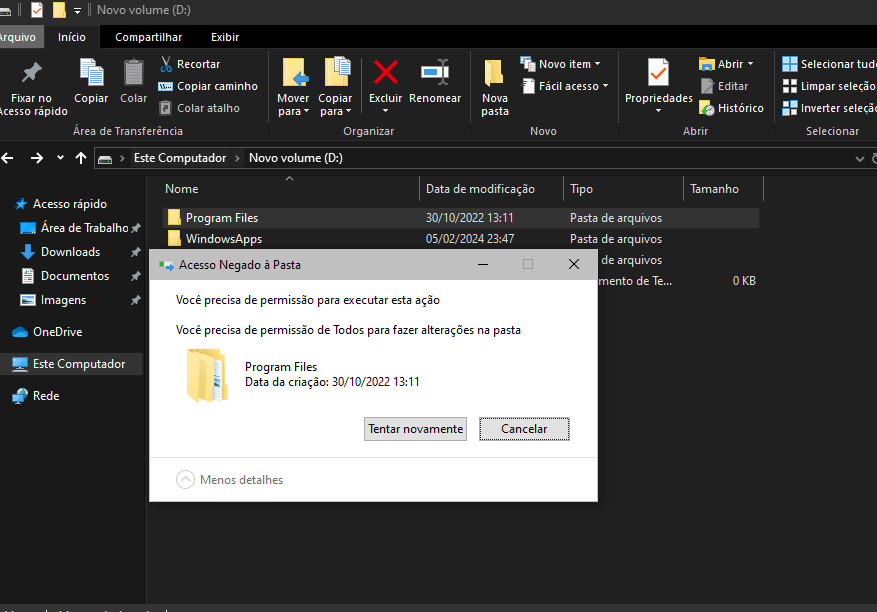
"You need permission to execute this action

You need permission from All to make changes on this folder"
Its saying from all because as i said so,i previously tried to follow the recommended methods to give myself access to the folder
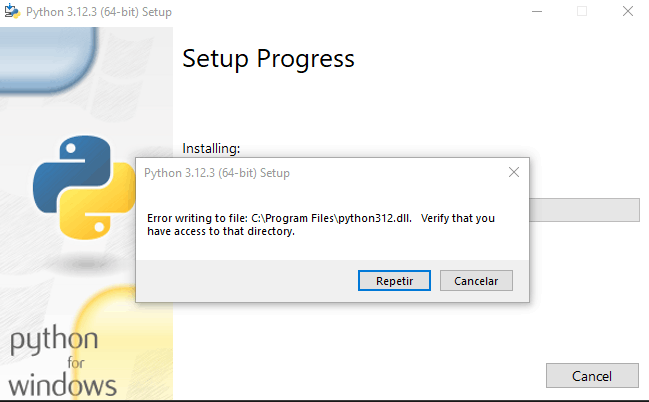
Windows for home | Windows 10 | Files, folders, and storage

Locked Question. This question was migrated from the Microsoft Support Community. You can vote on whether it's helpful, but you can't add comments or replies or follow the question.

0 comments No comments

10 answers

Sort by: Most helpful
  1. Anonymous
    2024-07-27T14:13:50+00:00

    the way to do what you originally asked is to take ownership of "C:\Windows\servicing\TrustedInstaller.exe" and deny everyone that is not your user profile all permissions for that file ( including SYSTEM and Trusted Installer & don't forget the advanced permissions )

    then you actually control your pc....

    be sure to give " SYSTEM " back the " Read & Execute " permission afterwards or you can't install anything from the store

    Was this answer helpful?

    1 person found this answer helpful.
    0 comments No comments
  2. Anonymous
    2024-04-10T15:12:27+00:00

    I already tried that, but a message appears stating that I'm not allowed to delete this volume.

    Was this answer helpful?

    0 comments No comments
  3. DaveM121 876.9K Reputation points Independent Advisor
    2024-04-10T14:02:45+00:00

    Thank you for that information,

    In Disk Management, right click the D drive partition and select 'Delete Volume'Then right click the resulting 'Unallocated Space' and select 'New - Simple Volume' and accept the defaults.

    That will format the drive.

    Was this answer helpful?

    0 comments No comments
  4. Anonymous
    2024-04-10T12:01:10+00:00

    Hi dave, thanks for replying, here is the print
    "
    Disk 0 New volume (D;)
    Integrate (System, Asset, Primary Partition)

    (C:)

    Integrate (Boot, Page File, Memory Dump, Primary Partition)"

    Was this answer helpful?

    0 comments No comments
  5. DaveM121 876.9K Reputation points Independent Advisor
    2024-04-10T06:02:19+00:00

    Hi, I am Dave, I will help you with this.

    Right click your Start Button and open Disk Management

    Expand the bottom pane in Disk Management so all drives are visible in that pane.

    Please provide a screenshot of that Disk Management window.

    Was this answer helpful?

    0 comments No comments
