Share via

My pc keeps lagging and performance sucks even tho equipment is great

Anonymous
2024-06-18T11:57:25+00:00

So my pc has gotten worse but it shouldn't because i brought pretty quality stuff to help boost the performance but its done NOTHING

I recently brought a ryzen 5 3600x, geforce rtx 3070 and a 950 watts power supply but nothing worked! I keep getting random ping spikes that go from 35 to like 400 constantly whenever i try to play games like CS2 and my screen jolts in and out and speeds me forward etc and its annoying even mon LOW SETTINGS

I asked a similar question to Microsoft community and he said its a problem with a old bug that uses all the disk space or something and i wanted to know others thoughts on my situation because im scared of buying more products to try solve the issue but ends up being a waste of money again, its really ruining my summer because i really want it too start working and record games but i cant when the performance is so horrible to begin with

the guy on Microsoft community said i need to change my HDD motherboard to a SSD but ive never done one before and dont know how to replace it because im kinda on a budget with money and paying for a IT tech guy to replace it for me would be too expensive

also ive been scared of what to upgrade due to what i said before on nothing changing but i wanted to know what i should upgrade anyway in whats the most priority to maybe improve performance:

  • 64GB Ram (i only have 16gb total atm)
  • 144hz monitor (my monitor currently does 70 hz)
  • Changing my HDD to a SSD

please this issue has gone on for a year and nothing has fixed it and its horrible because it makes some games unplayable so i beg for any help lol and any extra information you need about my pc i will provide

Windows for home | Windows 10 | Performance and system failures

Locked Question. This question was migrated from the Microsoft Support Community. You can vote on whether it's helpful, but you can't add comments or replies or follow the question.

0 comments No comments

5 answers

Sort by: Most helpful
  1. Anonymous
    2024-08-15T02:07:55+00:00

    Hi Samuel PETRYK,

    Thanks for the clarification.

    This is an example of a motherboard from the Asus website.

    Highlighted in red is the space reserved for M.2 SSDs. (There are two channels on the bottom for two M.2 SSDs, and the metallic cover is for components used to dissipate heat.)

    Locations not marked in red are studs and M.2 slots for mounting.

    Disclaimer: Microsoft provides no assurances and/or warranties, implied or otherwise, and is not responsible for the information you receive from the third-party linked sites or any support related to technology.

    Best Regards,

    Kyo.Y - MSFT | Microsoft Community Technical Support

    0 comments No comments
  2. Anonymous
    2024-08-14T22:34:11+00:00

    im sorry for the very late reply i didnt get a notification for this

    you where right ive decided to go for this one so it performs at the same level as the other one and not waste a Gen 4 one but this is still by the same company SK hynix Gold P31 2TB PCIe NVMe Gen3 M.2 2280 Internal SSD, Up to 3500MB/S, Compact, Form Factor SSD - Internal Solid State Drive with 128-Layer NAND Flash

    my question is where can i find a place on my motherboard to screw the SSD in? does every motherboard have a extra screw space because my motherboard isnt at the bottom and it kinda floats so im not sure how it would be connected or screwed in

    my other question is how does it boost my pc speed, does it also help my upload and download speed because it says 3500mb speed but when i searched up if a SSD makes download speed it was very mixed

    the main issue on why im scared to buy is i dont know about if my motherboard can screw it on and then i just wasted it on a ssd i cant use but also because it needs a sata cable and im not sure how many open wires i have to add one

    0 comments No comments
  3. Anonymous
    2024-06-23T03:01:14+00:00

    Hi Samuel PETRYK,

    Thank you for getting back to us.

    Current, SSDs (such as the SK Hynix Platinum P41 you mentioned) typically do not use additional cables.

    It makes direct contact with the motherboard in the form of contacts and uses screws and studs on the motherboard to secure its position.

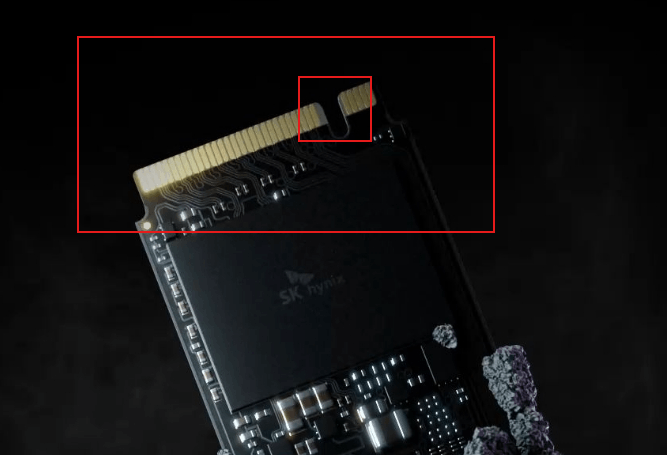
    • I'll use the official image of the product as an example, and the highlighted part of the image is the part of the SSD that connects directly to the motherboard. Please note that while the motherboard may have an M.2 connector, there are multiple implementations of the M.2 connector itself, and the different implementations are slightly different, with the main difference being the location of the "notch". You will need to visit the motherboard manufacturer's official website for detailed interface specifications and supported protocol types.
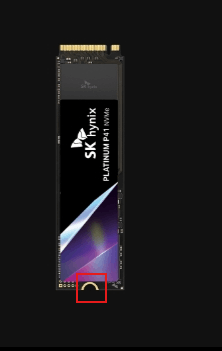
    • The side opposite to this contact is where the screws are placed and secured to the motherboard. (Red highlighted area)  
    Please note that before you buy any new component, it is important to visit the official website of the motherboard's manufacturer for details of its specifications.

    Some components can be downgraded for use, but some cannot.

    For example, a PCIe NVMe Gen4 based SSD will run on a motherboard that supports PCIe Gen3 at maximum, but will not be able to approach the nominal rate. (Because the rate is based on the PCIe Gen4 standard)

    Disclaimer: Microsoft provides no assurances and/or warranties, implied or otherwise, and is not responsible for the information you receive from the third-party linked sites or any support related to technology. 

    Thanks for your patience and understanding.

    Best Regards,

    Kyo.Y - MSFT | Microsoft Community Technical Support

    0 comments No comments
  4. Anonymous
    2024-06-22T16:00:42+00:00

    This did answer my question i appreciate it i will see how it goes but i just had a few questions about the HDD to SSD transfer because the ram is fine but ive never done this type of change before

    i dont want to spend loads on on getting a guy to put it in for me because ive hard people say its quite easy to do but i wanted to ask you if you know if i have the right cables and stuff to make this change #

    this is the one i want to buy because its much faster:

    SK Hynix Platinum P41 1TB PCIe NVMe Gen4 M.2 2280 Internal Gaming SSD, Up to 7000MB/S, Compact M.2 Form Factor - Internal Solid State Drive with 176-Layer NAND Flash

    so i checked around and it doesnt tell me which cables i need but the reason i got this is it has from what ive seen the best data migration tool but i dont know if my pc has the right connections so did i miss something from it?

    thanks for the help on how the performance works as well

    0 comments No comments
  5. Anonymous
    2024-06-19T10:48:23+00:00

    Hi Samuel PETRYK,

    Welcome to Microsoft Community.

    Based on the original description, the device seems to be experiencing issues related to the frame rate fluctuation.

    Your PC's performance can be affected by various factors. 

    A slow system can be caused by various factors:

    • Too Many Startup Programs: Many programs automatically run when you start your computer, which can slow down the startup time.
    • Too Many Background Programs: Programs running in the background can use up a significant amount of processing power.
    • Hard Drive is Almost Full: As the storage space on your hard drive fills up, it may cause your computer to operate at a slower pace.
    • Not Enough Memory (RAM): If your computer doesn't have enough RAM, it can slow down performance.
    • Processor is Overheating: If your processor is overheating, it can slow down your computer.
    • Fragmented Hard Drive: When files are written over to free up space on your hard drive, the newly saved files may become fragmented.
    • Hardware Failure: If one of your components is failing, it can slow down your computer.

    Slow game performance can be due to several reasons:

    • Low CPU Performance: Some games have high CPU performance requirements, which may cause overheating if the low-performance CPU has been overloaded for a long time.
    • Insufficient Heat Dissipation: Overheating can cause performance issues.
    • DirectX Version: Some games require a certain version of DirectX to run smoothly.
    • Inadequate RAM: Not having enough RAM can slow down game performance.

    FPS (Frames Per Second) jumps can be caused by several factors:

    • V-Sync: While V-Sync can smooth out frames, it forces your graphics card to match the refresh rate of your monitor, which can cause performance issues.
    • Shadow Quality: Higher shadow settings might look good, but they're also extremely demanding, especially in newer games.
    • Ambient Occlusion: This controls how objects create shadows on other objects. You can usually turn this setting off without much noticeable difference.
    • Ray Tracing: This feature continues to be one of the most performance-heavy that current video games offer.
    • Reflections: While they might be nice to look at, you're often losing a good few frames per second for those smoother reflections.

    In terms of hardware upgrade priorities, disk replacement takes the highest priority, followed by RAM or display.

    • Changing HDD to SSD should be the top priority. An SSD (Solid State Drive) is much faster than an HDD (Hard Disk Drive). It can significantly improve the speed of your PC, reduce game load times, and enhance the overall responsiveness of your system. This is because SSDs have faster read/write speeds compared to HDDs. In comparison to HDDs and similar electromechanical magnetic storage which have moving parts, SSDs are typically silent, resistant to physical shock, and (in large part due to lower latency) have higher input/output rates. Most of the advantages of solid-state drives over traditional hard drives are due to their ability to access data completely electronically instead of electromechanically, resulting in superior transfer speeds and mechanical ruggedness. SSDs are uniquely sensitive to sudden power interruption, resulting in aborted writes or even cases of the complete loss of the drive.
    • Upgrading your RAM to 64GB can be your second priority. More RAM allows your computer to handle more applications simultaneously and perform memory-intensive tasks more efficiently. This can be particularly beneficial if you're running resource-intensive games or doing heavy multitasking while gaming. For most games, 16GB should be sufficient.
    • Selecting 144Hz Monitor can be your third priority. A 144Hz monitor can provide smoother visuals and faster response times, which can enhance your gaming experience. However, this upgrade will only be beneficial if your graphics card can support this refresh rate.

    If I misunderstand your situation, feel free to correct me and share the information.

    Best Regards,

    Kyo.Y - MSFT | Microsoft Community Technical Support

    0 comments No comments
