' cx='32' cy='32' r='32' /%3E%3Ctext x='50%25' y='55%25' dominant-baseline='middle' text-anchor='middle' fill='%23FFF' %3ES%3C/text%3E%3C/svg%3E)

' cx='32' cy='32' r='32' /%3E%3Ctext x='50%25' y='55%25' dominant-baseline='middle' text-anchor='middle' fill='%23FFF' %3EA%3C/text%3E%3C/svg%3E)

It is Application.Current.Resources in winUI (or StaticResource in XAML) and VisualStateManager must be inside a Page or it does not work :
Test by changing the Style of a Button to AccentButtonStyle on mouse click (with MS InputTypeTrigger.cs for the click) =>
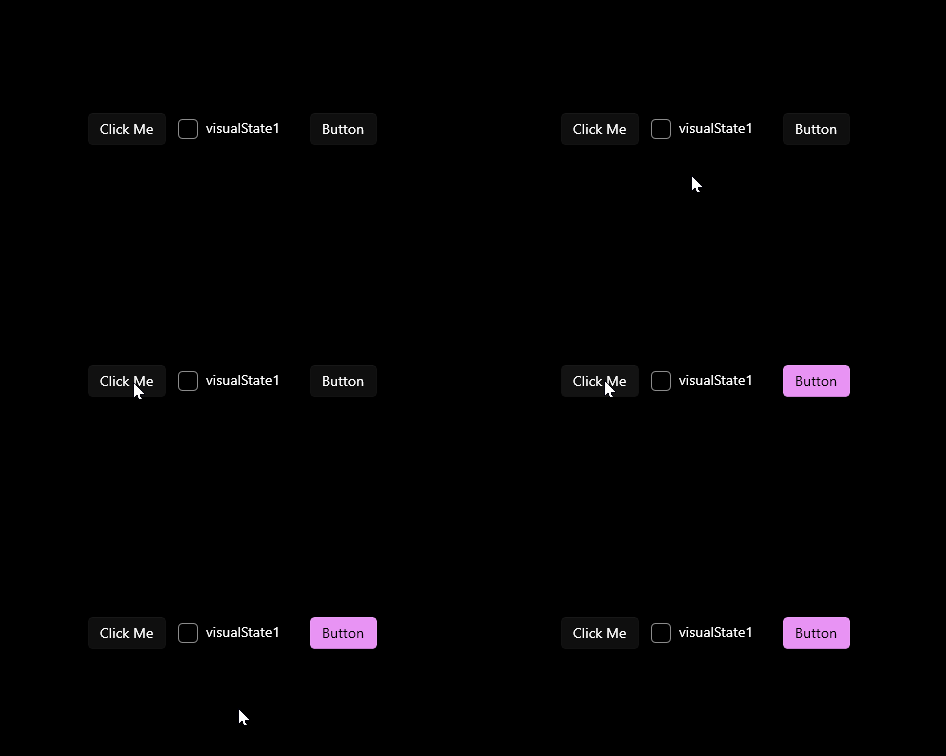
Test code (remove _ at Target_PropertyPath (editor bug) :
        var vsg = new VisualStateGroup();
        var vs = new VisualState();
        vs.StateTriggers.Add(new CustomTriggers.InputTypeTrigger { TargetElement = myButton, PointerType = Microsoft.UI.Input.PointerDeviceType.Mouse });
        vs.Setters.Add(new Setter { Target = new Target_PropertyPath { Path = new PropertyPath("(Button.Style)"), Target = button2 }, Value = Application.Current.Resources["AccentButtonStyle"] });
    vsg.States.Add(vs);
        VisualStateManager.GetVisualStateGroups(grid1).Add(vsg);
XAML (change "CSharp_WinUI" ) :
<Window
    x:Class="CSharp_WinUI.MainWindow"
    xmlns="http://schemas.microsoft.com/winfx/2006/xaml/presentation"
    xmlns:x="http://schemas.microsoft.com/winfx/2006/xaml"
    xmlns:local="using:CSharp_WinUI"
    xmlns:d="http://schemas.microsoft.com/expression/blend/2008"
    xmlns:mc="http://schemas.openxmlformats.org/markup-compatibility/2006"
    xmlns:muxc="using:Microsoft.UI.Xaml.Controls"
    xmlns:triggers="using:CSharp_WinUI.CustomTriggers"
    mc:Ignorable="d">
    <Page x:Name="page1">
        <Grid x:Name="grid1" >
            <StackPanel HorizontalAlignment="Center" VerticalAlignment="Center" Orientation="Horizontal"  Spacing="12">
                <Button x:Name="myButton"
                    Click="myButton_Click"
                    Content="Click Me" >
                </Button>
                <CheckBox x:Name="checkBoxState1"  Content="visualState1" />
                <Button  x:Name="button2"  Content="Button" />
            </StackPanel>
        </Grid>
    </Page>
</Window>