Microsoft Security | Intune | Other
Other Intune-related topics, including unsupported scenarios and platform-specific behaviors

This browser is no longer supported.
Upgrade to Microsoft Edge to take advantage of the latest features, security updates, and technical support.
' cx='32' cy='32' r='32' /%3E%3Ctext x='50%25' y='55%25' dominant-baseline='middle' text-anchor='middle' fill='%23FFF' %3EJ%3C/text%3E%3C/svg%3E)
Hello Community,
i would like to Troubleshoot my deployments when using Scripts. But the Log Folder is not being displayed under Microsoft Intune Management Extension in the Program Files. The Notifier shows me when software is being successfully deployed or not. Auto Enroll is enabled and the Clients are AzureADJoined. Do I miss something out, why are the Logs are not being displayed? I read many guides where you can Troubleshoot a lot using the Logs which are displayed on the Clients.
Thanks a lot
Other Intune-related topics, including unsupported scenarios and platform-specific behaviors
Answer accepted by question author

The logs for the IME aren't under program files, they are at C:\ProgramData\Microsoft\IntuneManagementExtension\Logs.
' cx='32' cy='32' r='32' /%3E%3Ctext x='50%25' y='55%25' dominant-baseline='middle' text-anchor='middle' fill='%23FFF' %3ECM%3C/text%3E%3C/svg%3E)
Based as I know, once the Intune management extension prerequisites are met, the Intune management extension is installed automatically when a PowerShell script or Win32 app is assigned to the user or device.
The Microsoft Intune Management Extension is a service that runs on the device, just like any other service listed in the Services app (services.msc). Intune management extension logs on the client machine are typically in \ProgramData\Microsoft\IntuneManagementExtension\Logs,The following picture list the logs under it. We can check them to troubleshoot:
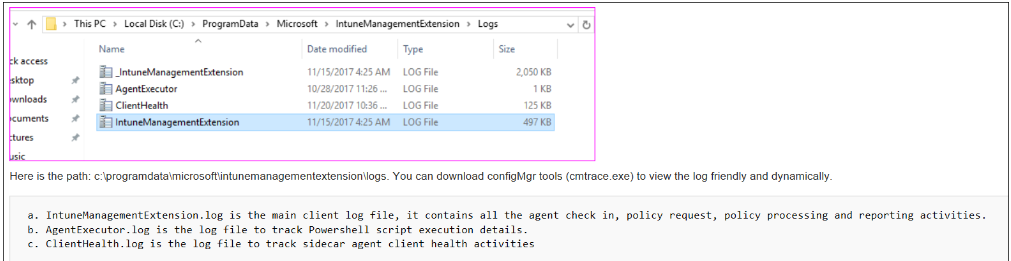
Meanwhile, the following link list some common issues and resolution for script deploying issue. We can read it for the reference:
https://learn.microsoft.com/en-us/mem/intune/apps/intune-management-extension#common-issues-and-resolutions
Hope it can help.
If the response is helpful, please click "Accept Answer" and upvote it.