Share via

How do I bypass, the installation[of this device] is forbidden by system policy?

Anonymous
2024-09-26T06:17:01+00:00

I would love to be connected with an expert like the others.

On Windows 10 said it was unable to find the drivers for my Dell Latitudes 7300s network adapter.

Using a tp-link usb WiFi adapter, I went on the website and downloaded the critical WiFi driver "Intel-AX200-AX201-9260-9560-Wi-Fi-UWD-Driver_G22MW_WIN-23.60.1.2_A16"

After pressing "install" inside the Dell Update Package I got the error, "The installation is forbidden by system policy. Contact your system administrator"

This error is disabling me from installing the drivers necessary to connect to the internet.

I tried everything here, here, here, and here with no success.

I even tried upgrading to Windows 11. Now I'm using Windows 11 and the problem persists. Additionally, when I plug in the tp-link WiFi adapter I get, "The installation of this device is forbidden by system policy. Contact your system administrator." So now I have zero way of accessing the internet in Windows.

As an alternative to Windows I have installed Ubuntu and both the built-in network card and tp-link usb are able to connect to the internet.

I would like to return to using Windows, please help me solve this issue

Windows for home | Windows 11 | Devices and drivers

Locked Question. This question was migrated from the Microsoft Support Community. You can vote on whether it's helpful, but you can't add comments or replies or follow the question.

0 comments No comments

11 answers

Sort by: Most helpful
  1. Sumit D - IA 168.4K Reputation points Independent Advisor
    2024-09-28T06:29:49+00:00

    Could you see if this solution helps?

    https://answers.microsoft.com/en-us/windows/for...

    After much searching I found this solution that worked

    start > run regedit

    Browse the registry to HKLM\Software\Policies\Microsoft\Windows\Installer

    Create: DisableMSI Type: REG_DWORD value = 0 (0 should allow you to install it was originally 1)

    (In my case the value had been set to 2 so I changed it to 0)

    I hope this helps someone too..

    Was this answer helpful?

    1 person found this answer helpful.
    0 comments No comments
  2. Anonymous
    2024-09-27T05:54:54+00:00

    All of these were either deleted successfully or did not exist to begin with:

    reg delete "HKCU\Software\Microsoft\Windows\CurrentVersion\Policies" /f

    reg delete "HKCU\Software\Microsoft\WindowsSelfHost" /f

    reg delete "HKCU\Software\Policies" /f

    reg delete "HKLM\Software\Microsoft\Policies" /f

    reg delete "HKLM\Software\Microsoft\Windows\CurrentVersion\Policies" /f

    reg delete "HKLM\Software\Microsoft\Windows\CurrentVersion\WindowsStore\WindowsUpdate" /f

    reg delete "HKLM\Software\Microsoft\WindowsSelfHost" /f

    reg delete "HKLM\Software\Policies" /f

    reg delete "HKLM\Software\WOW6432Node\Microsoft\Policies" /f

    reg delete "HKLM\Software\WOW6432Node\Microsoft\Windows\CurrentVersion\Policies" /f

    reg delete "HKLM\Software\WOW6432Node\Microsoft\Windows\CurrentVersion\WindowsStore\WindowsUpdate" /f

    The following two had errors: (I did open an administrator terminal)

    reg delete "HKLM\Software\Microsoft\Windows\CurrentVersion\Policies" /f - ERROR: Access is denied.

    reg delete "HKLM\Software\Policies" /f - ERROR: Delete request is partially completed.

    All installation issues still persist.

    How would I delete these?

    There is only one created user in my Windows, which I am using.

    Was this answer helpful?

    1 person found this answer helpful.
    0 comments No comments
  3. Sumit D - IA 168.4K Reputation points Independent Advisor
    2024-09-27T02:13:20+00:00

    No Problems. The steps below help remove System Policies on the machine.

    In the Windows search,

    type cmd, right-click it, and choose run as administrator.

    Execute the commands below:

    reg delete "HKCU\Software\Microsoft\Windows\CurrentVersion\Policies" /f

    reg delete "HKCU\Software\Microsoft\WindowsSelfHost" /f

    reg delete "HKCU\Software\Policies" /f

    reg delete "HKLM\Software\Microsoft\Policies" /f

    reg delete "HKLM\Software\Microsoft\Windows\CurrentVersion\Policies" /f

    reg delete "HKLM\Software\Microsoft\Windows\CurrentVersion\WindowsStore\WindowsUpdate" /f

    reg delete "HKLM\Software\Microsoft\WindowsSelfHost" /f

    reg delete "HKLM\Software\Policies" /f

    reg delete "HKLM\Software\WOW6432Node\Microsoft\Policies" /f

    reg delete "HKLM\Software\WOW6432Node\Microsoft\Windows\CurrentVersion\Policies" /f

    reg delete "HKLM\Software\WOW6432Node\Microsoft\Windows\CurrentVersion\WindowsStore\WindowsUpdate" /f

    Hope that helps, and rely on us for any further inquiries. All the best.

    Was this answer helpful?

    1 person found this answer helpful.
    0 comments No comments
  4. Anonymous
    2024-09-26T17:53:58+00:00

    I am unable to use WiFi tethering, it gives the same error message, "The installation of this device is forbidden by system policy"

    Using CMD I ran `pnputil -i -a atheros_bth.inf' which returned' "Failed to install the driver : Access is denied"

    So the problem persists with cmd installs too.

    I also tried to install manually using the devices manager. Using, "have disk" I selected all the .inf files in the x64/network subdirectory of my downloaded drivers. Every time device manager tries to install my selected .inf it returns this error, "The folder you specified(I specified a .inf file not a folder) doesn't contain a compatible software driver for your device. If the folder contains a driver, make sure it is designed to work with Windows for x64-based systems."

    I also cannot use thumb-drives either, as they are also a forbidden device my a system policy.

    This laptop is a personal computer, however, it bought used and maybe it was a work computer before purchased I it?

    It seems like I need to remove this system policy to install any drivers...

    Was this answer helpful?

    0 comments No comments
  5. Sumit D - IA 168.4K Reputation points Independent Advisor
    2024-09-26T07:02:01+00:00

    Hi Blake,

    I'm Sumit, here to answer your query at the Microsoft Community.

    Apologies for any inconvenience you are experiencing. We are happy to help you.

    Is there a Work account on the computer? It appears that the work account might have forbidden installing the same.

    Here is an alternative.

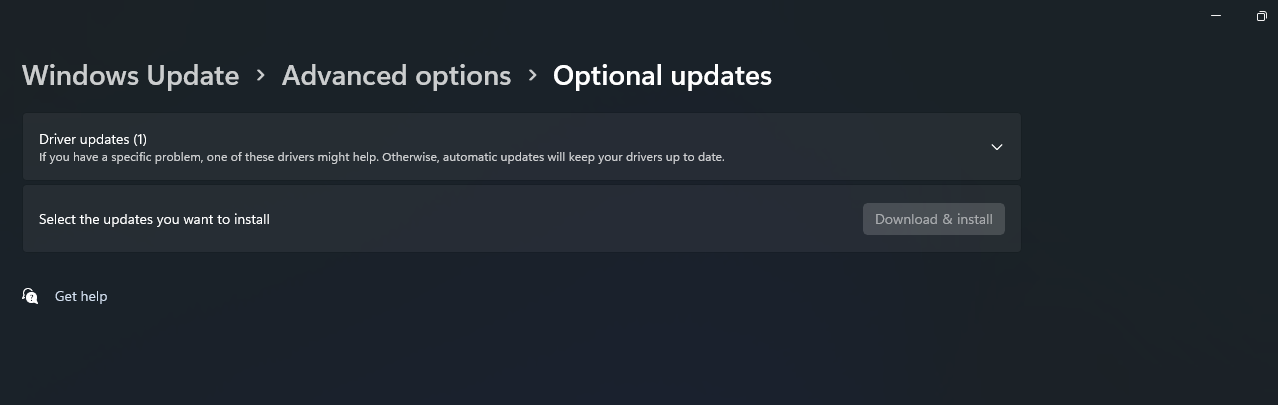
    Connect your Phone and device and use the USB Tethering option and run Windows update. In the Settings > Windows update > Additional Options > Optional updates.

    See, there is a driver update for WiFi.

    The second option is to extract the driver package and install manually.

    When you open the package, click Extract.

    Then, install the drivers using this method.

    Open Device Manager by pressing Win + X and selecting Device Manager.

    Expand the Network adapters section.

    Right-click on the Wi-Fi adapter and select Update driver.

    Click on Browse my computer for drivers.

    Choose Let me pick from a list of available drivers on my computer.

    Click the Have Disk button.

    In the dialog box, click Browse, navigate to the folder containing the driver files, and select the .inf file. It is the folder where you extracted.

    Click OK and then Next to install the driver.

    Restart the system if prompted.

    I am eagerly awaiting your response and am committed to working with you until we reach a resolution.
    Was this answer helpful?

    0 comments No comments
