Share via

Fingerprint recognition (Windows Hello) suddenly not working, can someone please help?

Anonymous
2024-09-25T02:39:44+00:00

Hello, all of a sudden my fingerpring recognition is not working over the last few weeks, when I go to accounts, sign in options it says that the option is currently unavailable and that we couldn't find a fingerprint scanner compatible with windows hello fingerprint. My device and all drivers are up to date, I have tried restarting as well as uninstalling and reinstalling drivers, can someone please help

Windows for home | Windows 11 | Devices and drivers

Locked Question. This question was migrated from the Microsoft Support Community. You can vote on whether it's helpful, but you can't add comments or replies or follow the question.

0 comments No comments

11 answers

Sort by: Most helpful
  1. Anonymous
    2024-11-20T15:20:00+00:00

    @Andrew Fischer2

    I had the same problem and I too fixed it by changing the registry, except in my case the biometrics folder was in a different location: Computer\HKEY_LOCAL_MACHINE\SOFTWARE\Microsoft\CspSchema\passportforwork\device\biometrics

    See this post on this: https://blog.smps.us/2024/11/fingerprint-login-stopped-working-fix.html

    Was this answer helpful?

    1 person found this answer helpful.
    0 comments No comments
  2. Anonymous
    2024-10-03T17:07:45+00:00

    I was having an issue with my fingerprint scanner as well recently and found a fix for my issue today.

    My method for getting Windows Hello working was to open the Registry Editor and navigate to

    HKEY_LOCAL_MACHINE\SOFTWARE\Policies\Microsoft\Biometrics
    

    I changed the "Enabled" key there from "0" to "1"

    Hope this helps.

    I suspect the issue is related to C:\Windows\System32\WinBioDataModelOOBE.exe and C:\Windows\System32\WinBioDataModel.dll they both have digital signatures that expired on September 28, 2024.

    Was this answer helpful?

    1 person found this answer helpful.
    0 comments No comments
  3. Gunasekar N 68,415 Reputation points Independent Advisor
    2024-09-26T03:22:46+00:00

    Andrew, thank you for providing all the screenshots.

    It appears that you've installed the correct drivers but are still encountering issues with the fingerprint scanner.

    Have you tried running any Hardware diagnostics tests on your device using the Lenovo Vantage app to see if there are any issues with the Fingerprint hardware?

    Method 1.

    1. Try running the Windows Hardware and Devices Troubleshooter.

    a. Click Windows + R key, type the command below and click enter to run the troubleshooter.

    msdt.exe -id DeviceDiagnostic

    b. once completed, restart your computer.

    Method 2.
    2. If the issue persists, Uninstall the Fingerprint Driver from the Device Manager and install one from your PC manufacturer's website.

    https://pcsupport.lenovo.com/us/en/products/lap...

    Image

    Method 3.

    1. If you are still experiencing issues with the Fingerprint Driver, try modifying the Registry.
    2. Find out the GUID Class ID **** of your fingerprint driver - To do that, right-click your Biometric driver, select Properties, Click Details > In property, expand the arrow and select Class GUID. It will display a value.
    3. Then, open the Registry Editor and expand the following folder -

    HKEY_LOCAL_MACHINE\SYSTEM\CurrentControlSet\Control\Class

    Under the class folder, find the value (Folder) that is displayed on your fingerprint driver.

    1. If you find the right folder, select it, in the eright-pane, if you find UpperFilters or LowerFilters registry key, delete it and close the editor. Then, restart your computer.
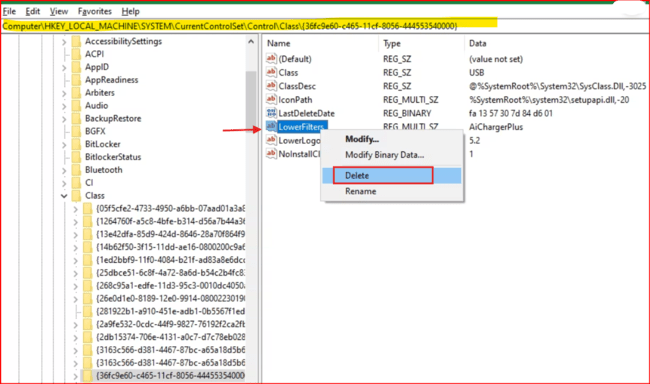
    1. Test your FingerPrint drivers.

    I hope this information helps. If you have any questions, please let me know and I’ll be glad to assist you further.

    Best regards,

    Gunasekar N

    Was this answer helpful?

    1 person found this answer helpful.
    0 comments No comments
  4. Anonymous
    2024-09-26T01:25:22+00:00

    Was this answer helpful?

    0 comments No comments
  5. Gunasekar N 68,415 Reputation points Independent Advisor
    2024-09-25T03:28:13+00:00

    Hello Andrew,

    Thank you for reaching out to the Microsoft Community and I'll be glad to assist you today.

    To better assist you, we would like to know the following information:

    1. Open the Device Manager and expand the arrow next to Biometrics. Do you get any warning symbol on the fingerprint driver? - Post us with the screenshot of the drivers listed.
    2. Click Windows + R key, type msinfo32 and click enter. Post the screenshot of the System information dialog box.
    3. Check the event viewer for any error messages -

    Event Viewer (Local) / Application and Services / Microsoft / Windows / Biometrics / Operational.

    (Post us with the screenshot of the error message displayed in the event viewer).

    I hope this information helps. If you have any questions, please let me know and I will be happy to help you further.

    Best regards,

    Gunasekar N

    Was this answer helpful?

    0 comments No comments

