Share via

Language issue in Windows

Anonymous
2024-12-07T04:31:51+00:00

After I reinstalled a new, clean version of Windows, its default language was English, but I wanted to change it to Vietnamese, so I reactivated the Windows license, then I installed the language as usual, but until I noticed that Windows didn't really display all the languages, even though I overwrote it in some app that I forgot the name of, it still didn't display all of them, I won't talk about other apps, but some of the default apps don't even have Vietnamese...

I tried to reinstall the Language packs, trying to reboot, reset the language, bla bla bla but non of them work. What should I do now?

Windows for home | Windows 11 | Input and language

Locked Question. This question was migrated from the Microsoft Support Community. You can vote on whether it's helpful, but you can't add comments or replies or follow the question.

0 comments No comments

8 answers

Sort by: Most helpful
  1. Anonymous
    2024-12-09T14:00:31+00:00

    One thing I've noticed is that the registry shows both 00000809 and 0000042a, which may be the cause of the language confusion.

    You are the actual environment where Vietnamese is 042a, my previous reply to 0041 was the environment I was testing in.

    But instead of deleting the first Default, let's change the value to the same value as the second Default, and then change the value to the same value (0000042a) when you change the other “Locale”.

    (If you can not modify, prompted by the key value of the same error message, etc., we then choose to delete the first Default (00000809))

    Please note: Before modifying the registry backup, to avoid other situations we can quickly recover.

    I suspect that of the two defaults, the first one has a higher priority, causing some English to be displayed even though we have set the system language.

    0 comments No comments
  2. Anonymous
    2024-12-09T13:35:25+00:00

    Uhm.... what should I pick?

    0 comments No comments
  3. Anonymous
    2024-12-09T13:25:52+00:00

    Thank you for your response.

    I understand the pain, I have had this problem too. Since my computer is not English as the main language, sometimes it is possible that after switching the language it will still show English.

    I really understand your predicament very well. It's really very frustrating to encounter this kind of language display problem, especially when the system and default applications are not displaying Vietnamese correctly. I can feel that you have tried your best to solve the problem but still no success. This feeling of helplessness really brings down the mood.

    Please be assured that you are not alone, many people have had similar problems and you have come very far and tried many methods, which in itself is a big step forward. I will do my best to help you along with this problem, so let's do it together!

    Here are some of my new suggestions:

    Option 1: We try to modify the registry.

    “WIN + R” open ‘Run’ -> type ‘regedit’ and open it.

    1. Force modification of regional settings.

    The path is: HKEY_LOCAL_MACHINE\SYSTEM\CurrentControlSet\Control\Nls\Locale

    Find the key named “Default” and change the value to “0041”.

    1. Force the language setting to be changed.

    Path is: HKEY_CURRENT_USER\Control Panel\International

    Find “Locale” and change the value to “0000041”.

    Find “LocaleName” and change the value to “vi-VN”.

    Reboot your computer after the change is completed to see if the problem still exists.

    Disclaimer: Generally, modifying registry subkeys or work group is intended for advanced users, administrators, and IT Professionals. It can help fix some problems, however, serious problems might occur if you modify the registry incorrectly. Therefore, make sure that you follow these steps carefully. For further protection, back up the registry before you modify it. Then, you can restore the registry if a problem occurs. For more information about how to back up and restore the registry, click How to back up and restore the registry in Windows - Microsoft Support to view the article.

    Option 2: Reinstall Windows and keep Windows.old.

    1. Open Settings -> System -> Recovery.
    2. Under Reset this computer, click Start.
    3. Select Keep My Files.
    4. Select Cloud Download or Local Reinstall.
    5. Follow the on-screen prompts to complete the reinstallation, ensuring that Vietnamese is selected as the system language.
    6. After the reinstallation is complete, you can access the C:\Windows.old recovery file.

    Please note: I personally recommend still backing up important data before making major changes to avoid data loss!

    Please note: After the installation is complete, we also need to check the following steps.

    Open the search bar by clicking the “WIN key” -> type “Control Panel” and open it -> under “Large icons” select “Region”.

    In the dialog box that opens, in the upper tab select “Administrative” -> “Copy settings”.

    At this point we can check the display language, input language, format and location, we then synchronize the checkboxes “Welcome screen and system accounts”, “New user account”.

    There is also the case that if you change the language at a later stage, some parts may not be displayed correctly. I tested this on my own ASUS laptop and found that the current language packs, called FOD packs, are not the same as the previous system language packs.

    Assuming that we see a mix of English and Vietnamese in the Settings screen, I recommend that you right-click on the Settings icon in the Start menu, go to the Settings page and reset the Settings program, and after the reset is complete, the interface should display in your target language. (This method is easier than PowerShell, clearing cache, etc.)

    In addition to this, I will also provide you with a way to contact phone support versus online support, as we are only able to communicate via email, and assuming the issue still exists, I would recommend that you can have them help you take a look at it. Phone and online support have access to remote assistance, which I do not have, and it may be easier to find the problem by checking into the actual environment.

    Please contact Contact Us - Microsoft Support.

    (1) Click on the link to visit the website and sign in to your account

    (2) Enter the problem you are experiencing in the search field.

    Below are some example images:
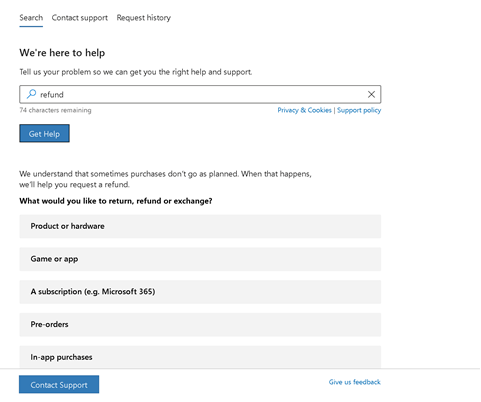
    (3) Click on “Get Help”.

    (4) Click on “Contact Support”.
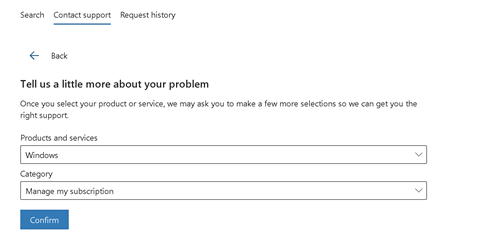
    (5) You can check for help, or seek online and telephone support.

    I spent about 6 hours with my own Asus laptop repeatedly modifying the language, including PowerShell, clearing the cache, reinstalling the system (I had cold and hot backups so it wasn't a big problem), modifying permissions, and so on. (No offense to you as I personally can't read Vietnamese. So I repeatedly test before my native language and English)

    Figured out how the above might help you with some caveats.

    It's a shame I can't check this out for you in real life, otherwise this problem could certainly be solved more easily.

    I sincerely hope that the above information will help you!

    0 comments No comments
  4. Anonymous
    2024-12-08T09:54:58+00:00

    It's kinda ouch for me... like i tried EVERY SINGLE one, even after reinstalled the Windows, or before the reinstall, the system didn't change...

    Another option like regedit one? or just forcing to reinstall another Windows (to add a Windows.old (1)? lmao)

    0 comments No comments
  5. Anonymous
    2024-12-08T09:34:38+00:00

    Hi FoxyFox06

    Welcome to Microsoft Community.

    Based on your description, I understand that you clean installed Windows once, but I understand very well how you feel when you realize that Windows and the default apps don't even show Vietnamese, or just part of it!

    It's really annoying & uncomfortable to have two languages mixed up and displayed together, I've had that problem too.

    Don't worry friend, I'll do my best to help you. (I love your avatar, it's so cute!)

    I will give you some options and hopefully solve your problem successfully! However, the first reply may not be able to solve your problem successfully due to the different aspects of troubleshooting required for this issue, so please understand and provide more information (pictures would be great!) in your reply. Thank you very much!

    I see that you've already tried reinstalling language packs, resetting languages, etc., but for the sake of program completeness and synergy, I'll probably include some of the programs you've already used.

    Option 1: Check regional and language settings.

    “WIN + i” to open Settings -> ‘Time and Language’ -> Language and Region

    Make sure “Vietnamese” is set as “Windows Display Language”.

    And make sure the region is also selected as “Vietnam”.

    Option 2: Sometimes, Windows 11 may not update the regional settings automatically and you can change them manually.

    Click “WIN key” to open the search bar -> type “Control Panel” and open it -> under “Category” select “Clock and Region” -> “Region”.

    In the “Administration” tab, click “Change System Regional Settings” and select “Vietnamese (Vietnam)” as the system language.

    Option 3: Make sure your input method and keyboard layout are set to Vietnamese.

    Open Settings -> Time and Language -> Language and Region.

    In the Preferred languages section, click Vietnamese and select Options.

    Ensure that Vietnamese input method is installed and set as the default input method.

    Option 4: Sometimes I suspect that the problem may be caused by a corrupt or missing user account profile that is currently in use.

    Let's try creating a new local administrator account from the command line and logging in to see if the problem persists. (It is possible to create it in other ways as well)

    Click “Windows Logo Key” to open the search bar -> Type “cmd” in the search bar and open it with administrator privileges -> Please enter the following command

    net user USERNAME PASSWORD /add
    
    net localgroup administrators USERNAME /add
    

    Please note: USERNAME PASSWORD can be replaced with your preferred account name and password, if you don't need a password you can leave out the PASSWORD.

    Option 5: Sometimes some updates or fixes may be missing after a clean install, so we try to check for updates.

    Open Settings with “WIN + i” -> select “Windows Update” on the left sidebar -> “Check Updates”.

    If there are updates available, we try to update the system.

    Option 6: If setting Vietnamese in the interface still doesn't work, we try to force a reinstallation of the language pack and force a reset of the language settings via the command line.

    Click “Windows Logo Key” to open the search bar -> Type “Windows PowerShell” in the search bar and open it with administrator privileges.

    1. Reinstall the Vietnamese language pack from the command line. dism /online /add-package /packagepath:"C:\Windows\servicing\Packages\Microsoft-Windows-Client-Language-Pack_x64_vi-vn~31bf3856ad364e35~amd64~.cab"

    This command will reinstall the Vietnamese language pack. vi-vn in the path is the Vietnamese language code. You can adjust the path as needed.

    1. Reset the display language of Windows from the command line Set-WinUILanguageOverride -Language vi-VN Set-WinUserLanguageList vi-VN –Force

    This will force the system to set Vietnamese as the display language. After executing these commands, restart your computer to see the results.

    Option 7: Please try to clean boot your computer.

    Since clean boot uses only a limited set of files and drivers, it can help us to effectively troubleshoot the possibility of problems caused by third-party applications, driver conflicts, etc.

    You can refer to Clean Boot for more information: How to perform a clean boot in Windows - Microsoft Support

    After clean boot, please slide down the webpage after opening the link and find “How to determine what is causing the problem after you do a clean boot” This is a dichotomy that can help us pinpoint the service that is causing the problem and disable it!

    Disclaimer: A “clean boot” starts Windows with a minimal set of drivers and startup programs. It helps to determine whether a background service is interfering with your game or program and to isolate the cause of a problem. These steps of "clean boot" might look complicated at first glance. However, to avoid any trouble for you, please follow them in order and step-by step so that it will help you get back on track.

    I sincerely hope that the above solution will solve your problem. Please feel free to contact me if you have any problems or still can't solve them. (Photos related to the question would be great!).

    I look forward to hearing back from you.

    Best Regards

    Arthur Sheng | Microsoft Community Support Specialist

    0 comments No comments