Share via

CMD file pops up in a split second then closes

Anonymous
2025-01-09T03:17:55+00:00

Hi everyone. Can someone help me with this issue? Every time I start my laptop, a CMD file appears in a split second then closes. I think this is because of AutoCAD and its manager that I've recently installed and Viber (I installed this app last September 2024, but I'm confused; it pops up together with the AutoCAD manager when in fact when I installed it months ago, there was no issue. I already disabled the startup, but still it pops up). How can I fix this problem?

Windows for home | Windows 11 | Performance and system failures

Locked Question. This question was migrated from the Microsoft Support Community. You can vote on whether it's helpful, but you can't add comments or replies or follow the question.

0 comments No comments

Answer accepted by question author

  1. Ramesh Srinivasan 79,880 Reputation points Independent Advisor
    2025-01-09T11:09:38+00:00

    You're most welcome. The Farbar scanner lists your drivers, services, scheduled tasks (where malware lurks), and other configuration information. Read more about the tool in this link: https://www.bleepingcomputer.com/forums/t/78197...

    Yes, the Farbar tool can be deleted now.

    Standard Disclaimer: There is a link to a non-Microsoft website. The page appears to provide accurate, safe information. Watch out for ads on the site that may advertise products frequently classified as PUPs (Potentially Unwanted Products). Thoroughly research any product advertised on the site before you decide to download and install it.

    1 person found this answer helpful.
    0 comments No comments

Answer accepted by question author

  1. Ramesh Srinivasan 79,880 Reputation points Independent Advisor
    2025-01-09T05:02:57+00:00

    The first two items can be disabled by opening Task Scheduler.

    The tasks will be located under "Task SCheduler Library" → Care Center folder.

    8th item in the list might be a crypto-malware.

    Please run the Farbar Scanner and share your logs to inspect the Defender-related services and check for malware.

    1. Download Farbar Recovery Scan Tool 64-bit (FRST64.exe)

    https://www.bleepingcomputer.com/download/farba...

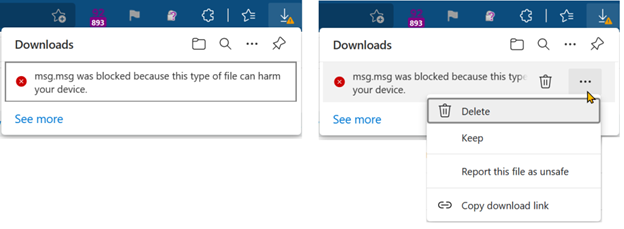
    Note: If Microsoft Edge or Chrome mislabels the Farbar Scanner executable as PUA/malware, choose to keep it by tapping … in the bottom bar, choosing Keep, and then choosing Keep anyway in the dialog that appears. See this screenshot: https://learn.microsoft.com/en-us/deployedge/me...

    1. If the OS language is non-English, rename FRST64.exe to FRST64English.exe.
    2. Run the program. Don't check or uncheck any options. Click "Scan".
    3. Zip the two logs, FRST.txt and Addition.txt, upload them to your OneDrive and share the link here.

    How-To: Share OneDrive files and folders - Microsoft Support

    https://support.microsoft.com/en-us/office/shar...

    OneDrive sharing options - screenshot

    https://imgur.com/a/vZyxpY9

    Standard Disclaimer: There is a link to a non-Microsoft website. The page appears to provide accurate, safe information. Watch out for ads on the site that may advertise products frequently classified as PUPs (Potentially Unwanted Products). Thoroughly research any product advertised on the site before you decide to download and install it.

    1 person found this answer helpful.
    0 comments No comments

9 additional answers

Sort by: Most helpful
  1. Anonymous
    2025-01-09T04:58:39+00:00

    I run the PowerShell as an administrator after the CMD appears and closes. And looks like this:

    Image

    And I assumed this two is responsible for the pop-up. What should I do next?

    Image

    0 comments No comments
  2. Ramesh Srinivasan 79,880 Reputation points Independent Advisor
    2025-01-09T03:50:10+00:00

    Hi Gary, This is Ramesh.

    The Command Prompt window may result from a scheduled task running at login.

    When the command window pops up and closes, please open PowerShell admin and run this command:

    Get-ScheduledTask | Get-ScheduledTaskInfo | select TaskName, TaskPath, LastRunTime | sort LastrunTime -descending | ogv
    

    This shows the list of scheduled tasks, reverse sorted by the last run time.

    Note the tasks that ran most recently. Match the last run time with the mm:ss the window popped up.

    Alternatively, use TaskSchedulerView from Nirsoft.net.

    https://www.nirsoft.net/utils/task_scheduler_vi...

    This link can also help:

    https://www.winhelponline.com/blog/find-unknown...

    Standard Disclaimer: There is a link to a non-Microsoft website. The page appears to provide accurate, safe information. Watch out for ads on the site that may advertise products frequently classified as PUPs (Potentially Unwanted Products). Thoroughly research any product advertised on the site before you decide to download and install it.

    0 comments No comments