I just bought an Asus TUF Gaming VG249QL3A monitor. It has FreeSync Premium and it's certified to be G-Sync compatible. I plugged it to my RTX 3050 laptop through an HDMI 2.0 slot.I set the refresh rate to the full 180hz through the Nvidia Control Panel and enabled G-Sync on Fullscreen mode. I set this new monitor as my primary one, as opposed to the laptop screen, which is currently disabled.
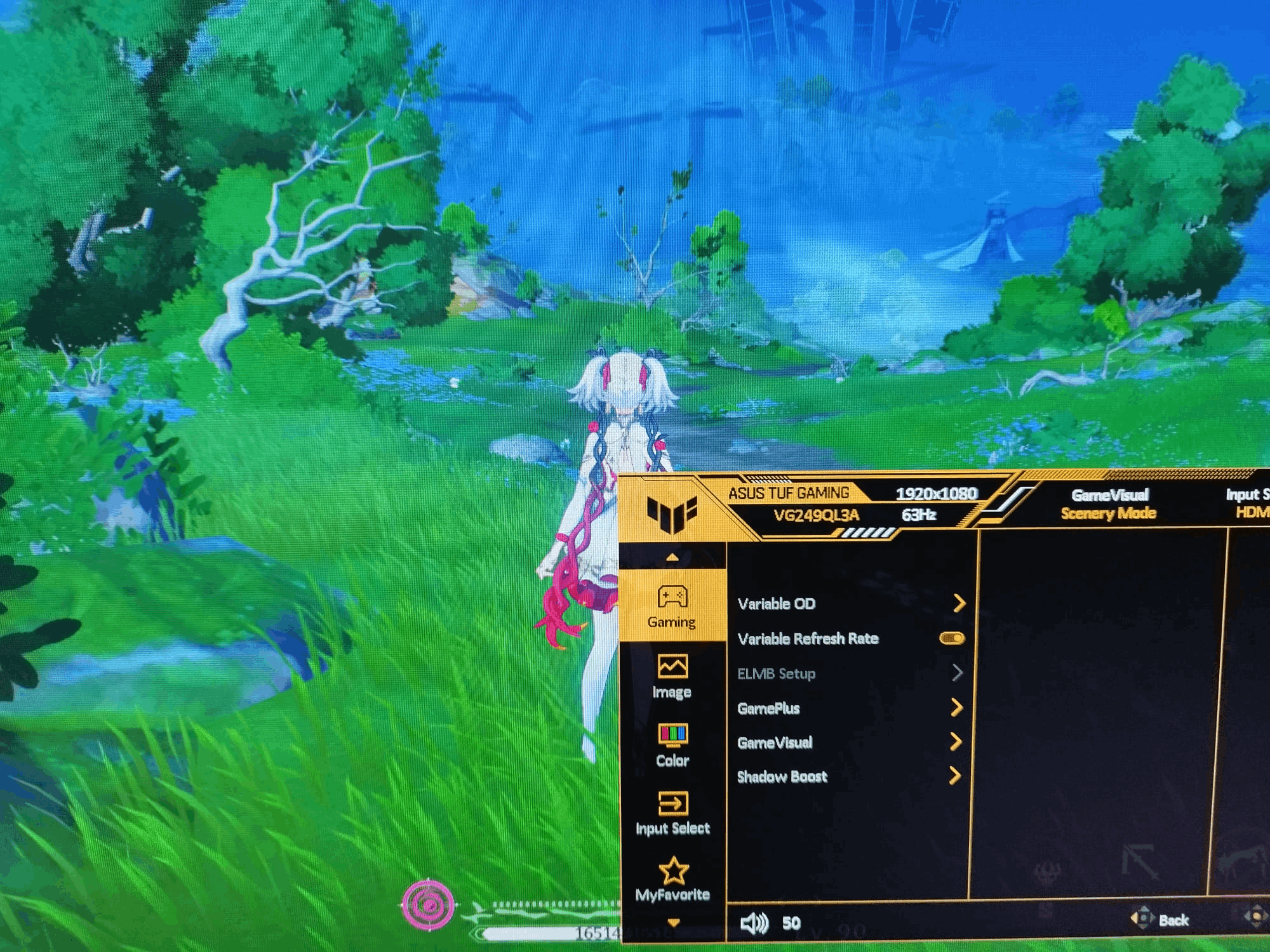
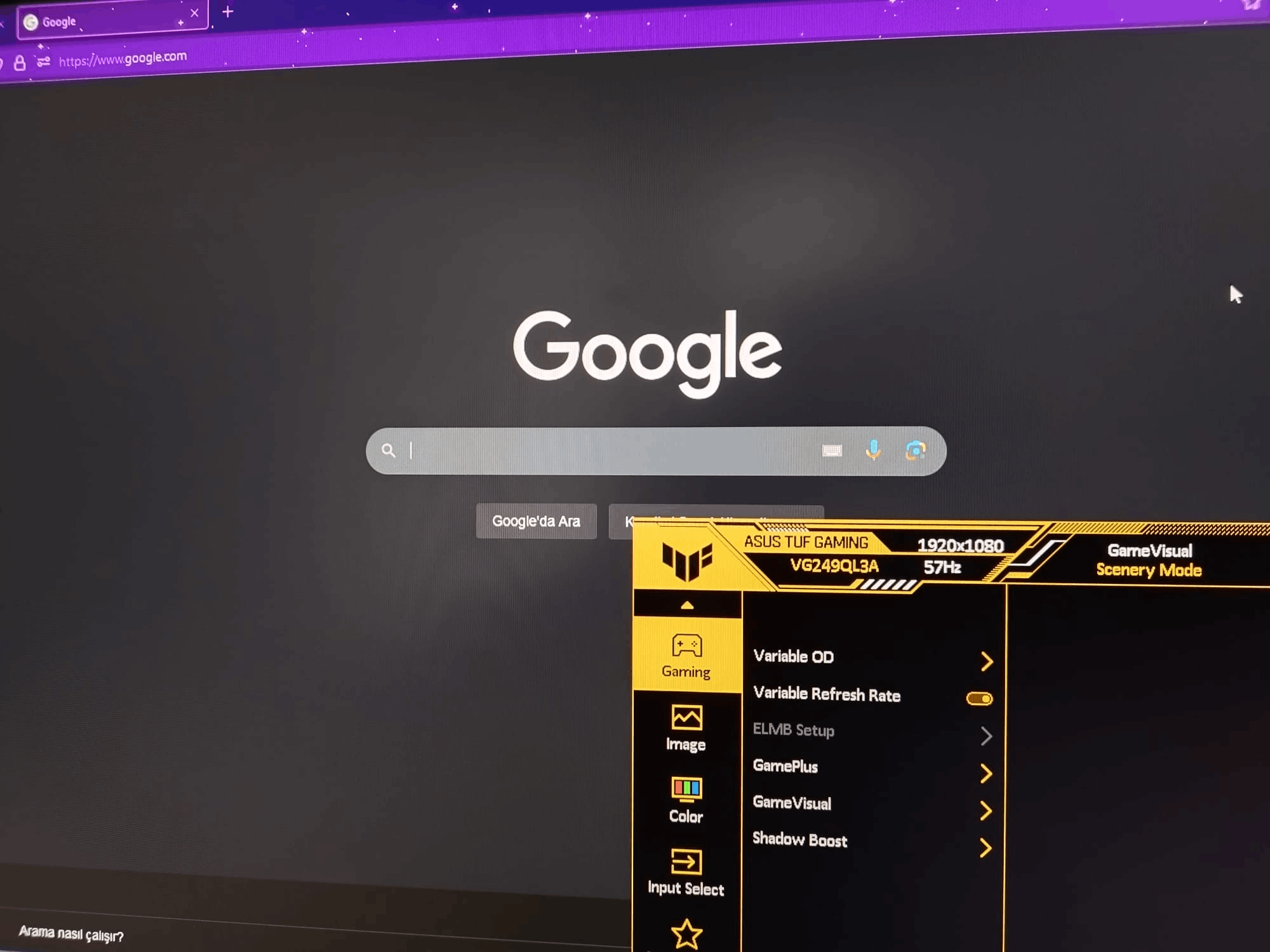
In games, everything works fine as it changes the refresh rate according to the frame rate. That is until I try to alt-tab out of a game. The monitor keeps whatever refresh rate it was getting even when it's out of the game. For example, If my fps was moving around 60 in a game, I get around 60hz when I alt tab into a browser. Alt tabbing back into the game or something else does nothing, I'd need to close the game for it to go back to 180hz.
This does seem to happen when the game is actively running in the background, but it still feels random. From the games I have tested, in Honkai:Star Rail, Wuthering Waves and Zenless Zone Zero, this happens on Fullscreen mode. Those games don't have Borderless Windowed for me to test. If I set them to Windowed and actually minimize them to the task bar, I can get 180hz again. All 3 games have a 60 fps lock.
I used a program called Borderless Gaming on these games to force a Borderless Windowed mode, but it still lowered the refresh rate on alt-tab.
In Mount & Blade Bannerlord, it's the opposite, I can avoid the problem by going Fullscreen. In Borderless Fullscreen, it still lowers the refresh rate, in Windowed I need to minimize it. This game doesn't have any fps lock.
In Street Fighter 6, there is no Fullscreen mode, Borderless Windowed still causes the problem and Windowed fixes it again if I minimize it. The game has a hard 60 fps lock.
Lastly, if I press Windows+D to see the desktop, I can get 180hz until I open a program again, so doing anything takes me back to square one. Opening a new Desktop 2 through the task bar and launching the browser from there seems to work, but I did get lower refresh rate once again if I don't use windows+d before switching desktops.
I tried bringing the old Windows 10 right click menu, but that didn't seem to work. I did a clean reinstall on both Nvidia and AMD drivers but that didn't do it either.
I use an HP Pavillion Gaming 15 EC2021NT Laptop with Windows 11 installed. I tested the monitor on my cousin's desktop pc who has a Ryzen 5 5600 and Nvidia RTX 4070 Super with a Windows 10 install, and we never had any problems whatsoever. That's why I am suspecting this could be a Windows 11 problem, but I can't deal with returning to Windows 10 to test at the moment.
Is there a way for me to fix this in Windows 11?
' cx='32' cy='32' r='32' /%3E%3Ctext x='50%25' y='55%25' dominant-baseline='middle' text-anchor='middle' fill='%23FFF' %3EA%3C/text%3E%3C/svg%3E)
