Share via

How do I remove a persistent fake-virus alert popup?

Reported
Anonymous
2024-09-24T02:50:31+00:00

How do I remove a persistent fake-virus alert popup?

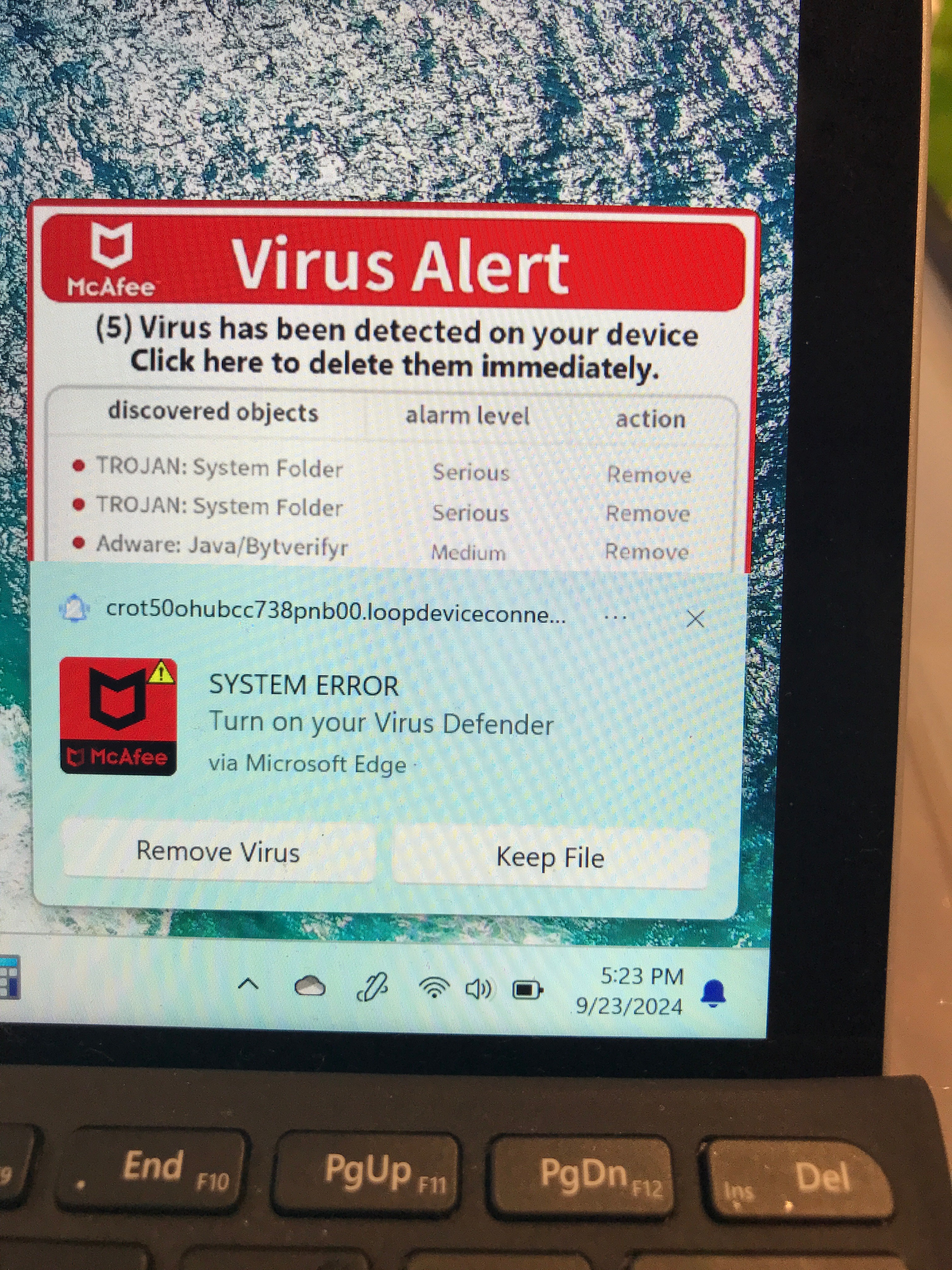
I've got a Surface Go 4 running Windows 11 in my family where today the user clicked "allow" on a popup message she got asking about cookies or something while browsing in Edge. Since then, the PC gets a popup in the lower right corner. She got maybe 15 different versions of the popup. It stays on-screen for 10 to 30 seconds, then goes away without clicking on anything. The next will pop up in 5 seconds to 5 or more minutes. Headings include "(McAfee logo) Virus Alert", "(Windows logo) Sytem Damaged!", "(microsoft logo) "Microsoft Windows Defender TROJAN found in /Win32!", "(shield image) Virus & threats protection - Threats found (16)."

All have some spelling or syntax errors but otherwise look convincing.

All have the same link snippet: "crot50ohubcc738pnb00.loopdeviceconne..."

We haven't clicked anywhere on or near the popup when it's on screen.

Steps I've tried:

Windows defender checked status: has been running ok, last updated last night (9/2224) around 10:20pm.

Powered off, shut off network, powered on, Windows defender quick scan: came up clean. No pop-ups while network was off.

Windows defender offline scan: behaved normally (warned of reboot, reboot, scan) came up clean. Pop-ups resumed when network was turned on.

Taskmgr doesn't show anything I recognize as bad in startup apps list or in running processes, but I'm not current enough to know what processes might be bad.

Example alert pic shown below:
Windows for home | Windows 11 | Security and privacy

Locked Question. This question was migrated from the Microsoft Support Community. You can vote on whether it's helpful, but you can't add comments or replies or follow the question.

0 comments No comments

Answer accepted by question author

  1. _AW_ 67,341 Reputation points Volunteer Moderator
    2024-09-24T02:57:57+00:00

    Hi, these are push notifications.

    To remove specific Edge push notifications:

    Enter edge://settings/content/notifications into the URL bar.

    For any entries you don't recognize in the Allow section, click the ellipsis (3 dots) to the right of each entry and either Block or Remove it.

    You should see an entry for "crot50ohubcc738pnb00.loopdeviceconne...".

    Image

    You can also toggle Ask before sending to off if you wish to block all notifications.

    0 comments No comments

46 additional answers

Sort by: Most helpful
  1. Deleted

    This answer has been deleted due to a violation of our Code of Conduct. The answer was manually reported or identified through automated detection before action was taken. Please refer to our Code of Conduct for more information.


    Comments have been turned off. Learn more

  2. Anonymous
    2025-04-11T15:22:35+00:00

    I ran a malware software, the one i used was from malwarebytes. I ran it and it showed many potential threats that I quarantined. I thankfully havent had a pop up since. Hope this works for you.

    0 comments No comments
  3. Anonymous
    2025-04-11T13:06:17+00:00

    I figured it out. I stopped the pop up first by going to Settings-Notifications and saw this url under notifications from apps and other senders. I was able to stop that notification - then follow through with blocking from the Edge Notifications as mentioned.

    0 comments No comments
  4. _AW_ 67,341 Reputation points Volunteer Moderator
    2025-04-11T13:02:29+00:00

    Drag the browser window to where they're not blocked or press Alt + F > Settings

    0 comments No comments
