Share via

Performance - "Performance mode" - setting this mode permanently for the programm selected -> for one or more programmes + "trust" mode

Anonymous
2025-06-20T20:28:44+00:00

Hello

  1. I would like to set a permanent “Performance Mode” for one selected program that I care a lot about. What I mean is that this program should not hang, should not wait for hardware resources, should run as fast as possible.

I checked the settings and generally it is possible to set such a mode in the task manager, but not permanently.

I have such one program and maybe two others for which I would like to set such a mode - in the sense of something like “Priority Mode”.  

I can see, for example, in the task manager that the program uses only a fraction of hardware resources, and yet something is blocking and crashing the program. Perhaps it is some module that controls the program or something similar.

I won't elaborate here, because what matters to me is the end result.  

It seems that despite having faster and faster hardware, programs are running slower and slower. For example, I have 128 GB of ram memory and the program uses only 7%, for example.

I won't exaggerate if I write that many programs ran faster in the days of Windows XP than they do now.... and yet, the hardware of that time, was much, much slower, weaker and definitely less efficient. 2. The second issue is security combined with performance.

The program I use is a multimedia application and for security and speed reasons, I use it in OFF LINE mode, which means I have the Internet disconnected.

I have several programs when it comes to security, but when working in this program, I am very concerned about performance and at the same time security and hence the off line mode.  

I would like to enable such a super-efficient offline mode in one or two programs, where I could also disable security modules.

Are there any settings that I could change so that I could work for myself in a completely private mode, without any messages, slowdowns, crashes, etc.?

I realize that a lot, in terms of performance, depends on these particular programs. Maybe there are some settings that, in the said mode, could somehow isolate this sample program, whose performance I care about and set for him some one like "**Trust mode**".

I do not care about a quick answer, just factual, specific comments or possibly, some advice on this issue.

Thanks for help

Windows for home | Windows 11 | Performance and system failures

Locked Question. This question was migrated from the Microsoft Support Community. You can vote on whether it's helpful, but you can't add comments or replies or follow the question.

0 comments No comments
Answer accepted by question author
  1. Anonymous
    2025-06-22T16:59:23+00:00

    You can use Process Lasso or Task Scheduler to set your app to high priority on launch also unable ultimate performance mode with powercfg -duplicatescheme e9a42b02-d5df-448d-aa00-03f14749eb61 then create a separate offline user profile and disable Windows Defender for that app then limit background apps. For file heavy tasks use third party file managers and turn off thumbnails in Explorer.

    Best regards,

    Harry

    1 person found this answer helpful.
    0 comments No comments

3 additional answers

Sort by: Most helpful
  1. Anonymous
    2025-06-29T21:58:09+00:00

    I pre-checked the settings and options. I used CCleaner and put all programs to sleep.

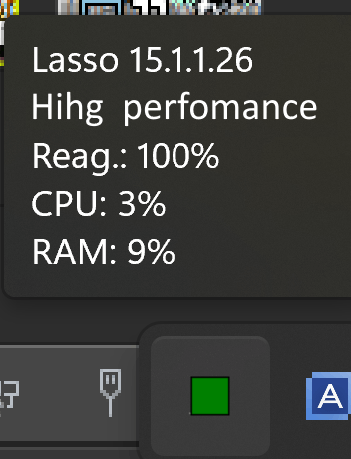
    Then I downloaded Process Lasso and installed it, and preconfigured several programs, including the one I cared about most.

    I assigned it access to all cores, memory, processes and everything, and the program runs noticeably faster, much faster. It runs faster despite running programs like Acronis, Norton and Windows Security in the background. It no longer crashes for a minute or two.

    When it comes to the process tree, I need to have a preview. However, I was able to find the cause of the program crashing during use, just when using the process tree.

    The program would crash when it couldn't read some file that wasn't a media file, such as jpg, jpeg, png, avi, mp4, etc.

    In the same directory, I had files from current records - something like the program's progress record, .VF files plus an additional one associated with it.

    When the program tried to read any of them, it would hang. It didn't skip them, it just continually tried to read them.

    I moved these files to a separate directory and the problem disappeared.

    Now there is a huge difference in the performance and stability of the program. It may not run super, ultra fast, but it runs fast and stable.

    When I finish my main projects, I will continue to play with the settings.

    For now, Lasso runs in the background and I can access all processes at any time.

    Such a program, or one similar to Process Lasso, could appear in the Microsoft store. It is known that some things have to work, because we do not know what program or function we will use, for example, in a month.

    The worst thing we can do is to mindlessly disable most services and programs that are interconnected - interdependent.

    I still consider the topic open. In about two weeks I will try something else.

    One more time, thanks for help :)
    0 comments No comments
  2. Anonymous
    2025-06-22T00:52:45+00:00

    Thanks for the specific tips.

    That's why I created an additional user profile to work with programs, mostly offline, when I first installed Win 11.

    Compared to Win 10, Win 11 gives you sort of more settings. There are more facilities and I really liked it.

    I didn't know how to approach it. I wanted to go into emergency mode and change the settings there.

    I'll play with the settings you described. For now, I've gotten used to operating gently on the preview file tree and know in what situations the program crashes. I operate on a large number of files, from a few - a dozen to tens of thousands - that's probably where the problems come from.

    So far I've measured myself against other, mostly hardware problems, bios settings and system stability, because sometimes or often that's where the problems come from.

    For example, I recently had some faulty Samsung drive that I bought six months ago. I replaced the drive with another one and it's better. Interestingly, after testing and restoring, this supposedly defective drive turned out to be fine. That's the way it is with this hardware.

    Now hardware-wise, everything works stably and the way I wanted, so I can finally move on to the system settings themselves.

    I will check everything according to the instructions and write what came out of it.

    0 comments No comments
  3. Anonymous
    2025-06-20T23:29:45+00:00

    Hello Artur! Thank you so much for reaching out, I am Harvie an Independent Advisor, and I am glad to assist you today with this issue.

    To run a program with permanent high performance mode use Task Scheduler or Process Lasso to auto set high priority on launch then enable game mode and exclude the app from Windows defender scans. Disable real time protection temporarily when offline if safe.

    Create a separate user profile with minimal startup apps and security features then use the Ultimate Performance plan via powercfg. This setup boosts performance and isolates the app for smoother offline use.

    Best regards,

    Harry

    0 comments No comments
