Share via

After Disk Cleanup in Windows 11, the Updates in Progress Screen Appears on Every Shutdown or Restart

Anonymous
2025-05-05T16:00:03+00:00

Hello! I ran the disk cleanup tool as administrator on the computer (cleanmgr.exe):

And I checked all the boxes that appeared and it deleted them all. Then I restarted it. It was fine. On the second restart, the message "Updates are in progress. Please keep your computer on." came. And I didn't wait, I held down the power button and turned it off. This screen came up again at startup, but this time it was finished in a shorter time. After that, the following commands were problematic:

dism /online /cleanup-image /restorehealth (specific to cmd and powershell)

repair-windowsimage -online -restorehealth (specific to powershell)

These two remained at 62.3%. So as a complete solution, I deleted the location in the following folder: C:\Windows\SoftwareDistribution I deleted everything in the SoftwareDistribution folder. And I restarted it. And surprisingly, the update screen didn't come this time and I was able to open it without any problems. Then I opened disk cleanup again(as administrator) and checked that windows update was filling 200mbps. I didn't touch that this time. And I opened regedit and saw this key under HKLM: COMPONENTS and deleted it and rebooted. And the key was deleted and there was a problem creating the directory. So I rebooted again(The update screen never came during this time) then I ran this command in cmd:

sfc /scannow(I ran this but it scanned as %0 completed)

What it found was:

Windows Resource Protection found corrupt files but was unable to fix some of them.

Details are included in the CBS.Log file located at

C:\Windows\Logs\CBS\CBS.log

And then I ran the following in the administrator powershell:

repair-windowsimage -online -restorehealth(This also completed very quickly compared to normal)

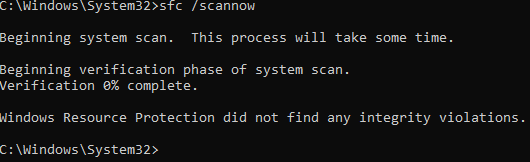
Then I ran sfc again(And it scanned as %0 completed again.) And this time it said no errors were found. The screen was as follows:
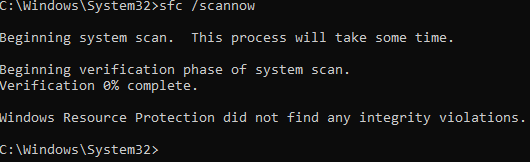
Afterwards I ran dism /online /cleanup-image /restorehealth. And it became 100% (when the update was corrupted it remained at 62.3%, now it still took at least 5-7 seconds to reach 100%, it normally doesn't happen like this) Then I deleted the COMPONENTS key in HKLM in regedit again on the computer. When I ran dism on the 2nd reboot this was happening and it was being permanent. There was a problem creating the directory on the first reboot, this was fixed on the 2nd reboot. And let me also state that I didn't get a BSOD during normal boot or normal startup and I continue not to get one. However, the only images I notice on the system right now are these:
  • [And dism completes very quickly from 3.8% directly to 100%.] +

I have never experienced anything like this. However, are the events I mentioned normal? I don't know that either. [NOTE: What I wrote is explained in the most concise way. And some extra non-critical scenes are not written, but a wrong problem is not written. Only clearly experienced events. And the reason for this needs to be explained.]

Best regards, MovelessMove.

Windows for home | Windows 11 | Windows update

Locked Question. This question was migrated from the Microsoft Support Community. You can vote on whether it's helpful, but you can't add comments or replies or follow the question.

0 comments No comments

9 answers

Sort by: Most helpful
  1. Anonymous
    2025-05-07T04:43:56+00:00

    I tried all the commands you said but the problem is really serious so give more detailed commands. By the way all the commands didn't work, especially the following:

    ren C:\Windows\System32\catroot2 catroot2.old

    (access denied)

    regsvr32 wuapi.dll

    regsvr32 wuaueng.dll

    regsvr32 wups.dll

    regsvr32 wups2.dll

    regsvr32 wuwebv.dll

    regsvr32 wucltux.dll

    (Failed to load properly)

    Was this answer helpful?

    0 comments No comments
  2. Anonymous
    2025-05-06T20:21:44+00:00

    Hi MovelessMove

    Thank you for your reply.

    Your Windows system is behaving unusually, with SFC /scannow showing 0% progress, DISM running too fast, and updates not triggering correctly. This might be due to:

    • Registry corruption (deleting HKLM: COMPONENTS altered system integrity).
    • Disk Cleanup's aggressive file removal, affecting Windows servicing.
    • Altered update mechanisms leading to unexpected behavior.

    To resolve the issue without an in-place upgrade, try:

    Reinstalling the latest Windows Servicing Stack Update (SSU) manually.

    Resetting Windows Update components via Command Prompt.

    net stop wuauserv

    net stop bits

    net stop cryptsvc

    ren C:\Windows\SoftwareDistribution SoftwareDistribution.old

    ren C:\Windows\System32\catroot2 catroot2.old

    net start wuauserv

    net start bits

    net start cryptsvc

    Re-registering update-related DLLs to restore missing system functionality.

    regsvr32 wuapi.dll

    regsvr32 wuaueng.dll

    regsvr32 wups.dll

    regsvr32 wups2.dll

    regsvr32 wuwebv.dll

    regsvr32 wucltux.dll

    Repairing Windows with DISM using local sources instead of Windows Update.

    dism /online /cleanup-image /restorehealth /source:C:\Windows /limitaccess

    Checking Task Scheduler for misconfigured update-related triggers.

    Please let me know if this helps.

    Best Regards

    Lonex P.

    Microsoft Moderator

    Was this answer helpful?

    0 comments No comments
  3. Anonymous
    2025-05-06T18:48:51+00:00

    Hi MovelessMove

    Thank you for posting in Microsoft Community.

    Thank you for sharing your detailed experience. It seems like you have taken several troubleshooting steps to address the issue with the Windows update screen appearing after running Disk Cleanup. While your actions were thorough, some of the steps you took may not be necessary or could potentially cause unintended consequences.

    Here are some key points to consider:

    Disk Cleanup Impact: Running Disk Cleanup removed files related to Windows Update, causing the “Updates are in progress” screen to appear on each shutdown or restart.

    Stalled Repairs: Commands like DISM and SFC stalled (e.g., at 62.3%) because the component store was disrupted by the missing or corrupted update files.

    SoftwareDistribution Removal: Deleting the contents of the SoftwareDistribution folder forced Windows to rebuild its update repository, which resolved the update screen issue.

    Registry Key Deletion: Removing a registry key (the COMPONENTS key) helped clear residual update data, further stabilizing the system.

    Final Outcome: After these steps, subsequent system scans (SFC and DISM) completed normally, and the update processes worked as expected, even though the initial behavior was abnormal.

    Perform Repair in-place upgrade: This will reinstall your Operating System and will keep your files and apps. This will take some time depending on the computer performance and internet speed. You can follow the steps from this link: How to perform repair upgrade in Windows 11 - Microsoft Community

    Please let me know if this helps.

    Best Regards,

    Lonex P.

    Microsoft Moderator

    Hello! Thanks for your answers, but I don't want to do an in-place upgrade. The reason is, the problem I am experiencing is very different. It is very unusual for the SFC command to find or not find anything with 0%, and it is also a little different. So I want you to tell me the reason for this. I should also mention that while the dism command works very fast. And I would like to mention that all the repair commands work at this speed. I should also mention that even the CBS.log looks fine. So I really want you to tell me the reason for this. Because such things should not happen on a system cleaned with clean all. Therefore, I kindly ask you to give me the most permanent method. If the problems are so serious that they cannot be solved, I will use a different OS (i.e. a non-Windows version) operating system.

    [Also working these are:

    Microsoft Store

    Windows Update]

    Thank you for your answers in advance. Thank you for your understanding.

    Best regards, MovelessMove.

    Was this answer helpful?

    0 comments No comments
  4. Deleted

    This answer has been deleted due to a violation of our Code of Conduct. The answer was manually reported or identified through automated detection before action was taken. Please refer to our Code of Conduct for more information.


    Comments have been turned off. Learn more

  5. Anonymous
    2025-05-06T17:03:07+00:00

    Hi MovelessMove

    Thank you for posting in Microsoft Community.

    Thank you for sharing your detailed experience. It seems like you have taken several troubleshooting steps to address the issue with the Windows update screen appearing after running Disk Cleanup. While your actions were thorough, some of the steps you took may not be necessary or could potentially cause unintended consequences.

    Here are some key points to consider:

    Disk Cleanup Impact: Running Disk Cleanup removed files related to Windows Update, causing the “Updates are in progress” screen to appear on each shutdown or restart.

    Stalled Repairs: Commands like DISM and SFC stalled (e.g., at 62.3%) because the component store was disrupted by the missing or corrupted update files.

    SoftwareDistribution Removal: Deleting the contents of the SoftwareDistribution folder forced Windows to rebuild its update repository, which resolved the update screen issue.

    Registry Key Deletion: Removing a registry key (the COMPONENTS key) helped clear residual update data, further stabilizing the system.

    Final Outcome: After these steps, subsequent system scans (SFC and DISM) completed normally, and the update processes worked as expected, even though the initial behavior was abnormal.

    Perform Repair in-place upgrade: This will reinstall your Operating System and will keep your files and apps. This will take some time depending on the computer performance and internet speed. You can follow the steps from this link: How to perform repair upgrade in Windows 11 - Microsoft Community

    Please let me know if this helps.

    Best Regards,

    Lonex P.

    Microsoft Moderator

    Was this answer helpful?

    0 comments No comments
