Share via

Emails will not send/receive without closing & restarting Outlook

Anonymous
2023-02-17T06:15:33+00:00

I am operating on a brand new computer, using Windows 11, Microsoft 365. My outlook accounts will not send / receive unless I close the program & reopen. At times Outlook gets lost and is not visible and needs to be closed via Task Manager. I have checked 'Send immediately when connected'. Immediately upon reopening all emails are sent and inbox synchronised. This issue did not occur on my previous desktop/s - we utilise 3 (currently all recently replaced and all with same issues), though does occur on my Surface laptop. It does not occur with any other program ie Windows Email / Gmail etc., only 365. I have all of the current updates and latest operating technology. Please assist.

Outlook | Windows | Classic Outlook for Windows | For home

Locked Question. This question was migrated from the Microsoft Support Community. You can vote on whether it's helpful, but you can't add comments or replies or follow the question.

0 comments No comments

5 answers

Sort by: Most helpful
  1. Anonymous
    2023-02-21T06:44:52+00:00

    Hello Winter,

    I reset one brand new computer completely. Upon resetting I only added Microsoft 365 Home to the Windows 11 system. I then only added one email address. The problem continues. I have since deleted almost all filed emails in this email address and deleted everything from the trash. The systems now intermittently send/receive without me closing Outlook, however, are slow and delayed in this process.

    Kind regards

    Sam AWK

    10+ people found this answer helpful.
    0 comments No comments
  2. Anonymous
    2023-02-18T02:57:29+00:00

    Hello Winter,

    Further to the above information provided, I advise that I have sought assistance from an IT person locally.

    The issue with not achieving instantaneous sending / receiving of emails did not occur on my old computers, however has always occurred on my Surface Laptop (used for last 2 years when travelling).

    We have reviewed the old hard drive and note that the outlook files on these computers were pst files, whereas the outlook files on my current new computers with Microsoft 365 and my Surface are all operating with ost files. This is the only variation that I can determine in the processing of outlook emails.

    Outlook is the format and the program that has always been my preference, however, I cannot operate our small family business having to open / close Outlook to send and receive emails.

    We sincerely hope that you will be able to assist us with this glitch in the system.

    Thanks so much.

    Simone

    3 people found this answer helpful.
    0 comments No comments
  3. Anonymous
    2023-02-17T23:39:12+00:00

    Good morning,

    Thank you for your prompt response.

    1. I am definitely not working offline. Folders are synchronising.
    2. Test messages come through to my account. Settings are correct. When Outlook opens all messages are immediately sent & received.
    3. I have added a Profile as per the above request. On attempting to add an account we 'Established network connection'; there was a very long delay whilst 'Searching for the relevant email address' & an encrypted connection could not occur. Upon attempting to manually it could not connect or send message. I have photographed the settings of this process for your reference.

    I will send you the images via private messaging, thank you.

    Sam AWK

    2 people found this answer helpful.
    0 comments No comments
  4. Anonymous
    2023-02-21T06:09:01+00:00

    Dear Sam AWK,

    Thanks for your reply.

    We are testing and researching this.

    May I know if you have Google Chrome installed?

    If so, please refer to the following information:

    The issue is a problem with the Chrome component updater causing the BITS service to go into an unresponsive state. The job created by the chrome component updater doesn’t get deleted even after Chrome has been uninstalled. This causes the offline address to fail its download, causing outlook to fail syncing emails. When you close and reopen outlook, this resets the BITS cycle, allowing the emails to come through. But as the BITS cycle resets, the chrome component updater begins attempting to run a download, causing the problem to re-occur almost instantly.

    Steps on resolving this problem:

    1. Uninstall Google chrome. It is critical that Google chrome is not a part of your Group Policy, as this won’t work otherwise, as chrome will automatically reinstall. 
    2. Restart machine
    3. Open windows PowerShell as an admin, and use the following commands:
      get-bitstransfer -allusers 
      get-bitstransfer -allusers | remove-bitstransfer 

    *note* if these commands don’t work, for example it just hangs, follow the below steps:
          
    3.1. Open services

    3.2. locate background intelligent transfer service > properties > change startup type to manual. 
          
    3.3. restart machine
          
    3.4. Open windows PowerShell as an admin and use the following command:
                    get-bitstransfer -allusers | remove-bitstransfer

    1. Restart machine
    2. Open windows PowerShell and run the command:
      get-bitstransfer -allusers
                You should now see the chrome component updater is no longer there
    3. Open outlook, and manually download the offline address book. Send/receive > send/receive groups > download offline address book > ok

    It’s worth noting that re-installing Google Chrome will cause this problem to re-occur.

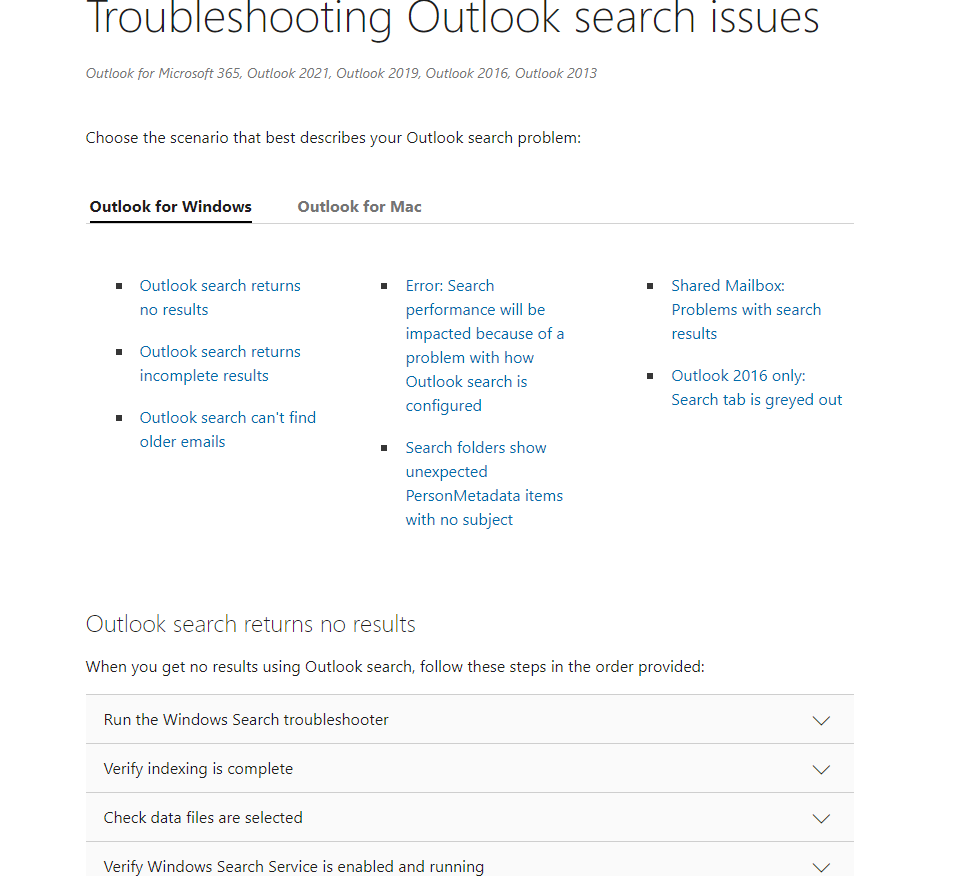
    Additionally, on the SARA Assistant Error page that you provide, it is displayed that there may be an Outlook search or indexing problem (event 10023 or 10024). For this reason, refer to the following articles to troubleshoot or rebuild the index.
    Troubleshooting Outlook search issues - Microsoft Support
    Image

    If the issue persists, please contact your administrator to create a ticket in the Microsoft admin center https://admin.microsoft.com/ with an administrator account, which is a team of back-end engineers with more permissions and resources to check the relevant settings to better assist you on this issue.

    Your understanding and cooperation are greatly appreciated,

    wish you all the best~

    Sincerely,

    Winter| Microsoft Community Moderator

    1 person found this answer helpful.
    0 comments No comments
  5. Anonymous
    2023-02-17T07:45:42+00:00

    Dear Sam AWK,

    Good day!
    Thank you for posting to Microsoft Community. We are glad to assist.

    From your description, I understand that you have ticked the “Send immediately when connected” option.
    After thorough research and testing, as well as consulting with the relevant team, I would like to provide some walkarounds, please refer to the following:

    1.
    Please make sure you are not working offline in Outlook.
    Image

    If yes, please click button below and connect to Microsoft exchange.
    Image
    Image

    2.

     Make sure the settings of your email address are correct:
    Go to File> Account settings> Account settings, double click the account which failed to receive emails.
    In the Change Account window, click “Test Account Settings” to see if any error message occurs, if it does, please click More settings > advance to correct the settings of your account.

    3.
    Please create a new profile
    put full email address into the account settings' logon information.  (don't delete the old one)
    Create an Outlook profile - Microsoft Support

    We are doing more testing to provide a solution, if the above method does not work temporarily, please send us your Outlook version information and related screenshots for more intuitive investigation of the problem, thank you very much.

    To protect the security of your information, you can send us a screenshot of the question in a private message. Thank you very much.
    Here are the steps to open private messages: To see the private message options> click on your profile picture in the upper right corner > select the "My Profile" option. Click View private messages in the upper right corner of the page after the page jump.
    Image
    Image

    Your understanding and cooperation are greatly appreciated.
    wish you all the best.

    Sincerely,

    Winter| Microsoft Community Moderator

    1 person found this answer helpful.
    0 comments No comments