Dear Mo Hussain1,
Good day! Thank you for posting to Microsoft Community. We are happy to assist you.
I'm sorry to hear that you are having issues opening attachments in Outlook. I greatly appreciate your time and effort to narrow down and try to troubleshoot the issue from your side. There is an incident that was posted to the Service Health with ID EX648854 which is related to this behavior.
The user experience of this incident is: Users can't open email messages saved as a file more than once in the Outlook desktop client.
More info: This may affect users that have enabled the Microsoft Teams Meeting Add-in for Microsoft Office. Impacted users can close and reopen the Outlook desktop client to open email messages saved as files. Once an email message saved as a file has been opened, it can’t be opened again until the Outlook desktop client has been closed and reopened.
Current status: Though we've validated the code fix in our internal environment it will take longer than previously estimated to complete the deployment process and remediate impact. We'll provide a timeline for this deployment as soon as one becomes available.
Scope of impact: Any user with the Microsoft Teams Meeting Add-in for Microsoft Office enabled that attempts to access an email from a file more than once in the Outlook for desktop client may be impacted.
Root cause: A recent update introduced a code regression that causes email files to be locked by the Microsoft Teams Meeting Add-in for Microsoft Office, resulting in impact.
Admins can view current information and updates on Service health dashboard in the Office 365 admin center (https://admin.microsoft.com/Adminportal/Home#/servicehealth/:/alerts/EX648854).
However, if you want to Permanently remove or Disable Teams Add-in follow these steps:
- Click File > Options > Add-ins
- Towards the bottom of the window, where it says Manage, click the Go button
- In the dialog box, select the add-ins you want to disable or remove
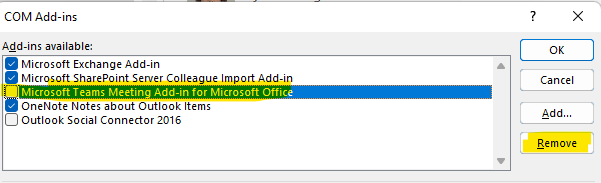
- To disable the Teams add-in, just uncheck the box in front of its name. To uninstall the Teams add-in select it and click Remove
- Click OK to save your changes and return to your Outlook.
For additional information, you can refer to View, manage, and install add-ins for Microsoft 365 programs - Microsoft Support
For affected customers to easily identify the information here, this thread may be closed. You may subscribe to this thread or refer to Service Health dashboard for updated information. I will also post back here once the issue is resolved on SHD.
Thank you for your precious time and understanding.
Sincerely,
Libeamlak | Microsoft Community Moderator
' cx='32' cy='32' r='32' /%3E%3Ctext x='50%25' y='55%25' dominant-baseline='middle' text-anchor='middle' fill='%23FFF' %3EA%3C/text%3E%3C/svg%3E)
