Outlook | Windows | Classic Outlook for Windows | For business
Using classic Outlook for Windows in business environments

This browser is no longer supported.
Upgrade to Microsoft Edge to take advantage of the latest features, security updates, and technical support.
' cx='32' cy='32' r='32' /%3E%3Ctext x='50%25' y='55%25' dominant-baseline='middle' text-anchor='middle' fill='%23FFF' %3EA%3C/text%3E%3C/svg%3E)
Hi - I'm having trouble setting up an icloud e-mail in outlook.
<Changed to a question>
Using classic Outlook for Windows in business environments
Locked Question. This question was migrated from the Microsoft Support Community. You can vote on whether it's helpful, but you can't add comments or replies or follow the question.
Hello
We haven't heard from you in 72 hours, so we will consider your issue resolved. If you do need further help, please create a new thread to discuss your concerns through this link:Create a new question or start a discussion (microsoft.com), as we will not be monitoring this thread going forward.
Thank you for understanding.
Sincerely
Khou Sun
Microsoft Community Moderator
HiKay Lambert
Greetings!
Thank you for posting in Microsoft Community.
Upon reading the description you have posted, it seems that you have an issue with Microsoft Office 365 wherein you want to know how to properly setup your icloud account on the Outlook email app.
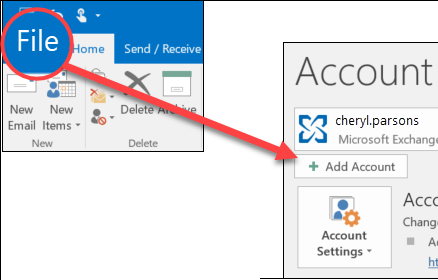
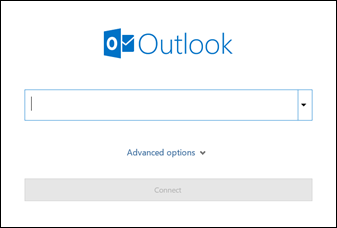
Here are the steps on how you can properly add your icloud account on your Outlook email app.
Add an iCloud email account to Outlook
These steps are the same whether you're adding your first email account or additional email accounts to Outlook.
Outlook won't accept my password
If Outlook won’t accept your password and you know you’re using the password for your email account, you might have an email account that requires additional security.
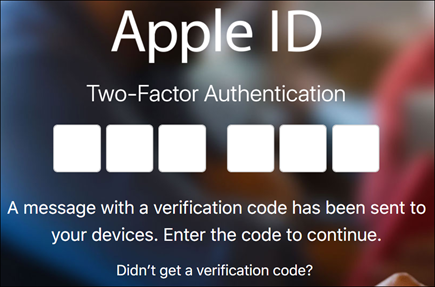
Gmail, Yahoo, iCloud, Outlook.com, and AOL accounts all use two-factor authentication to help verify that you’re the person trying to access your email account.
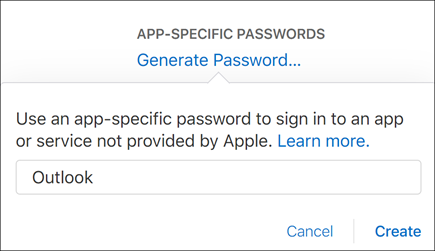
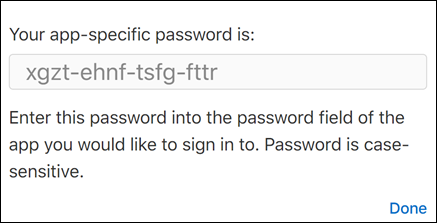
To add your email account to Outlook, you’ll need an app password, also known as an application password. This is a different password than your regular email account password. One way you'll know you need an app password is if you see the following message: 2-factor authentication is set up for your account. Please sign in using your application password.
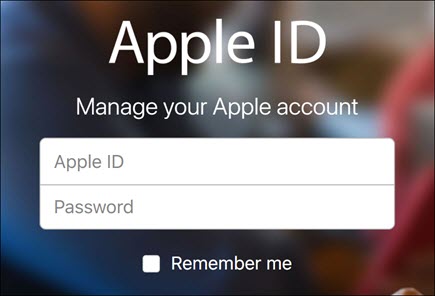
To obtain an app password for your iCloud email account, use the following steps:
Referenced link: Add an iCloud email account to Outlook - Microsoft Support
Hope this helps,
Sincerely
Khou Sun
Microsoft Community Moderator