Dear Ginnetti Holly,
Good day! Thank you for posting to Microsoft Community. We are happy to assist you.
As per the description you have shared, we understand that you want to set permanent signature for all emails.
To create a new email signature in Outlook 2021, please follow these steps:
- Open Outlook and click on "File" in the top left corner.
- Click on "Options" and then select "Mail" from the left-hand menu.
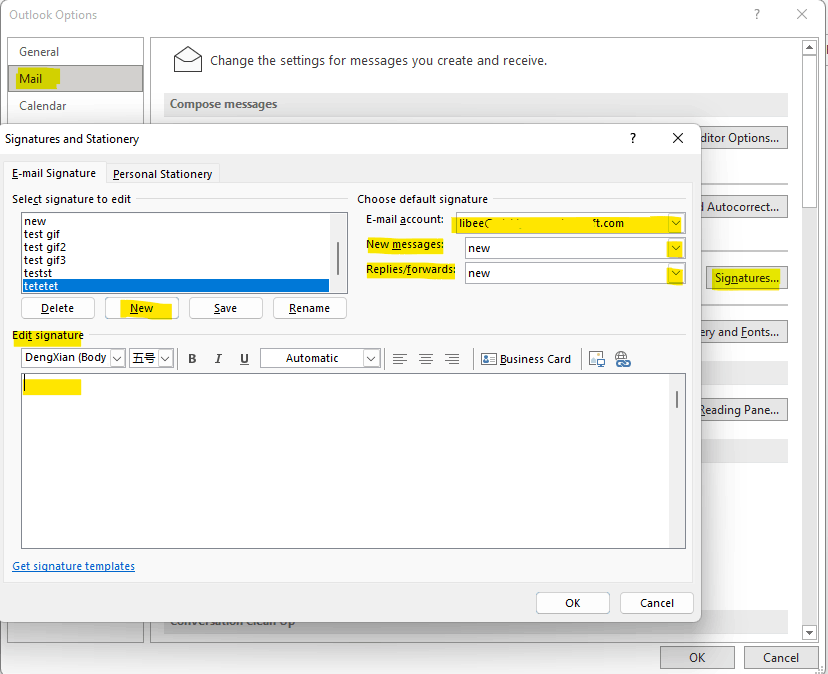
- Under the "Compose messages" section, click on "Signatures".
- Click on "New" to create a new signature.
- Type in a name for your signature and click "OK".
- In the "Edit signature" section, type in the text you want to include in your signature.
- You can format the text using the formatting options provided.
- To add an image or logo to your signature, click on the "Picture" icon and select the image you want to use.
- Once you have finished creating your signature, click "OK" to save it. Your new signature will now be available to use in your emails.
Once, you created your signature in Outlook, under New Message, select the signature you want to set permanently and also select signature for replies/forwards -->OK. Then, check if the selected emails automatically appear in your New email body. You can refer to the screenshot below.
For additional information, you can refer to Create and add a signature to messages - Microsoft Support
I look forward to your update. Please feel free to let me know if there are any questions or I've got you wrong. I will continue to assist you based on the information you provide. I sincerely appreciate your patience and cooperation.
Thank you for your precious time. Have a nice day.
Sincerely
Libeamlak | Microsoft Community Moderator
' cx='32' cy='32' r='32' /%3E%3Ctext x='50%25' y='55%25' dominant-baseline='middle' text-anchor='middle' fill='%23FFF' %3EA%3C/text%3E%3C/svg%3E)
