Dear Paulette Erunez,
Many thanks for your kind response,
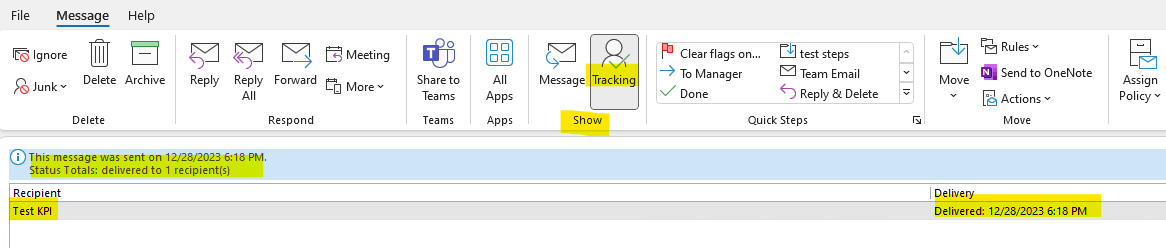
Typically, Outlook allows user to assign two email tracking options within an email message. The options include a delivery receipt and/or a read receipt. Therefore, this icon will be enabled when you request a read/delivery receipt. After the receipts are retuned and processed, the sent message is updated and a button added to the ribbon with tracking information.
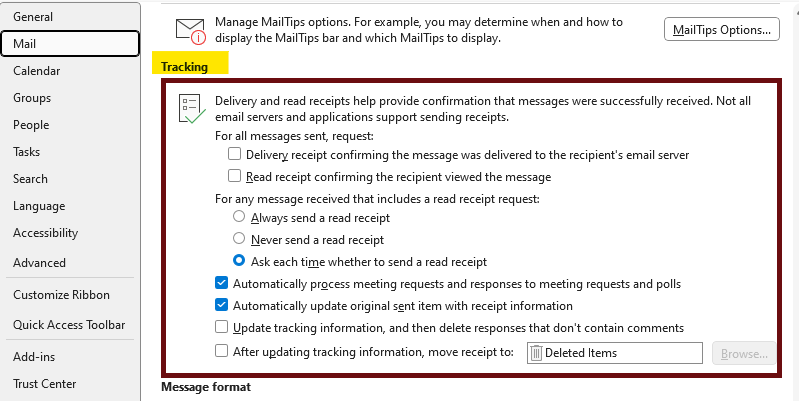
If you want to enable tracking on all your outgoing email, kindly go to File -->Option -->Mail -->Scroll down and check all tracking feature and enable -->OK. You can refer to the screenshot below.
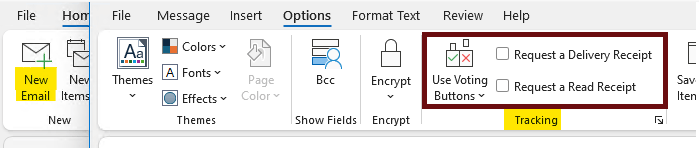
Also, if you want to enable email tracking on an individual email message, Kindly go to New Email -->Option --> under Tracking group, you can select what you want to track including Voting responses. you can refer to the screenshot below.
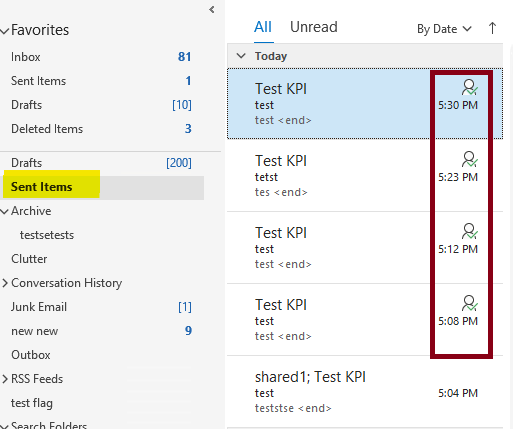
Therefore, after you send the read/delivery recipient or voting request, you will get the tracking icon on the email you send in the sent item folder. You can refer to the screenshot below:
However, Tracking button doesn’t appear until at least one receipt has been received. After you receive the first receipt in your Inbox, it might take several minutes before the Tracking button is available.
For additional information, you can refer to Add and request read receipts and delivery notifications in Outlook for Windows - Microsoft Support and Use voting buttons in messages - Microsoft Support
Please feel free to let me know if you have any other question or if I've got you wrong.
Thank you for your precious time. Have a nice day.
Sincerely,
Libeamlak | Microsoft Community Moderator
' cx='32' cy='32' r='32' /%3E%3Ctext x='50%25' y='55%25' dominant-baseline='middle' text-anchor='middle' fill='%23FFF' %3EA%3C/text%3E%3C/svg%3E)
