' cx='32' cy='32' r='32' /%3E%3Ctext x='50%25' y='55%25' dominant-baseline='middle' text-anchor='middle' fill='%23FFF' %3EA%3C/text%3E%3C/svg%3E)

Dear Raj_Quest
Greetings!
Thank you for posting on Microsoft Community!
Based on your description, I understand that you received an error message saying "One or more items in the folder you synchronized do not match. To resolve the conflicts, open the items, and then try this operation again". We do apologize for the inconvenience and confusion this might cause!
ISSUE
When you update or cancel a meeting item in Outlook Desktop you see a conflict error.
“One or more items in the folder you synchronized do not match. To resolve the conflicts, open the items, and then try this operation again.”
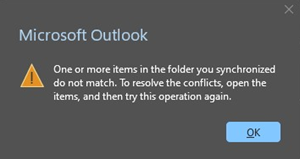
This issue happens when there is a local conflict of the calendar item in Outlook Desktop. The server copy of the calendar item does not have a conflict.
If you are prompted with the Conflict Message dialog close it out. Using this dialog may not fully address the issue.
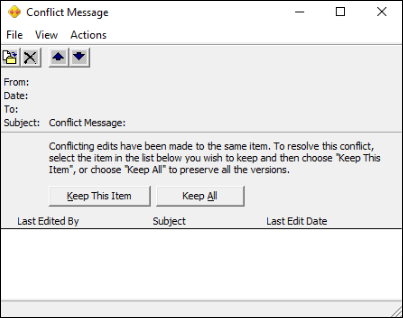
STATUS: WORKAROUND
The Outlook Team is investigating this issue. This issue is also published to the Service Health Dashboard as EX800425.
In the meantime, please use the following workarounds:
Workaround 1:
To mitigate the issue, you can use the Clear Offline Items for your calendar. This step clears the calendar items in the Outlook store (OST) on your local machine.
To clear offline Calendar items, follow these steps:
- Open the Calendarpane in Outlook, and right-click the Calendarfolder.
- Select Properties.
- On the Generaltab, select Clear Offline Items.
- Select OK.
After you clear offline items, Outlook will re-sync the calendar and repopulate your calendar folder with the calendar items on the server.
Workaround 2:
Make the meeting updates in Outlook Web Access (OWA) or use New Outlook. The conflict does not occur when updating or cancelling the meeting in OWA or New Outlook.
Additional Resources
Outlook performance issues in a Cached Exchange Mode .ost or .pst file
For more information and updates on this issue, you may kindly check Outlook shows conflict errors when updating or cancelling meetings - Microsoft Support.
Thank you in advance for your understanding! Your patience and cooperation will be greatly appreciated. I hope all the best!
Sincerely,
Connery You