Share via

Turn off clutter

Anonymous
2024-08-22T17:30:01+00:00

I am trying to turn off clutter for a user but the options that all the walkthroughs show me do not match the options on office 365. Below is the article I found on turning off clutter but that only seems to be for outlook.com and not for a business office 365 accounts. I do not have mail under setting as you can see in the first image. Nor in the outlook app online. I do not see automatic processing in my outlook app setting online as you can see by the second image. Any help is appreciated.

https://support.microsoft.com/en-us/office/turn-off-on-clutter-in-outlook-a9c72a77-1bc4-40e6-ba6d-103c1d1aba4c

Outlook | Windows | Classic Outlook for Windows | For home

Locked Question. This question was migrated from the Microsoft Support Community. You can vote on whether it's helpful, but you can't add comments or replies or follow the question.

0 comments No comments

Answer accepted by question author

  1. Anonymous
    2024-08-22T18:38:23+00:00

    Dear Danny Fuen,

    Thanks for your reply!

    According to Configure Focused Inbox for everyone in your organization - Microsoft 365 admin | Microsoft Learn, if you're switching from Clutter to Focused Inbox, they can decide to enable it ("Try it") or dismiss the feature. The tip looks like this:

    When a user decides to start using Focused Inbox, Clutter gets disabled automatically. The Clutter folder gets converted into a standard folder, that allows the user to rename or delete it. And **** if the user has multiple (supported) clients, they can enable/disable Focused Inbox individually on each one.

    Appreciate your patience and understanding and thank you for your time and cooperation. I wish you all the best!
    1 person found this answer helpful.
    0 comments No comments

2 additional answers

Sort by: Most helpful
  1. Anonymous
    2024-08-22T18:25:47+00:00

    Dear Danny Fuen,

    Greetings!

    Thanks for reaching out to this community.

    Based on your description, I understand your query on how to turn off clutter.

    According to Focused Inbox, no more Clutter - Microsoft Community Hub, after January 31, 2020, Clutter was completely replaced by Focused Inbox.

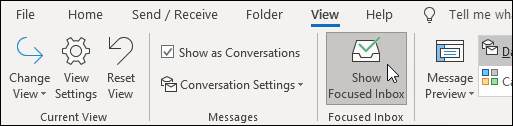
    To turn Focused inbox on/off in classic Outlook, please kindly follow below steps

    1. In Outlook, select the View tab.
    2. Select/Deselect Show Focused Inbox. Show Focused Inbox

    For more instructions, please kindly refer to Focused Inbox for Outlook - Microsoft Support.

    Thank you in advance for your understanding! Your patience and cooperation will be greatly appreciated. I hope all the best!

    So if I turn off focused in box it will stop sending things to clutter?

    1 person found this answer helpful.
    0 comments No comments
  2. Anonymous
    2024-08-22T18:19:02+00:00

    Dear Danny Fuen,

    Greetings!

    Thanks for reaching out to this community.

    Based on your description, I understand your query on how to turn off clutter.

    According to Focused Inbox, no more Clutter - Microsoft Community Hub, after January 31, 2020, Clutter was completely replaced by Focused Inbox.

    To turn Focused inbox on/off in classic Outlook, please kindly follow below steps

    1. In Outlook, select the View tab.
    2. Select/Deselect Show Focused Inbox. Show Focused Inbox

    For more instructions, please kindly refer to Focused Inbox for Outlook - Microsoft Support.

    Thank you in advance for your understanding! Your patience and cooperation will be greatly appreciated. I hope all the best!

    0 comments No comments