Share via

Two Types Emojis (Outlook for Microsoft 365)

Anonymous
2024-09-20T19:17:20+00:00

Microsoft® Outlook® for Microsoft 365 MSO (Version 2408 Build 16.0.17928.20114) 64-bit

I'm confused by the emojis in Outlook. From my understanding, there are two options.

  • Option 1 -
    • Pressing [Win + "." (period, without quotes)]
      • Emojis appear to be the same format as those found in Teams:
  • Option 2 -
    • Emoji task pane under the 'Message' tab:
    • After clicking, the following sidebar opens:
  • Side-by-side comparison of the same emoji (left is option 1, right option 2):

My questions are:

  1. Why the two formats of emojis?
  2. Can I delete/disable the emojis in option 2 from Outlook?
  • I don't recall installing a plugin, but maybe I did.
  • I want my emojis to be consistent across Microsoft 365 apps.
  • Option 1 emojis are the same size as my email text (option 2 emojis appear larger and take up more space).

Thanks, in advance, for any help with this.

Outlook | Windows | Classic Outlook for Windows | For home

Locked Question. This question was migrated from the Microsoft Support Community. You can vote on whether it's helpful, but you can't add comments or replies or follow the question.

0 comments No comments

2 answers

Sort by: Most helpful
  1. Anonymous
    2024-09-25T09:19:10+00:00

    Dear RemoteWarrior79,

    Good day! Hope you are doing great!

    Sorry to disturb. I am just following up to see if there are any questions, could you please help to confirm if the above reply clarifies the issue or anything else we may help you with? Thanks so much for your time.

    Stay safe and Healthy! Have a nice day!

    Sincerely,

    Libeamlak | Microsoft Community Moderator

    1 person found this answer helpful.
    0 comments No comments
  2. Anonymous
    2024-09-20T21:48:41+00:00

    Dear RemoteWarrior79,

    Good day! Thank you for posting to Microsoft Community.

    I do understand your query here and you are absolutely right, there are two option to insert emoji to your email in outlook.

    1. Option 1 Emojis: These are accessed using the Windows Emoji Picker (Win + .). this emoji feature is only available in windows 10 and 11, which is a windows emoji feature, that is consistent with those found in other Microsoft 365 apps like Teams. Outlook doesn't have it's own emoji by default to compose email, you can refer to Add flair to your email with emojis - Microsoft Support
    2. Option 2 Emojis: This emoji feature is an add-in which is installed in your Outlook and accessed through the Emoji task pane under the ‘Message’ tab in Outlook. These emojis are appear larger and take up more space and are not consistent with those found in other Microsoft 365 apps like Teams. You can refer to Emojis (microsoft.com)

    Therefore, I can confirm that the second emoji is an external source (third party) plugin, where the user (you) installed into Outlook, it's not a built-in emoji, so you probably installed it in your outlook.

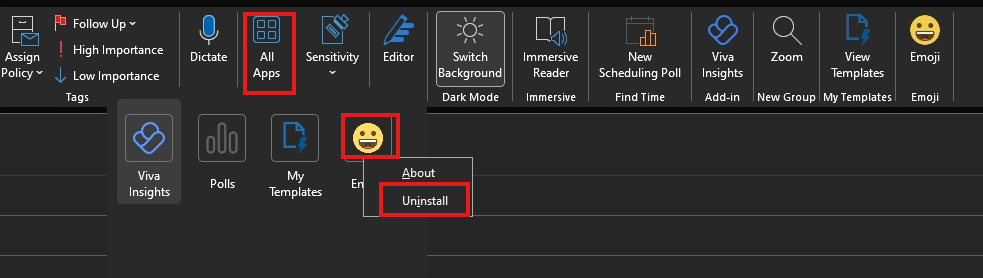
    However, to remove the second emoji option, click on All apps -->Right click on emoji -->Uninstall-->Confirm to the prompt. Then, check if the emoji removed from your outlook. You can refer to the screenshot below:
    I look forward to your update. Please feel free to let me know how it goes or if I got you wrong. If you still have any concerns, please let me know so I can provide more suggestions.

    Thank you for your precious time. Have a nice day.

    Sincerely,

    Libeamlak | Microsoft Community Moderator

    0 comments No comments