Outlook | Windows | Classic Outlook for Windows | For home
Using Classic Outlook on Windows for personal email, calendar, and contact management

This browser is no longer supported.
Upgrade to Microsoft Edge to take advantage of the latest features, security updates, and technical support.
' cx='32' cy='32' r='32' /%3E%3Ctext x='50%25' y='55%25' dominant-baseline='middle' text-anchor='middle' fill='%23FFF' %3EA%3C/text%3E%3C/svg%3E)
I am asking a question that I know has been asked before but I did not see a reply.
We have a shared mailbox in our company which our project management team use for organising project emails into specific folders. At the end of the project, we would like to archive this specific project folder somewhere to basically de-clutter the mailbox and save mailbox space.
There are many different projects in the one mailbox so we need to be able to do this at the folder level.
We have been looking whether we can export the folder (and its structure) from Outlook to a SharePoint document library, but we can't see how this can work.
Has anybody else had a similar issue and have a viable solution?
thanks
Amanda
Using Classic Outlook on Windows for personal email, calendar, and contact management
Locked Question. This question was migrated from the Microsoft Support Community. You can vote on whether it's helpful, but you can't add comments or replies or follow the question.
Answer accepted by question author
Dear Amanda Hore,
Good day to you and I hope you are doing well.
Sorry to disturb you. As we did not get a response, may I know if the above reply could clarify your issue, or could you please help confirm if we may help you with anything else? Please let us know if the provided information meets your requirements or resolves your issue, thanks.
Your understanding and patience will be appreciated.
Dear Amanda,
Good day!
Thank you for posting to the Microsoft Community. We are glad to assist.
Based on your post regarding "Best way to archive shared mailboxes". I understand how important it is to keep your mailbox organized and save space, To archive specific folders from a shared mailbox to a SharePoint document library, a few practical options could help retain the folder structure and clear mailbox space.
1. **You can create Outlook rules:**to automatically move specific emails to designated folders. However, this method doesn't directly save emails to SharePoint but rather organizes them within Outlook. To transfer them to SharePoint, you'd still need to perform additional steps.
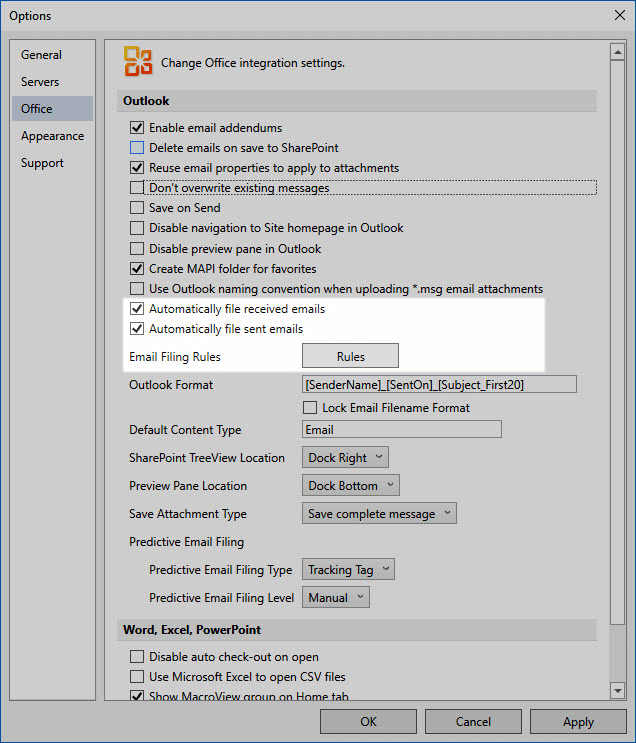
2. Export the Folder to a .pst File and Upload to SharePoint:
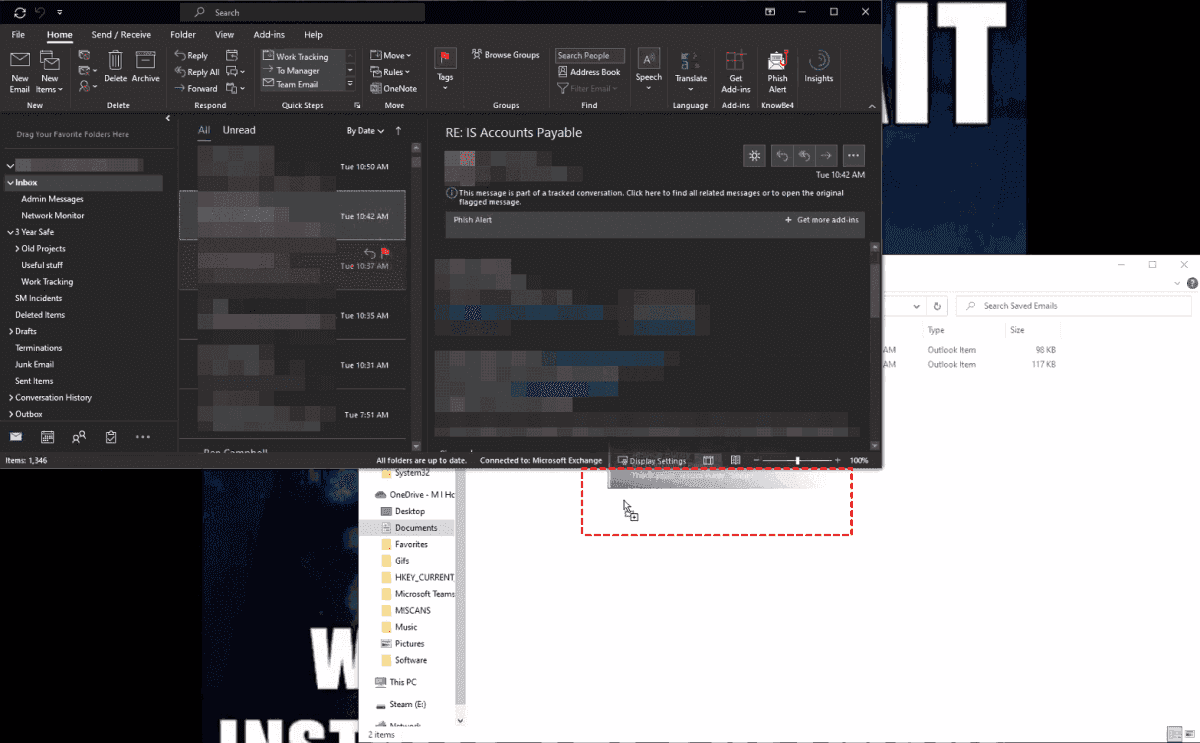
3. Manual Drag and Drop
The most basic method involves manually dragging and dropping individual emails or folders from Outlook into a SharePoint library. While simple, this approach is inefficient and prone to human error.
4. Use Power Automate (Flow) to Save Emails to SharePoint:
I hope the above information will be helpful. Please feel free to let me know if you have any other concern or if I get you wrong. Glad to assist you.
We sincerely appreciate your patience and cooperation. Thanks for your precious time!