Hello KMarchmarz,
Good day! Thank you for reaching out to the Microsoft community.
I completely understand how frustrating it can be when the search functionality in Outlook isn't working as expected. You're not alone in experiencing this, and I'm here to help guide you through some solutions and workarounds that might resolve the issue.
You’ve mentioned that your Outlook 365 and Outlook Live search engines are not returning any results, regardless of the search settings or methods used. You’ve tried multiple solutions, including adjusting search settings, searching through different shared mailboxes, and even re-indexing emails, but nothing seems to work.
I appreciate that you’ve already put in a significant amount of effort into troubleshooting this issue on your own, and I understand how critical email search is for your daily work, especially when you need to find important emails and attachments quickly.
Repair Outlook App
Sometimes the issue might be with a corrupted Outlook application. You can repair it via the Control Panel:
- Go to Control Panel > Programs and Features.
- Locate Microsoft Office in the list.
- Right-click on it and select Change.
- Choose Quick Repair (or Online Repair for a deeper fix if the quick one doesn’t resolve the issue).
Rebuild the Outlook Index
Since re-indexing didn’t solve the problem, ensure that it’s being done properly:
- Go to File > Options > Search.
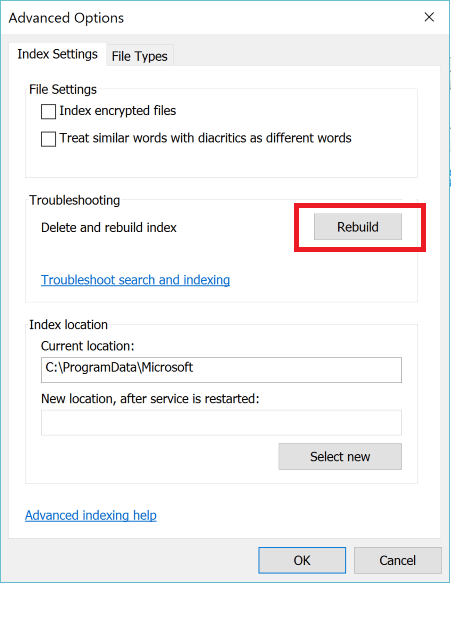
- Under Indexing Options, click on Advanced.
- In the Advanced Options window, click on Rebuild.
- Wait for the index to rebuild (this might take some time depending on the size of your mailbox).
 Verify Indexing Status
After rebuilding, check if Outlook is still indexing:
- Go back to Indexing Options (as described above).
- Click on Indexing Status to see how many items are remaining to be indexed. If there are a significant number of items left, allow more time for indexing to complete.
Run Windows Search Troubleshooter
If rebuilding the index does not help, use the Windows Search Troubleshooter:
- Go to Settings > Update & Security > Troubleshoot > Additional troubleshooters.
- Select Search and Indexing, then click on Run the troubleshooter.
Enable Cached Exchange Mode
Cached Exchange Mode allows Outlook to keep a local copy of your mailbox, which may enhance the search functionality:
- Go to File > Account Settings > Account Settings.
- Select your email account, then click Change.
- Make sure Use Cached Exchange Mode is checked.
Turn Off Faulty Add-ins
Add-ins can sometimes interfere with Outlook's search function. Try disabling them:
- Go to File > Options > Add-ins.
- Select COM Add-ins from the drop-down and click Go.
- Uncheck any non-essential add-ins and click OK.
- Restart Outlook and test the search functionality again.
Clear Cache and Cookies (for Web Version)
If using Outlook on a web browser, clear your browser’s cache and cookies:
- Open browser settings and find options for clearing browsing data.
Repair Outlook Profile
Creating a new Outlook profile can sometimes resolve persistent issues:
- Close Outlook.
- Open Control Panel and select Mail > Show Profiles.
- Click on Add to create a new profile and set it as default.
Registry Fixes (Advanced)
If you are comfortable making changes in the registry, you can try this fix:
- Press
Windows + R, type regedit, and press Enter.
- Navigate to
HKEY_LOCAL_MACHINE\SOFTWARE\Policies\Microsoft\Windows.
- Right-click in the right pane, select New > DWORD (32-bit) Value, name it
PreventIndexingOutlook, and set its value to 0.
Check and Repair Outlook PST Files
In some cases, the indexing service is not able to index Outlook personal folder files (PST) due to logical errors or corruption of their structure. It is recommended to check and repair corrupted PST files using scanpst.exe.
Repair Outlook Data Files (.pst and .ost) - Microsoft Support
If these solutions don’t resolve the issue, you can try an alternative workaround until a permanent fix is found:
- Use Outlook Web (Outlook.com or OWA)
While you troubleshoot the desktop version of Outlook, you can rely on Outlook Web Access (OWA) for email searches. The web version tends to have more consistent search functionality.
- Third-Party Tools
Consider using third-party email management tools like X1 Search or Lookeen as a temporary alternative. These tools offer powerful email search capabilities and can integrate with Outlook to help you find emails quickly.
Contact IT Support
If none of these steps resolve the issue, consider reaching out to your IT support teamor microsoft team for further assistance as there may be deeper issues at play that require professional troubleshooting.Contact Us - Microsoft Support
If the issue persists after trying the above steps, it could be related to deeper system issues or a bug in the Outlook version you're using. I recommend keeping your version of Outlook updated, as Microsoft regularly releases patches and updates that may resolve such issues.
I hope this helps resolve your problem, but if the issue persists or you need further assistance, feel free to follow up!
Please understand that our initial response may not always resolve the issue immediately. However, with your help and more detailed information, we can work together to find a solution.
Appreciate your patience and understanding and thank you for your time and cooperation. Have a great day!
Sincerely,
Microsoft Community Moderator
' cx='32' cy='32' r='32' /%3E%3Ctext x='50%25' y='55%25' dominant-baseline='middle' text-anchor='middle' fill='%23FFF' %3EA%3C/text%3E%3C/svg%3E)
