Share via

Outlook 365 - Gmail - IMAP - Can't reach this page localhost refused to connect

Anonymous
2024-12-09T08:07:35+00:00

Microsoft 365, Outlook (Exchange), Gmail IMAP. Important: Used to work fine until 1-2 days ago.,,,

I got this warning bar in Outlook: SIGN IN Your account gmail.com needs attention, please sign in to use your account. Sign in via browser

I did so. Got a window panel:

Select what Microsoft apps & services can access

Read, compose, send and permanently delete all your email from Gmail.

'checked' it, [Continue]

Error ...

Hmmm... can't reach this page localhost refused to connect.

Local Host error...

Now what..??

For good order's sake (just to avoid well meant but unnecessary answers)

  1. ports / TLS and all that stuff: those settings are correct
  2. userID and passwords are correct
  3. I can send mails from/to Outlook and Gmail online/Android, works fine
  4. when I select a Gmail account, within Outlook, then File > Account Settings > Server Settings > Next > Next a 'test email' is successfully sent

However, when actually sending from Gmail account within Outlook, e.g. to my Outlook account, email is not delivered

"The following recipient(s) cannot be reached"....etc.

Hence I believe it has something to do with apps and services.

My 'consent' (see step 3 below) is not successful.
This localhost thing seems to be a regular error at this point.

exiting/relaunching Outlook does not help.

Note: I may go into my Google Account,

then to "Data and Privacy"

Scroll down to "Data from apps and services that you use"

Click on "Third party apps and services"

Select Microsoft apps & services - Microsoft apps and services is greyed out there.

Anyone any suggestions?

Thanks!

Outlook | Windows | Classic Outlook for Windows | For business

Locked Question. This question was migrated from the Microsoft Support Community. You can vote on whether it's helpful, but you can't add comments or replies or follow the question.

0 comments No comments

Answer accepted by question author

  1. Anonymous
    2024-12-11T09:33:33+00:00

    Dear Mike_884

    Thank you very much for sharing the detailed solution to deal with this issue, I am here to consolidate the solution to this issue based on your reply:

    1. Find the only update file named “host.ics” in “C:\Windows\System32\drivers\etc”.

    (Note: The “C:\Windows\System32\drivers\etc” folder does not necessarily contain the .ics file.)

    1. Once open, verify and find all “mshome.net” entries and add # to disable them.
    2. After rebooting, 2 of them were still disabled and a new one was added manually.
    3. Meanwhile, check the hosts file (administrator notepad), check and make sure there is no error entry related to 127.0.0.1, if there is, delete the entry and restore the hosts to default.

    Note that when using Notepad in administrator mode:

    1. if hosts.ics is present (if available): use the leading #
    2. hosts.ics, if any entries have been added above default, reset to default, or use the # character to temporarily disable them
    3. reboot.

    Also, check if there is any potentially interfering software running, such as specific adblockers, which sometimes add or forget filters/rules automatically over time after running for a long time.

    In the meantime, if it's convenient for you, please mark this reply as “Yes” in order to help customers who are experiencing the same problem and make it easier for other users to find a solution quickly, thank you for your cooperation.

    Thank you for your understanding and support.

    Best wishes

    Chris.S-MSFT | Microsoft Community Support Specialist

    1 person found this answer helpful.
    0 comments No comments

5 additional answers

Sort by: Most helpful
  1. Anonymous
    2024-12-09T10:53:04+00:00

    Dear Mike_884

    Welcome to Microsoft Community.

    According to your description, you are having problems with Gmail mailboxes joined using IMAP within 365 Outlook Classic.

    Based on your description, I suggest you try to refer to the following process to try to operate to see if it can solve your problem:

    You can remove Gmail access from Microsoft apps and services as follows and then do a browser login from Outlook again. The following steps enable you to go back to browser login where you can check the checkbox.

    Step 1: Remove access for Microsoft Apps & Services in Gmail.

    -Close Outlook.

    -Sign in to your Google account on google.com.

    -Select your profile picture in the top corner and select Manage your Google Account.

    -On the left side menu, select Security.

    -Scroll down to Your connections to third-party apps & services and select Microsoft apps & services.

    -Locate Microsoft apps & services has some access to your Google Account and select See Details.

    -Under Access you’ve given to Microsoft apps & services, select Remove all access.

    -Select Confirm.

    Step 2: Delete the Google IMAP credentials from Windows Credential Manager

    -From the Windows Start menu, search for Credential Manager and open it. On Windows 10 you may need to open the Control Panel to access Credential Manager. For more information, please go to Accessing Credential Manager.

    -Under Manage your credentials, select Windows Credentials.

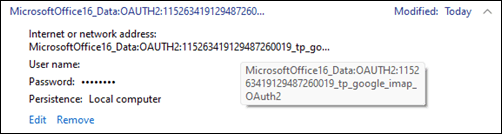
    -Scroll down to Generic credentials and locate those starting with MicrosoftOffice16_Data:OAUTH2.

    -Expand each of these and hover over MicrosoftOffice16_Data:OAUTH2 until it shows the full name including the tp_google_imap_Oauth2. These are the Google credentials for your Gmail account.

    -Select Remove for each of these with the MicrosoftOffice16_Data:OAUTH2. If you have multiple Gmail accounts, you will need to sign in to each of them again.

    1.If you want to avoid removing Google IMAP credentials except for the specific affected account, you can map the credentials by comparing them to the identities in this registry key below. Open Registry Editor and paste this path in the Address bar at the top.

    Computer\HKEY_CURRENT_USER\Software\Microsoft\Office\16.0\Common\Identity\Identities

    Disclaimer: Generally, modifying registry subkeys or work group is intended for advanced users, administrators, and IT Professionals. It can help fix some problems, **however, serious problems might occur if you modify the registry incorrectly. Therefore, make sure that you follow these steps carefully. For further protection, back up the registry before you modify it. Then, you can restore the registry if a problem occurs.**For more information about how to back up and restore the registry, click How to back up and restore the registry in Windows - Microsoft Support to view the article.  

    2.The sub keys to this registry key above include your Gmail identity. At the beginning of the identity registry key is a number that matches your Gmail credential in Credential Manager. See the examples below for reference.

    Image

    Image

    -After you have done the steps above you are now ready to Sign in via browser from Outlook. Open Outlook to the Outlook profile that was not syncing and select the Sign in via browser business bar in Outlook. Make sure during browser sign in to check the box for Microsoft apps & services noted at the top of this article.

    If you removed the Gmail account from your Outlook profile, select FileAdd account to add the Gmail account back again and do the browser sign in process again.

    You can also see the link:Unable to add a Gmail account to classic Outlook - Microsoft Support

    Please also note that if the above methods do not solve your problem, you can only contact Microsoft support manually and have it handled by the other party's access through the following methods:

    1.Click the link.–Contact - Microsoft Support

    1. In the box under “We're here to help,” enter Outlook, click Get Directions, and then click Contact Customer Service. (You must be logged into your Microsoft account. If not, follow step )
    2. In this section, you need to sign in to your personal Microsoft account.

    Note: You can only sign in with your personal MSA, when you sign in with your company account, it will not display correctly. If you are unable to connect to this account, you can use another account or create a new account to manage it.

    1. Under “Products and Services”, select “Other Products”, select “Outlook”, and then click Confirm.
    2. You can select “Chat with a Support Specialist in a Web Browser” and go to the chat window.

    Note: Please contact us during local business hours on weekdays, CHAT is not available 24 hours a day.

    Feel free to text back if you need further help.

    Best wishes

    Chris.S-MSFT | Microsoft Community Support Specialist

    1 person found this answer helpful.
    0 comments No comments
  2. Anonymous
    2024-12-11T07:59:26+00:00

    I had the same problem as Mike_884 that all my accounts in outlook couldn't sign-in but the solution provided didn't work. I followed the same instructions: (1) remove 3rd party microsoft access in google and (2) remove windows credentials on gmail entries. Error! Filename not specified.Re-launch Outlook(new) app and when signing-in, the screen launched Edge browser instead of Chrome(default) showing

    "Hmm.... can't reach this page It looks like the webpage at https://outlook.office.com/mail/oobe? nativeVersion=1.2024.1204.300&oobeRedirect=GSAF&loadModule=%2Fmail%2F might be having issues, or it may have moved permanently to a new web address.

    ERR_CONNECTION_ABORTED"

    I tried un-install the Outlook(new) and re-install again but still didn't work. Any other clue?

    0 comments No comments
  3. Anonymous
    2024-12-11T01:58:34+00:00

    Dear Mike_884

    Thank you for your reply.

    I saw your feedback and based on your reply, I will repeat the solution to your problem:

    1. Find the only updated file with the name “host.ics” in “C:\Windows\System32\drivers\etc”.
    2. Once on, verify and find all “mshome.net” entries and add # to disable them.
    3. After rebooting, 2 of them were still disabled, and a new one was manually added.
    4. In the meantime, check the hosts file (administrator notepad), check and make sure there are no error entries related to 127.0.0.1, if there are, delete the entry and restore the hosts to default.

    I'm glad that your problem was solved perfectly, sometimes small problems in network and hosts files can lead to unexpected troubles while the problem is related to wrong entries in hosts, which can be caused by many reasons (e.g., the use of VPNs, proxies can automatically inject hosts and generate entries).

    If you need any further help with this or any other questions, please let us know through the Microsoft Community.

    Finally, if it's convenient for you, in order to help customers with the same problem and facilitate other users to quickly locate the solution, please mark “Yes” for this reply, thank you for your cooperation.

    Thank you for your understanding and support.

    Best wishes

    Chris.S-MSFT | Microsoft Community Support Specialist

    0 comments No comments
  4. Anonymous
    2024-12-10T09:24:54+00:00

    Hi Chris,

    Thank you very much for your elaborate reply. It is truly appreciated.

    I went thru all the steps but regret to tell that it did not solve the matter. This is all only due to a local host error 8011 (error 4).

    1. have removed all Google credentials
    2. even removed registry keys (and reboot)
    3. did:

    ipconfig /release

    ipconfig /flushdns

    ipconfig /renew

    netsh winsock reset

    netsh interace ipv4 reset

    reboot

    1. did a network reset reboot
    2. Within my Google Account it says that I have given access to Microsoft apps & services

    It looks like this local host 8011 error is a more common thing.

    By the way, even 127.0.0.1 also results in an error (with disabled firewall of course

    Discovered that it has to do with -my- PC: within Outlook (Office 365) on my desktop there are 2 gmail accounts, mine and one of my wife. She also has Gmail on her laptop. This morning, when opening her email, she was prompted to authorize Microsoft within, Google account (Sign in: your account... gmail needs attention, blah blah), which she did.

    Piece of cake and 'Authentication was completed'.

    Image

    Her Gmail now works fine both on her laptop and on my PC.

    Curious thing ...

    LATER

    It looks like the matter is solved.

    I went into C:\Windows\System32\drivers\etc

    the only updated file there that was the host.ics (other files were 'old')

    There were 3 'mshome.net' entries in host.ics.

    Added # to disable them.

    Rebooted.

    Checked, 2 remained disabled, a new one was added.

    Also checked host file (admin notepad)

    There was 1 'extra' entry 127.0.0.1 linked to a very old program that I once used for testing

    Removed the entry, so hosts was back to default.

    rebooted

    fingers crossed, things are working again.

    don't know what did the trick though.

    0 comments No comments