Starting Git with VS 2219

Bryan Kelly 521 Reputation points
2022-09-16T02:42:13.673+00:00

Windows 11, VS 2019, C++
Is there a good tutorial about Git for VS 2019?
Yes, I see dozens of them, but none of them match what my computer does.
They display black background screens. I have been using VS for a long time now and have never had a black background screen.
Several start with the opening dialog with no code selected and suggest click the option: Continue without code.
There is no such option on this computer.
Many have the prerequisite of having a GitHub account. I don’t want one. I want to keep everything on my hard drive.
So how far can I get?
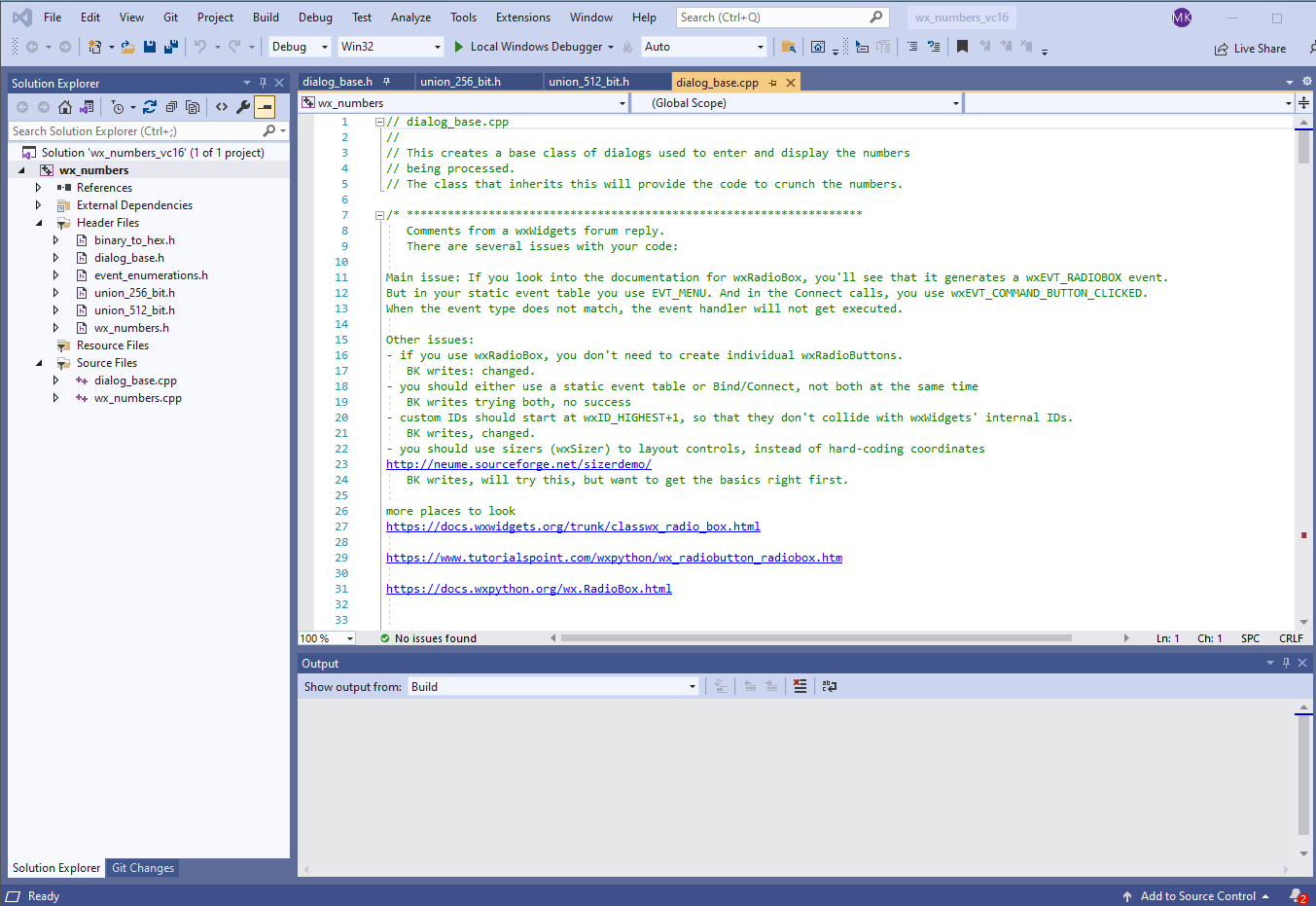
Start VS with a working project. Code is displayed, Solution Explorer is present.
Click tool: Git -> Create Repository
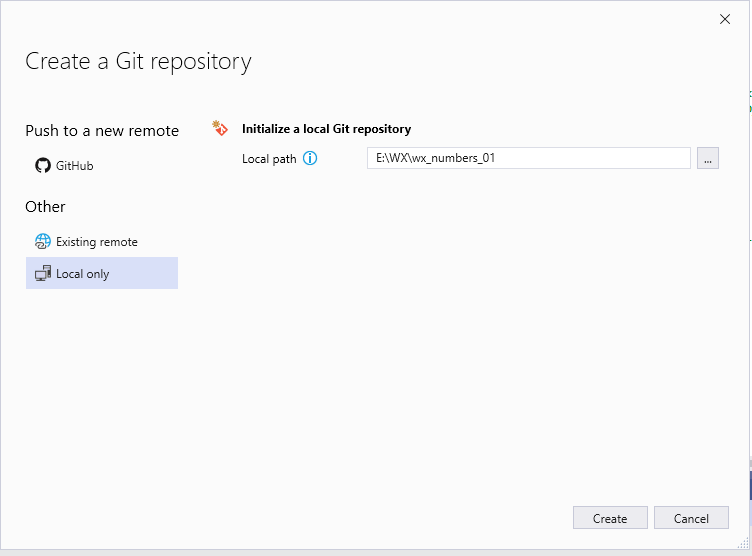
Click: Local only and everything but Local path closes. Looks proper.
This project is named wx_numbers_01. Navigate to a directory and create this repository: E:\Z_GIT
It notes that a local Git repository already exists at this location.
No, it does not, there is nothing there. I tried creating one, it did not work out, so everything was deleted and now I try again. Maybe there are some hidden files. Delete the entire directory and try again.
Question: Will there be a single repository for all my projects, or a separate repository for each project?
A search indicates we can, but not if we should. So, create a repository at the top level.
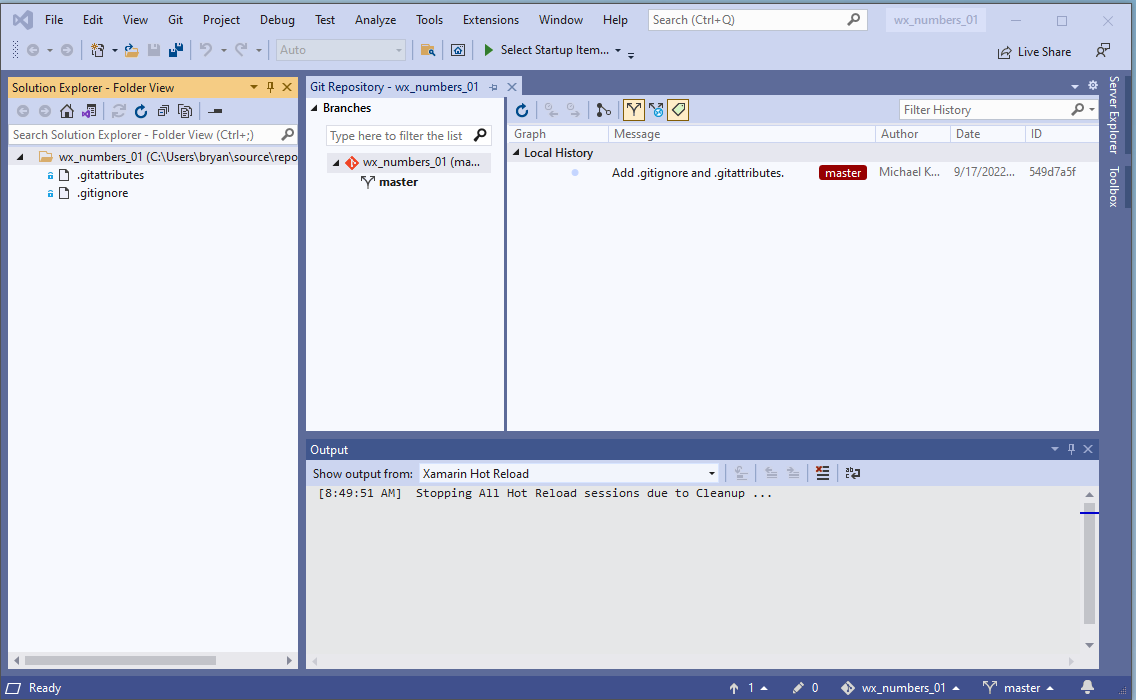
The local path is: E:\Z_GIT, so click Create. Wait a few seconds, and all my code is closed out and the following is displayed.
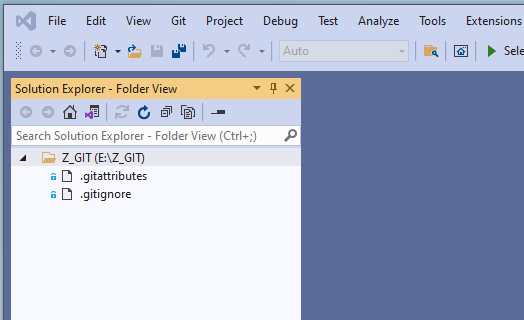
241685-06-repo-created.png

That is my solution explorer. It will not go back to my project code. Now what?
Best reply: a link to a tutorial that shows the images found on my computer. (Please, no black backgrounds)
Second Best: Instruction on how to start putting my code into that new repository.
Thank you for your time.

Developer technologies | C++
A high-level, general-purpose programming language, created as an extension of the C programming language, that has object-oriented, generic, and functional features in addition to facilities for low-level memory manipulation.
Developer technologies | Visual Studio | Other
A family of Microsoft suites of integrated development tools for building applications for Windows, the web, mobile devices and many other platforms. Miscellaneous topics that do not fit into specific categories.
{count} votes

Answer accepted by question author
  1. Tianyu Sun-MSFT 34,691 Reputation points Microsoft External Staff
    2022-09-16T10:06:41.66+00:00

    Hi @Bryan Kelly ,

    After checking and testing more, I think I can explain the issue that you got.

    The complete actions and situations that you did and experienced in Visual Studio 2019 are correct and should be > by design. See this document for details: Create a local Git repo from a new solution/an existing solution.

    When you created a local Git repo this three files/folders will be generated: .git, .gitattributes and .gitignore. So if you use the default path for initializing a local Git repo, the Git repo will be generated in your project folder and VS can recognize it and display correctly in the VS Solution Explorer. If you change to use a new empty folder as a local Git repo, then VS will not also copy your project/solution to this repo, so in the Solution Explorer you can only see this Folder View with this two files.

    Indeed, I agree with you, it should be better to be possible to go back to your project and continue developing your codes. But currently this isn’t supported in VS 2019. You may try using the default folder as a local Git repo or coping your project/solution to this newly initialized Git repo(folder) to let VS recognize and display in VS Solution Explorer.

    I also recommend you raise a suggestion ticket on Developer Community.

    Best Regards,
    Tianyu

    • If the answer is the right solution, please click "Accept Answer" and kindly upvote it. If you have extra questions about this answer, please click "Comment".
      Note: Please follow the steps in our documentation to enable e-mail notifications if you want to receive the related email notification for this thread.
    0 comments No comments

4 additional answers

Sort by: Most helpful
  1. Bryan Kelly 521 Reputation points
    2022-09-16T21:18:34.367+00:00

    I followed the link in the first post and make this statement:
    I want all my personal data on my data drives, separate from the system drive. Example reason: If I have a system failure and must take my computer to a repair facility, they don't get my personal data. Not even source code that I write.

    I recognize there is a lot of stuff that I "cannot" force Windows to not keep on the system drive. That said, I do what I can. And to force me to keep my personal data on the system drive is just bad design and bad behavior.

    And now that I have that new path that does not work, and is presented when I try to create a repository, what is the path that Microsoft will allow?

    0 comments No comments

  2. Bryan Kelly 521 Reputation points
    2022-09-16T21:34:56.96+00:00

    I followed the link and posted some comments.
    Close out Visual Studio and re-open with my project directory.
    Try to create a repository. The default path is the one I entered. The one that does not work.
    So Be It.
    Try these one at a time:
    C:\Users\bryan\source\
    C:\Users\bryan\source\repos
    C:\Users\bryan\Documents\Visual Studio 2019

    Each time my Visual Studio dialogs with my code are deleted. Or maybe hidden, I don't know. But I cannot get back to them without restarting VS.

    So,..., what must be entered as an allowed location for a local Git repository?

    Edit, and to be clear. Start in this condition with my project ready for work.
    241908-07-working.png

    Then when ready to specify the Git repository, this dialog is presented.

    242023-08-git.png

    What must be entered for the Git Repository?

    0 comments No comments

  3. Bryan Kelly 521 Reputation points
    2022-09-18T05:04:17.787+00:00

    I have made some progress. After looking through several videos, finally discovered one that showed the path for the repository. Adjusted mine to match the video and it seems to have worked.

    Before continuing: Will anyone work on this problem of not being allowed to change the location of the repository? If not, then will the user not be allowed to made a change pre-ordained to fail? Or at least warn the user?

    Back at the ranch. Referring to: https://learn.microsoft.com/en-us/visualstudio/version-control/git-with-visual-studio?view=vs-2022

    This requires the use of GitHub. I don't want to use GitHub, I want to keep my code and repository on my computer.

    Where is a tutorial that presents that?

    Working through several tutorials, they all start talking about cloning a repository and branching. Why would I want to clone my repository before it has even been created? Why might I want to branch it before it has been created. And why might I want to do either of those before I have seen how to browse through what I have created and understand what it there and how to use it?

    Where can I find a tutorial that covers the concepts of putting my code into Git for the first time before going into cloning and branching?

    0 comments No comments

  4. Bryan Kelly 521 Reputation points
    2022-09-18T16:30:32.077+00:00

    Trying to add code to the repository
    Visual Studio Professional 2019, version 16.11.19
    A repository has been created. With my project loaded, at the bottom of the VS dialogs is the option “Add to Source Control” Select that.
    A small option is opened just above noted tool with the sole entry of Git. Click it to get the dialog “Create A Git repository”
    That is a problem. The repository already exists.
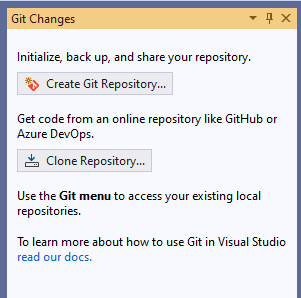
    Cancel and go to the top tool bar: Git -> Commit or Stash to get this dialog:
    Image 09_committ_or_stash

    242274-09-committ-or-stash.png

    Again, that is a problem. It is not congruent with the option selected. Neither option is appropriate.
    Go back and select Git -> Local repositories -> wx_numbers_01 because that matches the currently loaded project. After a few clicks looking around for a way to send my source code to Git the VS dialog looks like this:
    Image 10_no_way_to_save

    242268-10-no-way-to-save.png

    All dialogs showing my project have been dismissed or hidden. I find no option that looks like something to put my code in a repository.

    0 comments No comments

Your answer

Answers can be marked as 'Accepted' by the question author and 'Recommended' by moderators, which helps users know the answer solved the author's problem.