Azure Lab Services
An Azure service that is used to set up labs for classrooms, trials, development and testing, and other scenarios.
This browser is no longer supported.
Upgrade to Microsoft Edge to take advantage of the latest features, security updates, and technical support.
' cx='32' cy='32' r='32' /%3E%3Ctext x='50%25' y='55%25' dominant-baseline='middle' text-anchor='middle' fill='%23FFF' %3EJH%3C/text%3E%3C/svg%3E)
Anyone can share some insights as how to update existing template for the VM generation 1 to generation 2?
' cx='32' cy='32' r='32' /%3E%3Ctext x='50%25' y='55%25' dominant-baseline='middle' text-anchor='middle' fill='%23FFF' %3ESM%3C/text%3E%3C/svg%3E)
Hello @John Huynh ,
Welcome to Microsoft QnA.
Your choice to create a generation 1 or generation 2 virtual machine depends on which guest operating system and boot method you want to use to deploy the virtual machine. Generation 1 virtual machines support most guest operating systems. Generation 2 virtual machines support most 64-bit versions of Windows and more current versions of Linux and FreeBSD operating systems
You need to first verify if the OS you are choosing during VM creation supports your choice of VM generation (gen 2) by checking it from this document.
In the ARM template, you need to navigate to imageReference under properties, and there in the sku you will have to mention the sku name.
For example, Windows Server 2019 Datacenter image supports both gen 1 and gen 2, so here's how the difference in the sku would look like for each generation.
for gen 1:
"imageReference": {
"publisher": "MicrosoftWindowsServer",
"offer": "WindowsServer",
"sku": "2019-Datacenter",
"version": "latest"
}
for gen 2:
"imageReference": {
"publisher": "canonical",
"offer": "0001-com-ubuntu-server-focal",
"sku": "20_04-lts-gen2",
"version": "latest"
}
Hope this helps.
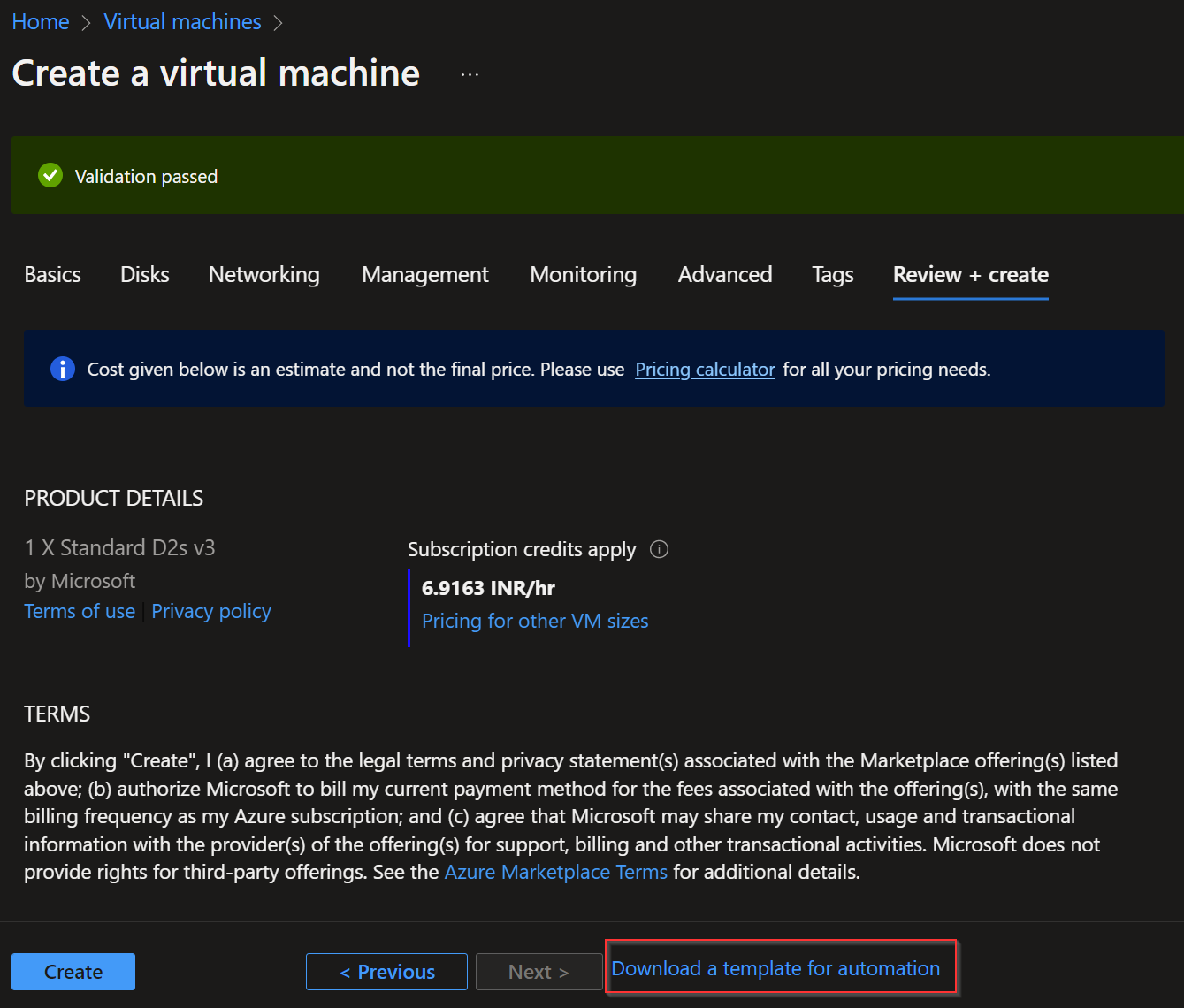
You can also check the name of skus if you are unsure by downloading the template from Azure portal, and modifying it in your ARM template.
Check the below image for reference. You can choose to select Download a template for automation after selecting the VM image during creation and confirm the sku.
--------------------
If you find the above information helpful, kindly accept as answer or upvote to increase the relevancy of this post.
Thanks srbhatta,
That is good information to start with.
Yes, from the marketplace, I can create a Windows 10 VM using Gen2.
Howerver, we need to use our template since they already have all the apps and software libraries in that template.
From your instructions, I am able to see the ARM Template as below. How do I set as a g2 vm?
244494-image.png
"storageProfile": {
"imageReference": {
"publisher": "MicrosoftWindowsDesktop",
"offer": "Windows-10",
"sku": "[parameters('osVersion')]",
"version": "latest"
},
"osDisk": {
"name": "[concat(variables('vmName'),'_Disk_OS')]",
"createOption": "FromImage"
}
As for the image, I look under the Images, Image Template, and Azure computer galleries, I am not seeting reference image there. From the script above, is it pull from the marketplace?
In addition, is it possible to convert existing VM from G1 to G2 because the VM size I try to update is only supported Gen2 (Standard_FX4mds)?
Thank you sir
John
Hi @John Huynh , you can find the sku referenced under parameters. If you are not familiar with ARM template, you could please provide the ARM template here so that I can take a look and let you know.
Also, no it is not possible to update the generation of a VM post its creation as generation of a VM is linked to it's underlying hardware. Hope that helps.