Hi @Brian W ,
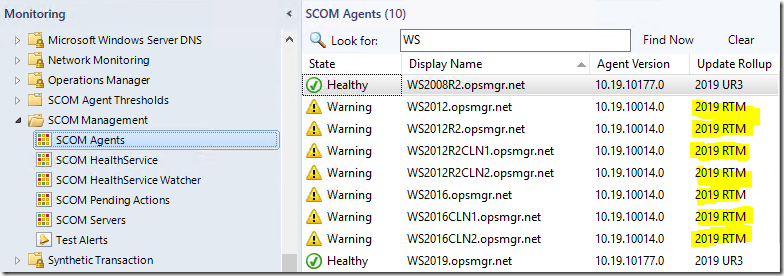
I have never heard of an MP with this particular functionality, but I certainly know how I would do this. I won't go looking for the agent version on each agent locally, but rather get all agents versions directly from SCOM. I would do this using PowerShell and the create a PowerShell based Monitor, which will alert on "unwanted" agent version.
This is pretty easy to achieve, you need:
- the PowerShell Authoring MP from Cookdown/SquaredUp
- the script
- Integrate the script in SCOM, example in the article I wrote here:
Monitoring Active Directory User Account Expiration using SCOM and PowerShell (Step by Step Guide)
https://www.pohn.ch/monitor-active-directory-user-account-expiration-using-scom-and-powershell-step-by-step-guide/
The script for this should be easy to create, something like this:
#Compare alll agents to the SCOM 2019 UR4 Version
$VersionToCompare = "10.19.10200.0"


#Clear Errors
$Error.Clear()

#Prepare API and Property Bag Objects
$ScomAPI = New-Object -ComObject "MOM.ScriptAPI"
$PropertyBag = $ScomAPI.CreatePropertyBag()


    try {

        $AllAgents = Get-SCOMAgent

        foreach ($Agent in $AllAgents)
        {

        #get the agent version
        $AgentVersion = (Get-SCOMAgent -Name $Agent.Name).Version

        if ($AgentVersion -eq $VersionToCompare) {

        $PropertyBag.AddValue("State","Healthy")
        $PropertyBag.AddValue("Version",$AgentVersion)

        } else {

        $PropertyBag.AddValue("State","Warning")
        $PropertyBag.AddValue("Version",$AgentVersion)

        }

     }

    } finally {
      #Send the whole output to SCOM
      $PropertyBag
    }
Then you just create the monitor and you have it. Of course the Powershell script can be extended easily to accomodate even more complex logic, but I think thiss is a nice start.
I hope I could help you out with that!
----------
(If the reply was helpful please don't forget to upvote and/or accept as answer, thank you)
Regards
Stoyan Chalakov

' cx='32' cy='32' r='32' /%3E%3Ctext x='50%25' y='55%25' dominant-baseline='middle' text-anchor='middle' fill='%23FFF' %3EXM%3C/text%3E%3C/svg%3E)