Azure Backup
An Azure backup service that provides built-in management at scale.
This browser is no longer supported.
Upgrade to Microsoft Edge to take advantage of the latest features, security updates, and technical support.
' cx='32' cy='32' r='32' /%3E%3Ctext x='50%25' y='55%25' dominant-baseline='middle' text-anchor='middle' fill='%23FFF' %3EAV%3C/text%3E%3C/svg%3E)
We have a brand-new SQL server which uses only local databases.
Databases have been restored from an older server.
When I add the new server to MABs, it fails in the consistency check stage with the following error:
An unexpected error occurred while the job was running. (ID 104 Details: The filename, directory name, or volume label syntax is incorrect.
When I looked up the error in DPM help page, the followings were mentioned:
An unexpected error occurred while the job was running.
or
Unknown error (0x80041010)
This error can appear if you are trying to protect a SQL Server database that has files on a remote share. It isn't supported by DPM.
Which can also occur if you are attempting to back up a Hyper-V VM on a host running Windows Server 2012 R2. DPM 2012 SP1 doesn't support this scenario. To backup a Hyper-V VM on a host running Windows Server 2012 R2 or later, upgrade DPM 2012 SP1 to DPM 2012 R2.
I believe the first cause is closer to my problem since this is a SQL server.
However, it does not access any remote share. all databases are local as mentioned.
I tired disabling the Volume Shadow Copy from the Hyper Visor but that did not resolve the problem.
here is detailed error:
Affected area: SR-DB
Occurred since: 2022-10-06 6:41:07 PM
Description: The replica of Microsoft Hyper-V SR-DB on SR-DB is inconsistent with the protected data source. All protection activities for data source will fail until the replica is synchronized with consistency check. You can recover data from existing recovery points, but new recovery points cannot be created until the replica is consistent.
For SharePoint farm, recovery points will continue getting created with the databases that are consistent. To backup inconsistent databases, run a consistency check on the farm. (ID 3106)
An unexpected error occurred while the job was running. (ID 104 Details: The filename, directory name, or volume label syntax is incorrect (0x8007007B))
More information
Recommended action: Retry the operation.
Synchronize with consistency check.
Run a synchronization job with consistency check...
Resolution: To dismiss the alert, click below
Inactivate
Any thoughts on this?
Thanks

As I don't know what you might have done on your own and which post you already read...
I found this very interesting related to your problem:
or
https://learn.microsoft.com/en-us/answers/questions/750854/dpm-2019-error-id-104.html
Hi @Anthony Vand ,
You asked for thoughts...
Where is your new SQL Server running?
As the error message seems to suggest, it might be an Hyper-V virtual machine?
Where is it running? really, as a Hyper-V machine on-premise? or on a Azure Stack? or or or?
How is this machine configured? How is the "high availability" config set on this machine?
How is that storage attached to the virtual machine? SAN, NAS, ISCSI etc?
Maybe you (or someone else) configured the usage of replicated storage, to keep at least the disks of this machine "up-to-date" in another datacenter?
Can this be your problem, that MABS "think" the remote storage box is a network share?
Hello
Thank you for your response.
By thoughts I meant solution :D
I'll try to go through your questions 1 by 1:
1- it is running on-premise as a Hyper-V machine on our cluster
2- High availability is configured on the VM just like all other VMs on the cluster, this VM can be moved between nodes like all other VMs
3- The VM is using a storage pool which is shared for all VMs on that cluster node. the pool is consisted of a SAS disk which is on the server.
4- I'm not sure if I understand this one, but we don't have other data centers communicating to this server
5- I do not understand this one as well, what are you referring to as storage box which MABs thinks it on a network share?
Thank you
Hi @Anthony Vand ,
I guess that the changing location of SQL database by accident while backup and restore may cause this error.
I will make an example of model database. First you need to check the location of which is correct by this :
SELECT name, physical_name AS CurrentLocation
FROM sys.master_files
WHERE database_id = DB_ID(N'model');
GO
And if you loctaion is correct you shall get the result like this:
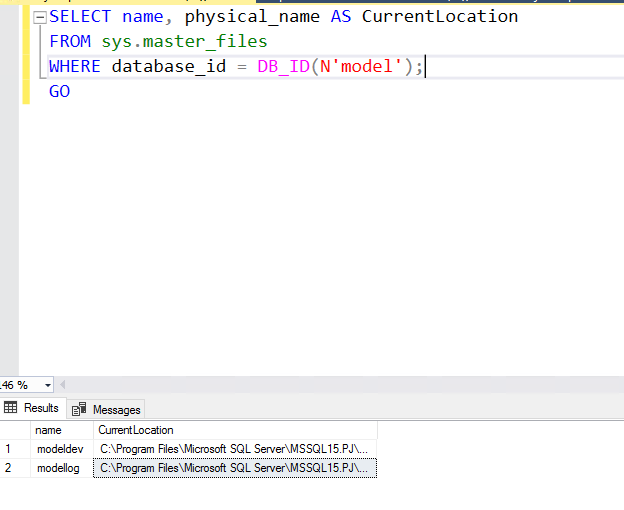
But if it is not correct you may see this:
modeldev C:\MSSQL\Data/model.mdf
modellog C:\MSSQL\Data/modellog.ldf
The difference is '/'
You can use the following order to mend them into the correct location:
USE master;
GO
ALTER DATABASE model
MODIFY FILE (NAME = modeldev, FILENAME = 'C:\MSSQL\Data\model.mdf');
GO
ALTER DATABASE model
MODIFY FILE (NAME = modellog, FILENAME = 'C:\MSSQL\Data\modellog.ldf');
GO
If the answer is helpful, please click "Accept Answer" and kindly upvote it. If you have extra questions about this answer, please click "Comment"
Hello
Thank you for your response
BjoernPeters's solution solved the problem,
I moved the storage to another CSV and now the consistency check won't fail anymore, and I can make disk and online recovery points
that is very good ! You are welcome!