Developer technologies | ASP.NET | ASP.NET Core
A set of technologies in the .NET Framework for building web applications and XML web services.
This browser is no longer supported.
Upgrade to Microsoft Edge to take advantage of the latest features, security updates, and technical support.
' cx='32' cy='32' r='32' /%3E%3Ctext x='50%25' y='55%25' dominant-baseline='middle' text-anchor='middle' fill='%23FFF' %3EAN%3C/text%3E%3C/svg%3E)
I am trying to add google authentication to my .net new mvc application however whats confusing me is the documentation steps to properly integrate it in to my app and when looking at yt videos its all related to Visual studio not visual studio code .
' cx='32' cy='32' r='32' /%3E%3Ctext x='50%25' y='55%25' dominant-baseline='middle' text-anchor='middle' fill='%23FFF' %3EMT%3C/text%3E%3C/svg%3E)
The docs are pretty clear and they don't mention Visual Studio at all. The actual code involved has nothing to do with VS vs VS Code as it ultimately compiles the same. Refer to the linked docs and walk through the process and you should be fine.
If you have specific questions then please ask those and provide us the relevant code.
' cx='32' cy='32' r='32' /%3E%3Ctext x='50%25' y='55%25' dominant-baseline='middle' text-anchor='middle' fill='%23FFF' %3EA%3C/text%3E%3C/svg%3E)
Hi @Aaron Nguyen ,
To implement Google Authentication, first we need to get the Google client ID and secret. You can refer to the Google Authentication document and Create the Google OAuth 2.0 Client ID and secret.
Then, depending on whether you are using Asp.net core Identity or not, you can refer the following steps to implement Google Authentication in an MVC application.
If using Asp.net core Identity, since the ASP.NET Core Identity has a built-in support for authentication service that works on OAuth like Google, Facebook, Microsoft, LinkedIn, Twitter, etc. There is no need to add the External login button by ourselves. In this scenario, you can do the following steps:
Microsoft.AspNetCore.Authentication.Google package via Nuget.appsettings.json file and add the Google configuration (in my sample, I'm using appsettings.json file to store the google clientid and secret, you can also refer to the official document to store the values with Secret Manager). Like this: 
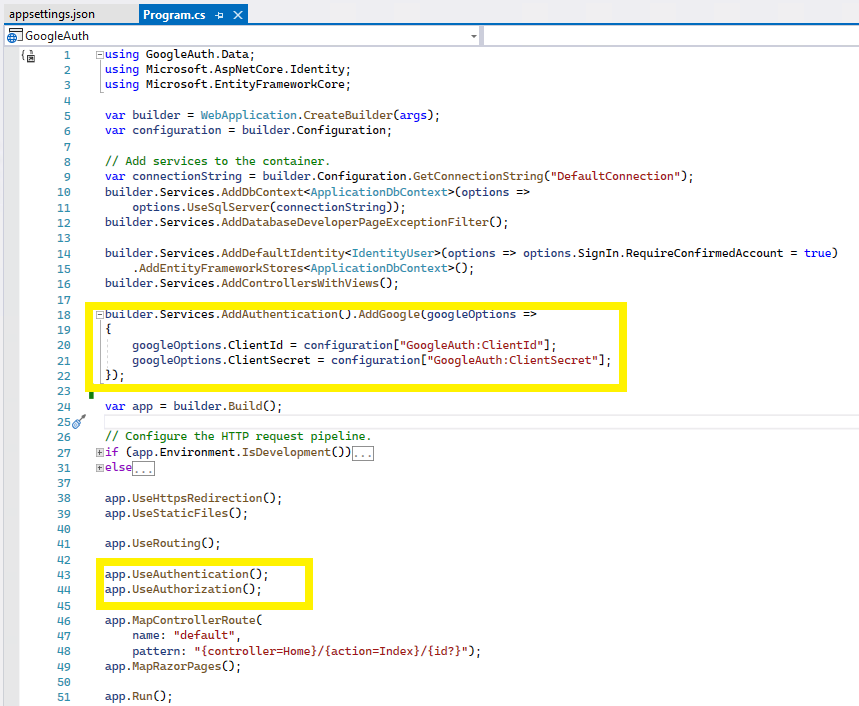
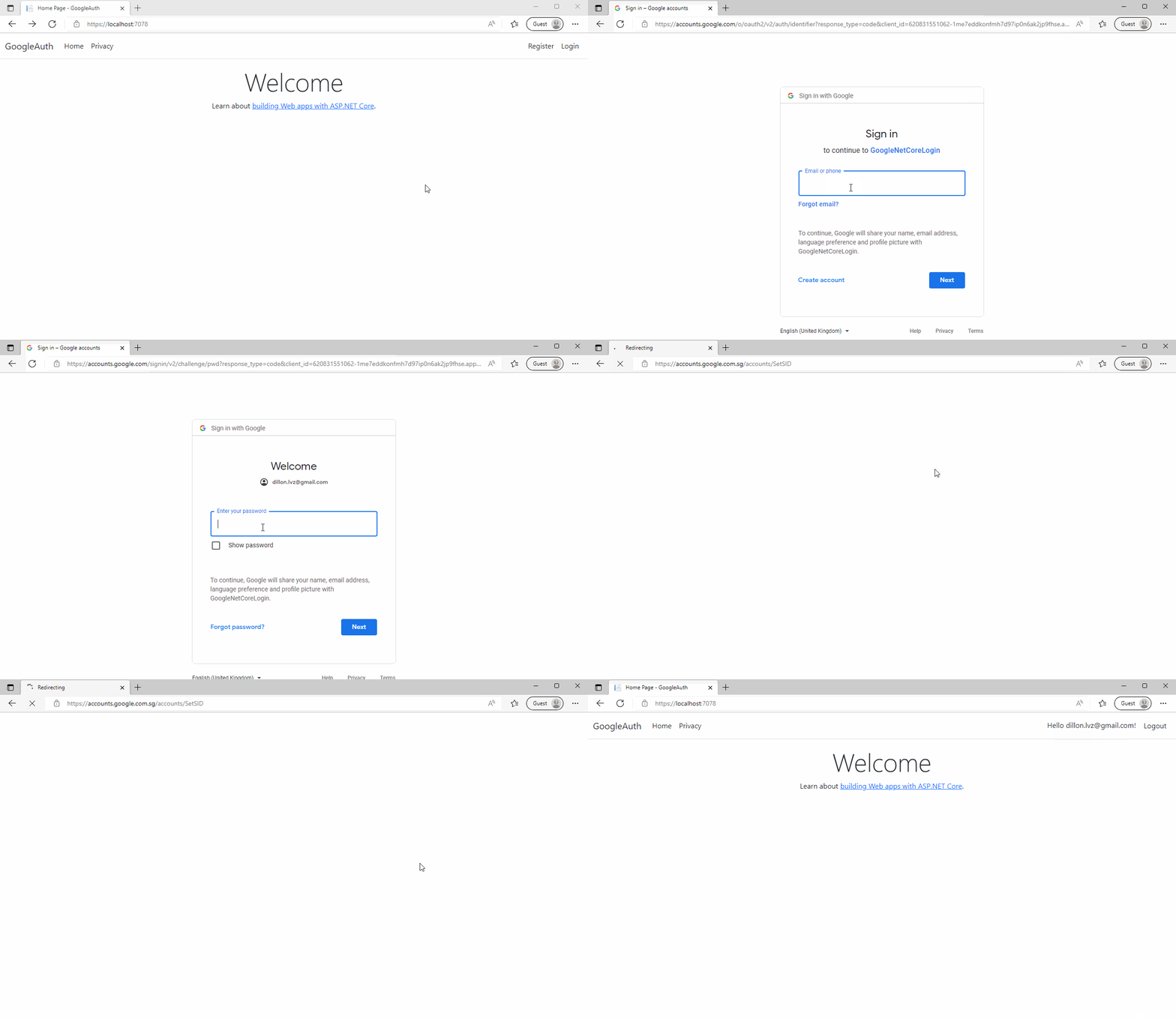
If you want to implement Google Authentication without Asp.net Identity, you have to add the Google Login button by yourself. Refer to the following sample:
Microsoft.AspNetCore.Authentication.Google package via Nuget.appsettings.json file to store the Google ClientId and secret. 

_Layout.cshtml page: 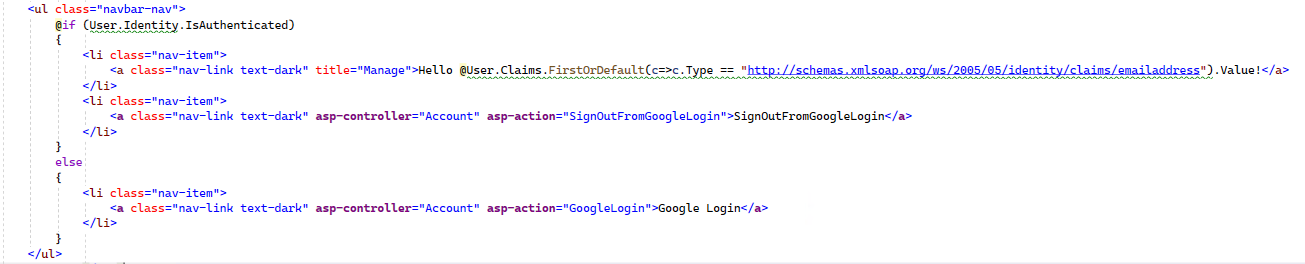

If the answer is the right solution, please click "Accept Answer" and kindly upvote it. If you have extra questions about this answer, please click "Comment".
Note: Please follow the steps in our documentation to enable e-mail notifications if you want to receive the related email notification for this thread.
Best regards,
Dillion