Outlook | Windows | Classic Outlook for Windows | For business
Using classic Outlook for Windows in business environments

This browser is no longer supported.
Upgrade to Microsoft Edge to take advantage of the latest features, security updates, and technical support.
' cx='32' cy='32' r='32' /%3E%3Ctext x='50%25' y='55%25' dominant-baseline='middle' text-anchor='middle' fill='%23FFF' %3EFB%3C/text%3E%3C/svg%3E)
I HAVE 4 OTHER INBOXES I NEED TO VIEW WHILE IM AT WORK AND I HAVE NO ACCESS TO THEM WHEN I OPEN MY OUTLOOK THROUGH 365. I CAN NOT FIND ANY OPTIONS TO ADD ANOTHER INBOX.
Using classic Outlook for Windows in business environments

Changed the tag as this is unrelated to Configuration Manager.
' cx='32' cy='32' r='32' /%3E%3Ctext x='50%25' y='55%25' dominant-baseline='middle' text-anchor='middle' fill='%23FFF' %3EJL%3C/text%3E%3C/svg%3E)
Hi @Frank Baroff (Buildings) ,
I HAVE 4 OTHER INBOXES I NEED TO VIEW WHILE IM AT WORK
Would you like to add other email accounts or only add another Inboxes?
What's the type of those accounts(POP,IMAP,Exchange)? Are those accounts all in your organization?
Firstly, if you know the password of those accounts and want to add them in a profile for viewing at the same time, it's suggested to add them following the article as Andy mentioned.
If you cannot log in those accounts and they are all Microsoft 365 for business or Exchange accounts in the same organization as you, as I know, the Inbox folder could be shared by two ways(Folder sharing and Delegate Access).By folder sharing, you just could view others' inboxes, and by using delegate access, you could monitor their Inboxes and send email on behalf of them. You could choose appropriate ways for your need.
If you want to set folder sharing, it's suggested to first set root folder visible and assign the Inbox folder permission for you on other users' mailbox.Then you could add the other mailbox (File>Account settings>Account settings>choose your account>change>More Settings>Advanced>Add>type others' account>apply)and view their inbox successfully.
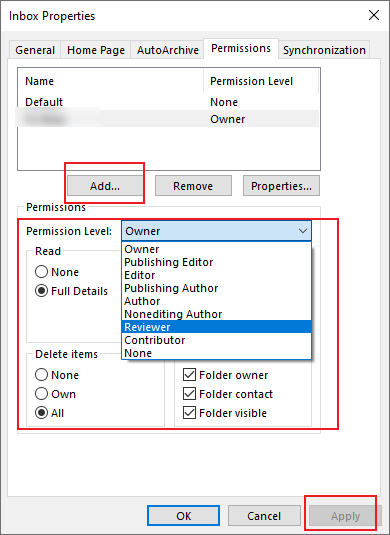
Besides, if you want to set the delegate access to send on behalf of them, you may need others set delegate access for you on their mailbox(File>Account settings>Delegate Access>Add>type your address and assign permissions>Apply), then you could add their mailboxes in your profile as settings above.
For more information about the settings of folder sharing and delegate access, you could refer to this article: Manage another person's mail and calendar items
If the response is helpful, please click "Accept Answer" and upvote it.
Note: Please follow the steps in our documentation to enable e-mail notifications if you want to receive the related email notification for this thread.
Hi @Frank Baroff (Buildings) ,
Does this issue have any upgrades? If it has been resolved, please click "Accept as answer" to mark useful post or share your solution, your action would benefit others who have similar issues. If you have any questions or need further assistance, please feel free to post back. Thanks!

Hi there.
You can use this doc for instructions:
https://support.microsoft.com/en-us/office/add-an-email-account-to-outlook-6e27792a-9267-4aa4-8bb6-c84ef146101b