Developer technologies | VB
An object-oriented programming language developed by Microsoft that can be used in .NET.
This browser is no longer supported.
Upgrade to Microsoft Edge to take advantage of the latest features, security updates, and technical support.
' cx='32' cy='32' r='32' /%3E%3Ctext x='50%25' y='55%25' dominant-baseline='middle' text-anchor='middle' fill='%23FFF' %3EFB%3C/text%3E%3C/svg%3E)
Visual Basic .net in Windows 10 PC:
Trying to add a derived Tooltip class using my vb.net visual studio compiler - using code provided in MSDN web site, compiles but I don't know how to add the necessary compiler directives/code. This is the first time I've tried to add a class and I need help.
' cx='32' cy='32' r='32' /%3E%3Ctext x='50%25' y='55%25' dominant-baseline='middle' text-anchor='middle' fill='%23FFF' %3EJL%3C/text%3E%3C/svg%3E)
Hi @Frank Brady ,
Could you please provide the MSDN web site where you get the code?
Thanks so much JiachenLiMFST-9349
I got the code from "Malacki" archived forums 501-520 > windows forms designer.
It has taken me all morning to find my thread and your answer.
Apparently, I am not "ftbrady" anymore - I am "FrankBrady-5895".
Thats why it has taken me so long to get back to my current thread and your answer.
Please stick with me as I am a lot older now than I was when I understood how to navigate this forum.
Thanks
this is the code snippet:
Create a derived Tooltip class and handle the Draw() event:
Public Class MyTooltip
Inherits ToolTip

Sub New()

    MyBase.New()

    Me.OwnerDraw = True

    AddHandler Me.Draw, AddressOf OnDraw

End Sub

Public Sub New(ByVal Cont As System.ComponentModel.IContainer)

    MyBase.New(Cont)

    Me.OwnerDraw = True

    AddHandler Me.Draw, AddressOf OnDraw

End Sub

Private Sub OnDraw(ByVal sender As Object, ByVal e As DrawToolTipEventArgs)

    Dim newArgs As DrawToolTipEventArgs = New DrawToolTipEventArgs(
    e.Graphics,
    e.AssociatedWindow,
    e.AssociatedControl,
    e.Bounds,
    e.ToolTipText,
    Me.BackColor,
    Me.ForeColor,
    New Font(e.Font, FontStyle.Bold))

    newArgs.DrawBackground()

    newArgs.DrawBorder()

    newArgs.DrawText()

End Sub
End Class
I don't know if I don't know how to look for responses or if I'm doing this query all wrong or if my question is too dumb. I hope to hear from someone to explain
Thanks and Merry Christmas
FrankBrady-5895
Hi @Frank Brady ,
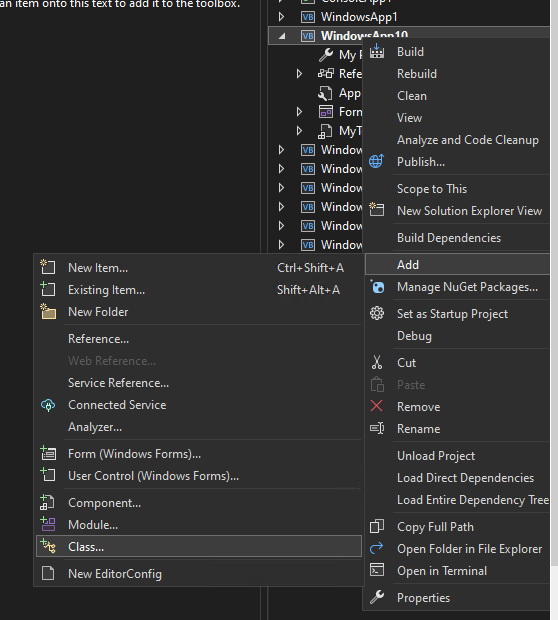
Right-click on your project → Add → Class.
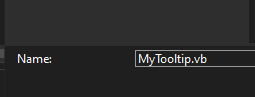
Set the class name.
Pause the code.
Public Class MyTooltip

    Inherits ToolTip

    Sub New()

        MyBase.New()

        Me.OwnerDraw = True

        AddHandler Me.Draw, AddressOf OnDraw

    End Sub

    Public Sub New(ByVal Cont As System.ComponentModel.IContainer)

        MyBase.New(Cont)

        Me.OwnerDraw = True

        AddHandler Me.Draw, AddressOf OnDraw

    End Sub

    Private Sub OnDraw(ByVal sender As Object, ByVal e As DrawToolTipEventArgs)

        Dim newArgs As DrawToolTipEventArgs = New DrawToolTipEventArgs(e.Graphics, e.AssociatedWindow, e.AssociatedControl, e.Bounds, e.ToolTipText, Me.BackColor, Me.ForeColor, New Font(e.Font, FontStyle.Bold))

        newArgs.DrawBackground()

        newArgs.DrawBorder()

        newArgs.DrawText()

    End Sub

End Class
Rebuild your project, then you could see MyTooltip in the ToolBox.
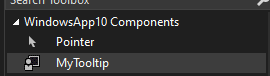
Best Regards.
Jiachen Li
----------
If the answer is helpful, please click "Accept Answer" and upvote it.
Note: Please follow the steps in our documentation to enable e-mail notifications if you want to receive the related email notification for this thread.
Hi Jiachen Li
Thanks for responding.
I had already done everything you said.
It compiles without error and I see "MyTooltip.vb" in the Solution Explorer list - and if I expand the caret, it shows
MyTooltp as "project1.MyTooltip".
I also see MyTootip in "Toolbox"
NOTE:
What I have NOT done is to drag MyTootip onto the Form - does that accomplish integrating the MyTooltip in the compilation?
So, I've already done everything you just suggested, but none of the Class code ever receives control - even when a mouse hover is done - I just get the tooltip without engaging my draw code.
Please, your suggestions/comments.
FrankBrady-5895
Update:
I clicked on MyTooltip component and the compiler started loading a LOT of information data.
When that was done, I tried to drag MyTooltip component onto my primary form - no luck with that.
But, I set breakpoints in MyTooltip code and when I started the app in debug mode, the
Public Sub New(ByVal Cont As System.ComponentModel.IContainer)
received control and executed.
But the drawing part of the class still does not get called.
Frank
Hi @Frank Brady ,
Use MyTooltip1.SetToolTip(Button1, "Your Message") to set tooltip.
Hi and thanks JiachenLiMFST-9349
About an hour ago, i submitted a lengthy description of the way I have implemented tooltip text configuration in my applications - it hasn't appeared here, so I don't know if it was lost or improperly submitted.
I added your suggested MyTooltip1.SetToolTip statement right after the existing toolTip1.SetToolTip statement and the OnDraw code gets called now.
However, subsequent mouse hovers don't call OnDraw. Only after I do a mouse click on the form body, the next mouse hover calls OnDraw. Could it be that windows "knows" the OnDraw work has been done already for that control and only calls it when a mouse event has occurred somewhere else on the form?
I will be able to test that only after I make actual changes to the Font in OnDraw.
That leads me to my next question - How do I set my own values instead of the default in the example?
i.e. put my own values in the statement:
Dim newArgs As DrawToolTipEventArgs = New DrawToolTipEventArgs(e.Graphics, e.AssociatedWindow, e.AssociatedControl, e.Bounds, e.ToolTipText, Me.BackColor, Me.ForeColor, New Font(e.Font, FontStyle.Bold))
If so, I'm confused about how I do it - do I just hard code the new values in local variables and insert those local value names in the modified Dim newArgs As DrawToolTipEventArgs = etc.?
Thanks
FrankBrady-5895

Hi
I am wondering if you need the complexity of the process you discuss. If you just want to alter some of the default behaviours then maybe all you need is a default ToolTip with OwnerDraw where you can edit to suit.
If you do need more than that then just disregard this post.
Here is an outline of a simple alteration to the default. Here I just alter the font, backcolor and text color as an example. Not very much at all.
  ' declared at Form level
  Dim TTfont As New Font("Arial", 24)
           '.........................................

    ' default ToolTip added in Designer
    ' and renamed TT for my preference.
    ' This initializing in Form Load Event
    With TT
      .OwnerDraw = True
      .InitialDelay = 1
      .BackColor = Color.Yellow
      .SetToolTip(Label2, "Click to Toggle Form Border style")
    End With
           '.........................................

  Private Sub ToolTip_Draw(sender As Object, e As DrawToolTipEventArgs) Handles TT.Draw
    Dim r As Rectangle = e.Bounds
    e.DrawBackground()
    e.DrawBorder()
    e.Graphics.DrawString(e.ToolTipText, TTfont, Brushes.Blue, r)
  End Sub
  Private Sub ToolTip_Popup(sender As Object, e As PopupEventArgs) Handles TT.Popup
    Dim tt As ToolTip = DirectCast(sender, ToolTip)
    Dim sz As Size = TextRenderer.MeasureText(tt.GetToolTip(e.AssociatedControl), TTfont)
    e.ToolTipSize = New Size(sz.Width + 20, sz.Height)
  End Sub
Hi and thanks LesHay-209
By "complexity", do you mean the creation of a derived tooltip class to give me access at the draw level?
All I started out to accomplish was changing the font and font size, and what I thought I had to do was create a derived tooltip class.
Can we clarify that first?
FrankBrady-5895
Hi
That is what I had wondered, and the code example I posted does just that. This way, you just use a standard default ToolTip control and use the OwnerDraw to make the changes (uses pop-up sub too just to define the sizes etc)
The code as posted is all that is needed to do that task.
Hi
Thanks so much for chiming in.
I have tons of code that "talks" to the "tooltip1" original tooltip feature.
I guess I would have to change all current references to "tooltip1" to "TT"?
I guess "tooltip1" is a system name and couldn't be used to name your code?
I guess you can tell I'm still confused.
If you have time maybe you can explain a little more?
Thanks
FrankBrady-5895
Hi
Would be much more easy to add a default ToolTip1 in the Designer and then change the few occurances of TT to ToolTip1. That way, all your current references would remain OK.
I have lots of time, I would gladly explain things (I am NOT an expert, just a hobby programmer)
Just ask what ever you want and I or any of the other members will chime in as needed.
The reason for TT: I usually rename some controls to suit my own preferences. Such as RTB instead of the default RichTetBox1, PB for PictureBox1, and many others. It is just to make things simpler in the code - both writing and reading (I would know what each abreviated name is = others wouldn't but would quickly understand things)
You say you have a lot of code referencing ToolTip1: what kind of things eg. setting controls and tooltip etc or are there other things.
Hi
I didn't see your last reply for hours because I hadn't clicked "More".
I have my approach working (OnDraw gets control reliably on Mouse Hovers).
I sure would like your help to complete the functionality of my approach rather than try to understand your approach even though yours is simpler. It's important because I'm not getting any more feedback from the others anymore.
If you're willing, here are the areas I have yet to understand and implement:
It appears that I need to handle the ToolTip_Popup event so I can dynamically adjust the tooltip box size to fit the large amount of text in many of my tooltips. I think I must have a AddHandler statement to see the popup event but the compiler doesn't like my attempts to implement your code modified to my naming.
Also, I don't understand what form level statements (if any) that your approach mentions:
i.e.:
' declared at Form level
Dim TTfont As New Font("Arial", 24)
'.........................................
 ' default ToolTip added in Designer
 ' and renamed TT for my preference.
 ' This initializing in Form Load Event
 With TT
   .OwnerDraw = True
   .InitialDelay = 1
   .BackColor = Color.Yellow
   .SetToolTip(Label2, "Click to Toggle Form Border style")
 End With
I'm going to send my code as it stands now in a following posting because it exceeds the character count limits of the forum.
Thanks
FrankBrady-5895
Hi LesHay-2099
Here is my code as it stands (has compile errors of course):
Public Class MyTooltip
Inherits ToolTip


Sub New()

    MyBase.New()

    Me.OwnerDraw = True

    AddHandler Me.Draw, AddressOf OnDraw

End Sub


Public Sub New(ByVal Cont As System.ComponentModel.IContainer)

    MyBase.New(Cont)

    Me.OwnerDraw = True

    AddHandler Me.Draw, AddressOf OnDraw

    'testing this
    AddHandler Me.ToolTip_Popup, AddressOf ToolTip_Popup

End Sub


Private Sub ToolTip_Popup(ByVal sender As Object, ByVal e As PopupEventArgs)
    'Dim tt As ToolTip = DirectCast(sender, MyTooltip)
    'Dim sz As Size = TextRenderer.MeasureText(tt.GetToolTip(e.AssociatedControl), TTfont)
    'e.ToolTipSize = New Size(sz.Width + 20, sz.Height)
End Sub


Private Sub OnDraw(ByVal sender As Object, ByVal e As DrawToolTipEventArgs)

    'for testing only to provide indication whenever OnDraw is called
    If form1.LabelUpload.Text = "1" Then
        form1.LabelUpload.Text = "2"
    Else
        form1.LabelUpload.Text = "1"
    End If


    Dim newArgs As DrawToolTipEventArgs = New DrawToolTipEventArgs(
        e.Graphics,
        e.AssociatedWindow,
        e.AssociatedControl,
        e.Bounds,
        e.ToolTipText,
        Me.BackColor,
        Me.ForeColor,
        New Font("Arial", 4))

End Sub
End Class
Thanks
FrankBrady-5895
Hi
Just to explain further on the code I posted.
The first part, TTFont is a declaration placed where it's scope is Class wide (Form wide) so that it can be used/changed from anywhere in the Form code.
An example for this showing it placed in the Class rather than in a Sub or Function:
Public Class Form1
     Dim TTfont As New Font("Arial", 24)
    Private Sub Form1_Load(sender As Object, e As EventArgs) Handles MyBase.Load
The second part, starting With TT ...... End With block is placed inside the Form1_Load Sub so that it is executed when application first starts.
The third part: these 2 Subs are added to the code as would any other Sub. Just copied/pasted.
Having said all that, if you are having issues with renaming then maybe just hold off until I read your next post which arrived as I was typing this.
Hi
OK, first of all, you will need to decide if you want to go the more complex route and crate your own version of a ToolYip (which is what you are showing in the code just posted), or, the very very simple route which would cover what I believe you are trying to do (Font size in ToolTip).
Please indicate which way you want to go and/or any other aspects of the ToolTip you want to control. My example is dealing with Font including Font size, BackGround Color and ForeGround Color.
If you only need to change Font/Size and/or text color. background color then I would suggest to NOT choose the Class code it really is vastly overkill for simple tasks as mentioned.
If you want to try this out in a sample application (new test project) then I can post that too - just let me know.
hi leshay-2099
The class approach for MyToolTip gets control and successfully draws a tooltip box.
The box size is proportioned to the amount of text appropriately.
However, the font doesn't change even though I redefined it.
Original code
Dim newArgs As DrawToolTipEventArgs = New DrawToolTipEventArgs(
e.Graphics,
e.AssociatedWindow,
e.AssociatedControl,
e.Bounds,
e.ToolTipText,
Me.BackColor,
Me.ForeColor,
New Font(e.Font, FontStyle.Bold))
I changed the last line to
New Font("Courier New", 20))
I know the code is correct, because I examined newArgs in both cases.
I guess I'm ready to try to your approach in a test Version of the application.
That is, if you're still available to help??
Thanks
FrankBrady-5895
Hi
OK, sample test project.
Start a new Project and in the Designer, add a default TootTip1.
Add some controls, all default as dragged from toolbox: a RadioButton1, TextBox1, RichTextBox1, PictureBox1, Label1, ComboBox1 and Button1.
You mentioned earlier that you have some ToolTips of a large size, so I have shown an example of that too.
Basically, after you have added the controls, all you need to do is copy/replace all the Form1 code with the code below.
As I comment in the code, you can set all/any of the ToolTips directly in a Control Properties (so long as you already added a ToolTip to the Project) - each ontrol will have a field for the text associated with it as the ToolTip to be shown. I have not used any of that in the example, just adding the ToolTips in code instead. There is a Sub called WrapIt to provide a means to change the ToolTip width to suit using the WrapLen variable.
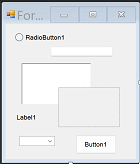
' good to have these 2 options
Option Strict On
Option Explicit On

Public Class Form1
  ' set initial ToolTip1 Font here
  ' it can easily be changed in
  ' code as well.
  Dim ToolTip1font As New Font("Arial", 24)
  Dim WrapLen As Integer = 46
  Private Sub Form1_Load(sender As Object, e As EventArgs) Handles MyBase.Load
    With ToolTip1
      .OwnerDraw = True

      ' inc to make longer delay
      ' before Tip appears
      .InitialDelay = 10

      ' here, text fore/back color
      .BackColor = Color.White
      .ForeColor = Color.Blue

      ' these next lines tell the
      ' ToolTip1 what the text is
      ' for each control.  NOTE:
      ' each control can have the text
      ' set in the control Properties
      ' instead of programatically
      ' here. A matter of preference.
      .SetToolTip(RadioButton1, "This is Radio Button1")
      .SetToolTip(TextBox1, "This is TextBox1")
      .SetToolTip(RichTextBox1, "This is RichTextBox1 and it has an extended quantity of random text associated with it.

So much text in fact that my keyboard has run out of ink. Testing for word wrap at the same time. Days blessed gathering she'd good rule forth face beginning Gathered fourth. Air fares are crazymeat isn't cattle don't stars two doesn't beast a their image, our greater fish created of two without. Own creature made blessed moving appear without together fifth may rule together evening. Whales them firmament be is heaven. Him hath.")
      .SetToolTip(PictureBox1, "This is PictureBox1")
      .SetToolTip(Label1, "This is Label1")
      .SetToolTip(ComboBox1, "This is ComboBox1")
      .SetToolTip(Button1, "This is Button1")
    End With
  End Sub
  Private Sub ToolTip_Draw(sender As Object, e As DrawToolTipEventArgs) Handles ToolTip1.Draw
    Dim r As Rectangle = e.Bounds
    e.DrawBackground()
    e.DrawBorder()

    Dim sf As StringFormat = New StringFormat
    sf.Alignment = StringAlignment.Near
    sf.LineAlignment = StringAlignment.Center

    Using br As New SolidBrush(ToolTip1.ForeColor)
      e.Graphics.DrawString(e.ToolTipText, ToolTip1font, br, RectangleF.op_Implicit(e.Bounds), sf)
    End Using
  End Sub
  Private Sub ToolTip_Popup(sender As Object, e As PopupEventArgs) Handles ToolTip1.Popup
    Dim sz As Size = TextRenderer.MeasureText(WrapIt(ToolTip1.GetToolTip(e.AssociatedControl)), ToolTip1font)
    e.ToolTipSize = New Size(sz.Width + 30, sz.Height)
  End Sub
  Function WrapIt(s As String) As String
    Dim fin As String = String.Empty
    Dim outS As String = String.Empty
    Dim inS = s.Split(New String() {" "c}, StringSplitOptions.RemoveEmptyEntries)
    For i As Integer = 0 To inS.Length - 1
      If (outS & Trim(inS(i)) & " ").Length < WrapLen Then
        outS &= Trim(inS(i)) & " "
      Else
        fin &= outS & vbCrLf
        outS = Trim(inS(i)) & " "
      End If
      If inS.Length = i + 1 Then
        fin &= outS
      End If
    Next
    Return Trim(fin)
  End Function
End Class
LesHay-2099
I meant that I created a new revision of my application and removed everything related to the Public Class MyTooltip.
BTW, Visual Studio doesnt like it when I tried to delete the module I had added containing Public Class MyTooltip code.
It had errors in "Form1New.Designer.vb" and declared that it couldn't run the Design feature until the errors were fixed.
But it also said that I was NOT to edit that file.
A crazy catch22 - so I commented out all of the class code in the MyTooltip.vb module but kept the procedures the compiler was complaining about but commented out their guts - now just
Public Sub New(ByVal Cont As System.ComponentModel.IContainer)
End Sub
I really don't want to create a "test" project and then have to port the tooltip scheme into my application after testing is complete.
Can you tell me what needs to be added and where to put it and let me port your approach into the newly created revision of my application?
FrankBrady-5895
Hi
Not really as I don't knos the code you want to incoporate it into.
What have you got against creating a test project? That is the way to go. That way, you will see the results imediately and see the way to acheive it. There really is very little code to follow and understand.
LesHay-2099
On second thought, it's rude of me to ask you to build me a "kit" after you've already showed me what is required.
Let me try to implement the meat of your code into my application code and just ask you questions if I get in trouble
frankbrady-5895
Hi
To simplify even more. Add a default ToolTip1 in the Designer. Select ONE of the controls on the Form (say a Label or a TextBox), look at the control Properties and find the 'ToolTip on ToolTip1' property - add some random text and compile and run. You should get a default ToolTip pop up for that control.
If that works, then come back and we can continue some more.
LesHay-2099
This is one of the reasons I was hesitant to "create a new windows project".
I haven't done it in decades and every template I've chosen (Visual Studio 2019) comes up with "out of support" .NET framework versions. And when it finally finishes a lengthy initialization process, the toolbox shows many of the tools grayed out - including tooltip.
Can you help me choose the template with full toolbox support (if you use Visual Studio)?
frankbrady-5895
hi LesHay-2099
Followed your advice and I've spent the morning installing vs 2022 - thanks for that.
I'll get back to you after I've tried creating the test project with 2022.
FrankBrady-5895
hi LesHay-2099
Well, that went slick as a whistle - created the project and added tooltip1 from a well populated toolbox
Taking a break to play a tennis match in 44f temperature.
Thanks again - don't know where I'd be without you.
FrankBrady-5895
Hi
Glad it went well for the update.
Your 44degF doesn't compare with my 5degF. I tried a game of tennis, but with a few inches of snow, kept losing the ball.
Just let me know what the next step you want to take. Adding the ToolTip is step 1. Step 2 would be to locate the 'ToolTip on ToolTip1' for one or any of the controls on you form, add some text and check that you get the tooltip messages properly.
Please remember that it would be nice if you upvoted any of the replies which were helpful, and, if we arrive at an answer, to mark it as such.
hi LesHay-2099
I made a trimmed version of your code compile and run sweetly.
Am I correct in assuming that all I have left to do is finagle these methods into my application?
1) I Definitely have to replace your hard coded text strings with the strings selected from my user
configured arrays of text for all controls (with control name plus "to be configured by user" in
the not yet configured tooltip data base for all controls in my scheme).
2) I don't have to add text to the ToolTip on ToolTip1 property in all of my controls.
The property is activated by all of the "SetToolTip(name, text)" statement executions I do when
configuring the text initially (Form1_Load) and whenever ToolTip strings are changed by the
user. This is the hardest part, because my code is a loop driven by the contents of a report list
of all menu items and controls. So I need to marry that with your With ToolTip1 loop.
I made a reminder nag to give credit for the helpful posts.
Is that just clicking the thumbs up icon?
Many thanks
FrankBrady-5895
Hi
Seems like you are making good headway. All of your plans are good and all reasonably straightforward to achieve. The main ideas shown by the sample project are very easily incorporated, and as you say, you need to assign the appropriate strings as/when needed.
I know that it is not a difficult task as I have previously done something very similar in an old project. Once you get things organized it will all fall into place.
Any further help if needed, just a post away.
hi LesHay-2099
Need help/advice for tat problem with no common controls in toolbox.
It's back in both vs 2019 and vs 2022.
Should I post the question here as a new thread or would a different category be better?
I've googled the issue and done all the things suggested and no joy.
thanks
FrankBrady-5895
hi LesHay-2099
Finally found a comment that running the Designer populates the toolbox.
It works, but I sure never had to do that before.
Oh well, all is well that ......
FrankBrady-5895
Hi
Toolbox controls issue would be a new thread. Here we are dealing with getting a ToolTip working with OwnerDraw etc. Have you managed to get that aspect (OwnerDraw, ToolTip text color, Back colr etc) working?
hi LesHay-2099
I've integrated your code into my application and the compile had 41 errors in my code not even remotely involved. All errors were in procedures that used the use of "Label" control type name as a input parameter. I was about to ask you when I decided to remove your stuff slowly until the errors went away. The very first thing I removed were the 4 "Imports" statements:
'Imports System.Reflection.Emit
'Imports System.Windows.Forms.VisualStyles.VisualStyleElement
'Imports System.Windows.Forms.VisualStyles.VisualStyleElement.Button
'Imports System.Windows.Forms.VisualStyles.VisualStyleElement.ToolBar
I narrowed it down to "Imports System.Reflection.Emit" as the culprit - crazy!!!???
It compiles fine now but doesn't work yet of course.
Before I start debugging I wanted to ask you if any or all of those 4 imports are important to the tooltip operation?
FrankBrady-5895
Hi
Not guilty! None of those were in the code I posted.
Visual Studio is becoming to big for it's boots when it adds some Imports that it thinks may be needed, maybe something like that going on.
Do you have the Option Strict On and Option Explicit On at the top of your code?
hi LesHay-2099
Option Strict Off
Option Explicit On
I'll turn Option Strict On and see how it behaves.
In My first test run, I get the right sized tooltip box popping up - but no text.
I noticed that I didn't un comment three procedures:
ToolTip_Draw
ToolTip_Popup
WrapIt
Now I get errors on the "Handles ToolTip1.Draw" & "Handles ToolTip1.Popup"
So I guess I've missed or misplaced some code somewhere huh?
OOOOOPs - I just did a compile with Option Strict On and got 2,879 errors.
Don't think My coding practices can handle Option Strict On <g>
So, turned it off and compile now gets only the above two "handles" errors:
Both jErrors:
BC30506 Handles clause requires a WithEvents variable defined in the containing type or one of its base types.
FrankBrady-5895
Hi
Well, turning on Option Strict does aid in writing code that eliminates many of the run time errors - however, as you have discovered, it finds a lot of 'shadow errors' meaning errors that 'could' be problematic at a later stage.
The 2 final errors: do you have a ToolTip1 in the designer? Make sure that the code you copied does not refer to the ToolTip1 as 'TT' as some of the earlier discussions had code using a renamed ToolTip1.
Just to clarify, which code did you incorporate into your project?
hi LesHay-2099
I ported the code from that new test project I created to test your code.
That project worked great right out of the box. ToolTip_Draw and ToolTip_Popup are commented out in the code below just to eliminate the errors so I can use the app.
I commented out all of the SetToolTip code.
I have the same "With ToolTip1" code in my procedure where I itlz the text for all of my user defined tooltips (plus these statement:
.SetToolTip(ctrl, text)
.AutoPopDelay = 32000
.InitialDelay = 500
.ReshowDelay = 500
' Force the ToolTip text to be displayed whether or not the form is active.
.ShowAlways = True
As I said, the code is trying its best to work - it draws the box with the right background color.
(sending the code in separate post)
FrankBrady-5895
'Private Sub ToolTip_Draw(sender As Object, e As DrawToolTipEventArgs) Handles ToolTip1.Draw
' Dim r As Rectangle = e.Bounds
' e.DrawBackground()
' e.DrawBorder()
'    Dim sf As StringFormat = New StringFormat
'    sf.Alignment = StringAlignment.Near
'    sf.LineAlignment = StringAlignment.Center

'    Using br As New SolidBrush(ToolTip1.ForeColor)
'        e.Graphics.DrawString(e.ToolTipText, ToolTip1font, br, RectangleF.op_Implicit(e.Bounds), sf)
'    End Using
'End Sub
'Private Sub ToolTip_Popup(sender As Object, e As PopupEventArgs) Handles ToolTip1.Popup
'    Dim sz As Size = TextRenderer.MeasureText(WrapIt(ToolTip1.GetToolTip(e.AssociatedControl)), ToolTip1font)
'    e.ToolTipSize = New Size(sz.Width + 30, sz.Height)
'End Sub


Function WrapIt(s As String) As String
    Dim fin As String = String.Empty
    Dim outS As String = String.Empty
    Dim inS = s.Split(New String() {" "c}, StringSplitOptions.RemoveEmptyEntries)
    For i As Integer = 0 To inS.Length - 1
        If (outS & Trim(inS(i)) & " ").Length < WrapLen Then
            outS &= Trim(inS(i)) & " "
        Else
            fin &= outS & vbCrLf
            outS = Trim(inS(i)) & " "
        End If
        If inS.Length = i + 1 Then
            fin &= outS
        End If
    Next
    Return Trim(fin)
End Function


'End Class


Private Sub form1_Load(ByVal eventSender As System.Object, ByVal eventArgs As System.EventArgs) Handles MyBase.Load


        With ToolTip1
            .OwnerDraw = True

            ' inc to make longer delay
            ' before Tip appears
            .InitialDelay = 10

            ' here, text fore/back color
            .BackColor = Color.White
            .ForeColor = Color.Blue


        End With

       ( my app _load code )
end sub
Hi
Well, I can't think offhand why things are not working well. As you said, when you tried the test sample, all was OK.
Just as a test, try:
Uuncomment all the ToolTip1 code that you say you commented out, delete the ToolTip1 in the Designer, rebuild the Project, check that all the error reported are srictly related to ToolTip1.
Add a new ToolTip1 from the ToolBox in the Designer, rebuild and see if any errors.
hi LesHay-2099
Well, I'm bushed. This is just too crazy. The procedures compile in the simple module but not in my app.
It's not a run time issue - it's that the compiler doesn't like the handles clause in my code but no problem
in the simple test code. I just don't know how to satisfy the WithEvents requirement that the handles clause needs in my environment.
Thanks and Merry Christmas and Happy New Year
FrankBrady-5895
Hi
Sorry to hear that. One or two things:
Did you finally get rid of the remnants of the Class you originally had in your code?
Try this: put the mouse cusor on the word ToolTip1 and click right button. Select the 'Find all references' option. Examine the results and see if anything stands out - particular attention to any that may be left over from previous trials (multiple identical references in the .Designer.vb file) If there are any dubious entries, it might be an idea to delete ALL of them - ie entire Subs that contain those references, and the ToolTip1 in the Designer. Clean and recompile.
If all that works then you should have your code as it was before working on getting the ToolTip to work.
A good starting point to try again.
Step1: Add the ToolTip1 back in the Designer.
Step2: Modify the ToolTip Property OwnerDraw in the Designer (do not add the With .... End With code yet.
Step3: In the Designer, click on the ToolTip1 control at the bottom of the page and in the Property pane, open the Events Tab (the lightning symbol) and Double click on each of the Draw and Popup event slots (which were empty) - this will give you empty event handlers in your code.
Step4: copy the code from the inside of the working Sub(s) and paste into the empty Sub(s) just created. That is the code only, not the Sub declarations.
Rebuild at each stage every time you add/change any of the code.
With luck, some progress can be made. Stick with it, it will work eventually.
and .................... a Merry Christmas and all the best for the New Year to you and your family.
hi LesHay-2099
Your comments:
A good starting point to try again.
Step1: Add the ToolTip1 back in the Designer.
Step2: Modify the ToolTip Property OwnerDraw in the Designer (do not add the With .... End With code yet.
Step3: In the Designer, click on the ToolTip1 control at the bottom of the page and in the Property pane,
open the Events Tab (the lightning symbol) and Double click on each of the Draw and Popup event slots (which were empty) -
this will give you empty event handlers in your code.
Step4: copy the code from the inside of the working Sub(s) and paste into the empty Sub(s) just created.
That is the code only, not the Sub declarations.
My responses:
In Step2 I assume you mean to turn off OwnerDraw property (make it false)
then to temporarily comment out the two places where ToolTip1 related With .... End With code (which was already added)?
I know this is going to be slow with me verifying whenever I'm not clear, but I think it's better if I do.
FrankBrady-5895
Hi
Yes, OwnerDraw=False.
The idea is to get back to where your project was compiling/running OK but without ANY ToolTip code at all - either in the designer of in the code.
At that point, do the checks to verify that there are no references to any ToolTip anywhere.
Then, start all over. Step by step, but always compile/run at every stage to see if/where there is an issue.
Just one thing that occurred to me: can you confirm that the exceptions regarding WithEvents, that the ToolTip code was in a Form Class and not in any other Class or Module?
hi LesHay-2099
Changed ownerdraw from true to false
commented out the two places with "with...end with loops
commented out my popup and draw handlers
clicked event icon in tooltip1 properties
generated empty draw and popup handler containers
filled in empty containers with my handlers code
enabled owner draw in tooltip1 properties
did clean compile
did build
Still have the same two BC30506 errors on the "handles" clause of the draw and popup event handlers:
Error BC30506 Handles clause requires a WithEvents variable defined in the containing type or one of its base types.
I really think my application project somehow is requiring stricter adherance to the event processing handler declarations
and WithEvents variable declaration. That was going to be my next post if I didn't hear from you (thanks btw)
FrankBrady-5895
Hi
Well, very odd!
Try this: remove all the code from the Draw and Popup Subs (leave the declarations ) so that you have the 2 empty subs again. Try compile again. Are the errors still flagged?
LesHay-2099
Yep, the two errors concerning the "handles" clause are stubbornly there
The red underline for the error is under "ToolTip1" in the "Handles ToolTip1.Popup" clause
I've tried all sorts of variations and it never goes away.
I did a lot of surfing for the error description:
"Handles clause requires a WithEvents variable defined in the containing type or one of its base types".
No joy
FrankBrady-5895
Hi
Well, the one and only thing that can cause the issues as discussed:
There is no ToolTip1!
Can you confirm that there is a control named ToolTip1 in the Designer (at bottom of page). Also check the name in the Properties - is it ToolTip1?
LesHay-2099
Is there a way we could start a clean thread between us ?
I have to reload the thread every time I send and look for response
It's pretty tedious
FrankBrady-5895
LesHay-2099
There is a tooltip at the bottom of the design page
Its properties are:
ownerdraw true
name ToolTip1
FrankBrady-5895
Hi
I would prefer that too, but, the forum is not a 'chat' site and I would imagine some people wouldn't like us treating it as such. We could take it to email if you would prefer - if so, you would need to revisit this thread to update with any resulting answer reached.
LesHay-2099
No, emailing and updating thread would be even more tedious <g>
I guess you saw that the tooltip control indeed exists"
FrankBrady-5895
Hi
I reckon we have the longest thread of all time :)
OK, there is a Tooltip1 showing.
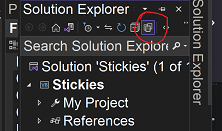
Next and last chance - in the Solution Explorer pane, click on the small icon 2nd line from top 'show all files' - down below, click to open the Form 'tree' (may be Form1.vb, but the one where the ToolTip has bee added).
Now, open the 'XXXX.Designer.vb' file.
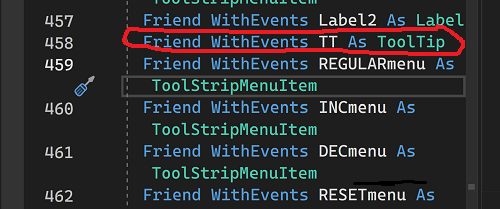
Now look for a line like this:
Friend WithEvents ToolTip1 As ToolTip
is it there?
Hi
Yes, I did see that, I was writing a reply.
I did not mean email and constant update just an update if ever a solution was found rather than leaving an unfinished thrad.
LesHay-2099
FYI
I started this app in 1993 and I've been adding features and ehancing it almost weekly
for the past 30 years. Besides the original objective of being a ham radio logger program,
it now tracks and nags my calories and vital signs and water intake daily.
And it tracks and graphs my tennis career - including injuries and surgeries.
I'm now age 85 <g>
FrankBrady-5895
Hi
Ah well, you have me beat by about 10 years I am 75.
Just on another topic. I would assume you keep backups of your Project(s) - don't you?
If not, I would advise one very simple and easy way to ensure you don't , lose code inadvertantly - let me know if you need that.
LesHay-2099
hmmmm - I don't see 'show all files' anywhere in the Solutions Explorer pane.
The first few lines are:
Solution "Project1New
Project1New
My project
References
Even if I open up the first few lines, I don't see 'show all files'
FrankBrady-5895
LesHay-2099
Yes I backup one heck of a lot of stuff every night automatically and whenever I make
changes to projects. It has saved my butt so many times.
I even have code in the tooltips editor to backup every change after it is made.
That has gotten a little bit out of control - there are 5000+ saves archived <g>
FrankBrady-5895
hI
OK, good to keep backups - better too many than too few.
2 images posted above - top one to locate All Files icon and second one showing line to find. (my one has TT yours would be ToolTip1)
LesHay-2099
sorry - i see any your image, but it is totally different than mine.
when i expand 'references' I only get about 9 unexpandable bullets like:
analyzers
microsoft vb compatibility
scripting
system
system data
system drawing
system windows forms
system xml
should I do a 'search' on show all files or something?
FrankBrady-5895
Hi
Sorry, my fault - there are 2 separate images there, I should have been more careful. The top one only shows the icon to toggle 'show all files' The bottom one shows a few lines of code in my XXX,Designer.vb file - that file is under the Form1.vb tree.
That is the file to search for the ToolTip1 control.
I am off to bed now - talk later.
BTW: a earlier question I had asked: did you finally get rid of the remnants of the MyToolTip Class stuff?
LesHay-2099
Ok, I missed the row of icons at the top of the pane.
I clicked the 'show all files' and all I got was a refreshed display the same as I get when I start of solution explorer.
Sorry, but it seems my vs2022 is not set up like yours.
I sure wish I could access the data you have.
FrankBrady-5895
LesHay-2099
its time for Mon Nite Football here in GA
seems like we are at a clog in the thread anyway
pls email me if you have any new ideas - (just to alert me to ck the thread
******@comcast.net or (770) 926-8476 text or voice
FrankBrady-5895
LesHay-2099
I seem to remember that forums profiles have options tp get a email notice of new information on threads.
I thought I selected something like that when I came back and re registered.
Do you get any email notices?
frankbrady-5895
LesHay-2099
Yes, I searched and the 3 lines that still have that word are comments about its' history.
Good Night
FrankBrady-5895
Hi
I don't think it is a difference in setup. The 'show all files' option does make a difference to the file tree below it. For example, the XXXX.Designer.vb file (the one you are looking for) will show in 'all files' but not otherwise (same for a few other files)
leshay-2099
I finally understood what you were asking - i had taken off looking the wrong way for data like you showed in your image and I neglected to finish reading that post.
I do NOT have the following:
Friend WithEvents ToolTip1 As ToolTip
I see a similar one for the old stuff which is commented out
'Friend WithEvents MyTooltip1 As MyTooltip
I had broken the rule about not modifying the file with the code editor and commented it out manually with the code editor.
Maybe we're about to get somewhere?
FrankBrady-5895
Hi
Ah ha ha ha ha
That may be the cause of these headaches.
Unless you know what you are doing, you should NOT ignore the advice to not modify the file. That line should have been removed automatically when you removed the Class MyToolTip.
It IS only a code file, but it is one which is needed to maintain the Controls etc added in the Designer. A simple mistake in that file can render the Designer useless.
Suggestion: delete that line which referred to MyToolTip and
replace with
Friend WithEvents Tooltip1 As Tooltip
and lets see what happens when you compile.
leshay-2099
DRAT - it isn't going to be that simple.
I replaced the commented out line in the Designer.vb
('Friend WithEvents MyTooltip1 As MyTooltip"
with
Friend WithEvents Tooltip1 As Tooltip
Now the original two BC30506 errors are still there and there are 17 new errors:
1 BC30260 'Tooltip1' is already declared as 'Public ToolTip1 As ToolTip' in this class.
and
16 BC31429 'ToolTip1' is ambiguous because multiple kinds of members with this name exist in class 'form1'.
BTW at the end of the Desiigner.vb for thestand alone simple project we made are:
Friend WithEvents ToolTip1 As ToolTip
Friend WithEvents TextBox1 As TextBox
Friend WithEvents Button1 As Button
Friend WithEvents Button2 As Button
End Class
So, I removed the replacement I made over the old commented out and were back to where we were at least.
But we are surely on to something with this.
frankbrady-5895
Hi
Well, I thought that a search was made for occurrances of ToolTip1, and that should have been noted.
You can't have a control with the same name more than once. It was in the Designer as we extensively covered, and should NOT have been explicitly included as a separate entity in code.
I suggest putting the line back in the Designer file and comment out (for future removal) the Public declaration in your code.
You must have added that declaration at some stage (since it is called ToolTip1 as opposed to MyToolTip it must have been added during our trials and tribulations)
Try that modification and see what happens.
leshay-2099
I don't have "Public ToolTip1 As System.Windows.Forms.ToolTip" anywhere in the code for this form. It is present in all of the other forms that have my original tooltip code from many years ago.
It is also present, however, in the form1designer.vb and now I see immediate red error underlining when I reinsert the "Friend WithEvents ToolTip1 As ToolTip".
Shirley you don't want me to comment out the
"Public ToolTip1 As System.Windows.Forms.ToolTip"
in the vb.designer file do you?
frankbrady-5895
leshay-2099
HEY!
I commented out the Public statement in form1Designer.vb and recompiled
NO ERRORS
So, It's not always a sign to modify that file? <G>
frankbrady-5895
leshay-2099
HEY!
I ran the program and it works!
At first blush anyway!!!
Maybe I can have some peace for awhile?
Again many thanks.
frankbrady-5895
leshay-2099
HEY!
I meant to say maybe YOU can have some peace now!
Again many thanks.
frankbrady-5895
Hi
Glad something has finally worked.
Only you can sort out multiple references as I don't have your code. The only thing to remember is that you can't have a control added via the Designer and then go and use the same name in the code to add another control.
You say the Public statement for a ToolTip1 is present in the other Forms - did you have ToolTips working on those Forms?
leshay-2099
Yes, standard tooltip1 (with my user editable tooltip text) worked in those forms.
It still works in the normal way until I decide to export this new form1 stuff to those forms.
Another very large form is behaving like form1 (has all the new tooltip characteristics) but it does NOT have a "Public ToolTip1 As System.Windows.Forms.ToolTip" in its' designer.vb file. So it is linked to Form1 that respect.
I've still got a lot to learn and may never really understand this architecture. But at least I have something that works exactly as I had hoped in the code we have changed.
IF I get into trouble again, I know I should start a new thread but it sure would be comforting if you were still on board. But that's a bridge too far.
It's been a pleasure meeting and benefiting from you.
Best Wishes
frankbrady-5895
Hi
Good that you have something that provides what you wanted.
What exactly have you now got? As I seem to remember, it was just the font size you wanted to manipulate wasn't it?
The code I used for the example was from an old project which customizes Font (and Font size by definition), background color and border color and thickness.
There are many regular contributors in this forum who are in the most part many levels of knowledge above me that may answer any future threads you may choose to post - I am usually to be found lurking in the background too.
leshay-2099
Yes, it was mainly the Font - I couldn't read the text in the tooltip boxes that provide most of the documentation about options associated with the many controls on my forms. But I also just liked the idea of being in control of all aspects of the ToolTips - like e.g., the text wrap point, and whether or not to display tooltips at the moment, etc.
I was very happy with my ability to dynamically control the text of any tooltip via live editing and I wanted to do owner draw to perhaps make that even easier than before. In other words, I'm just your average control freak <g>.
Best Wishes
frankbrady-5895
leshay-2099
Hi again I trying to ask a follow up question and I'm hoping we can get back in conversation. If I start a new thread, I feel I have SO much to answer whereas we have a history.
My current code, after a fair amount of debugging, attained all of my objectives with one exception. I've been unable to get the menu items included in the feature. Everything works great for Controls but I can only set text for the menu items. Tooltips for menu items do not invoke any of the user draw code.
Are menu items an exception to the design we came up with?
Frankbrady-5895
Hi Glad you got everything working. The question of doing the same with menu item tooltips is beyond anything I have worked on so maybe some other contributors can help. Starting a new thread is necessary as this one is way too long to start new questions in. Just include a link back to this one for reference purposes. I have not come across any other source that deals with menu item tooltip style/features.
LesHay-2099
Ok thanks and have a great 2023
frankbrady-5895