Microsoft Security | Microsoft Entra | Microsoft Entra ID
A cloud-based identity and access management service for securing user authentication and resource access

This browser is no longer supported.
Upgrade to Microsoft Edge to take advantage of the latest features, security updates, and technical support.
' cx='32' cy='32' r='32' /%3E%3Ctext x='50%25' y='55%25' dominant-baseline='middle' text-anchor='middle' fill='%23FFF' %3EGM%3C/text%3E%3C/svg%3E)
Hi All
For an Azure Subscription can i provide Office 365 distribution list owner access to it. i.e from Subscription-IAM-provide owner access.

I just wanted to check in and see if you had any other questions or if you were able to resolve this issue?
@Glenn Maxwell Thank you for following up on this!
When it comes to assigning the Owner built-in RBAC role to an Azure Subscription, if your DL was created solely from the Exchange Admin Center, you'll have to first find out what type of Group it is - Security or Microsoft 365. For more info - Group Types.
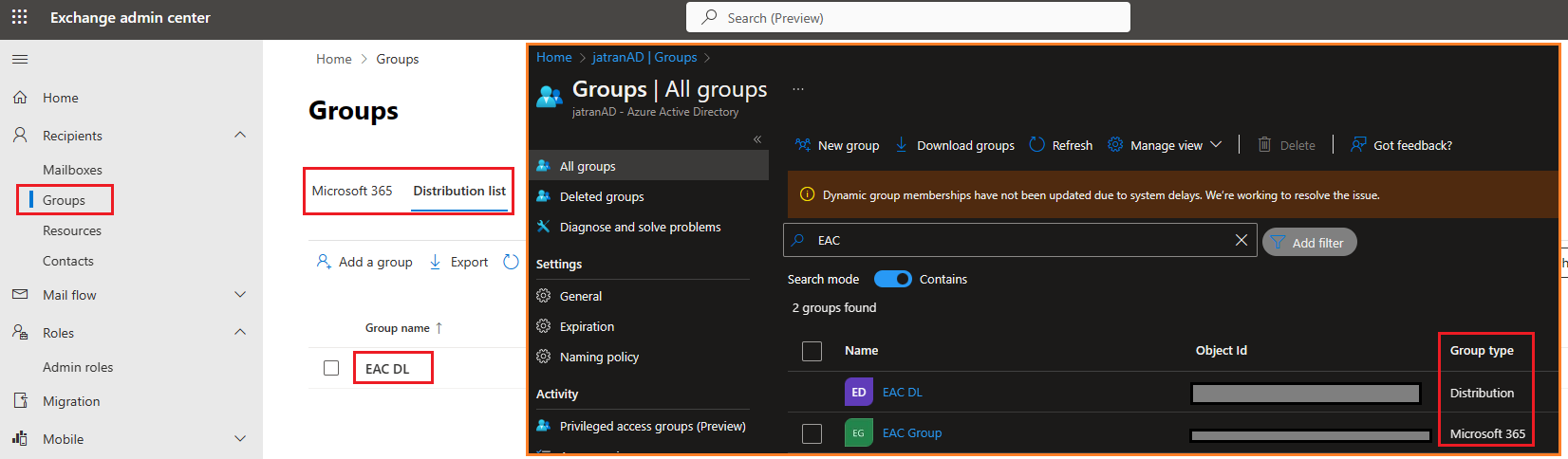
Once you find out your Exchange Online DL's type, if your DL's Azure AD Group is of type Microsoft 365 or Distribution, you won't be able to assign an RBAC role to these group(s). However, you can resolve this by either creating an Azure AD Security Group from the same page and assigning your DL members to this group, or you can assign your DL members the Owner RBAC role individually.
Creating an Azure AD Security Group:
If you intend on creating a new Azure AD Security group and assigning all your DL members to this group.
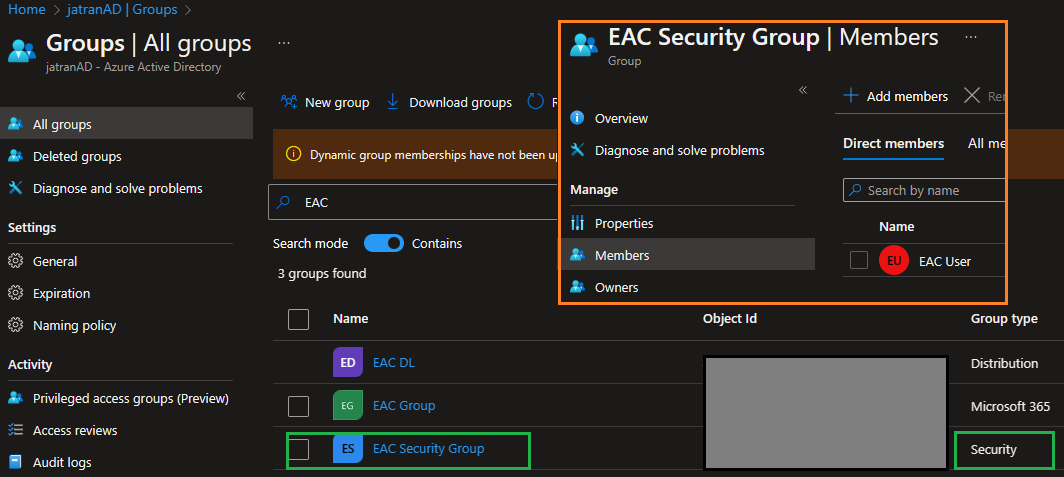
Once you've decided if you want to create a new Azure AD Security group or individually assign RBAC roles, you can follow the below steps to assign the Owner role to your DL members.
Assign the Owner RBAC Role:
Azure AD Security Group or select the specific users.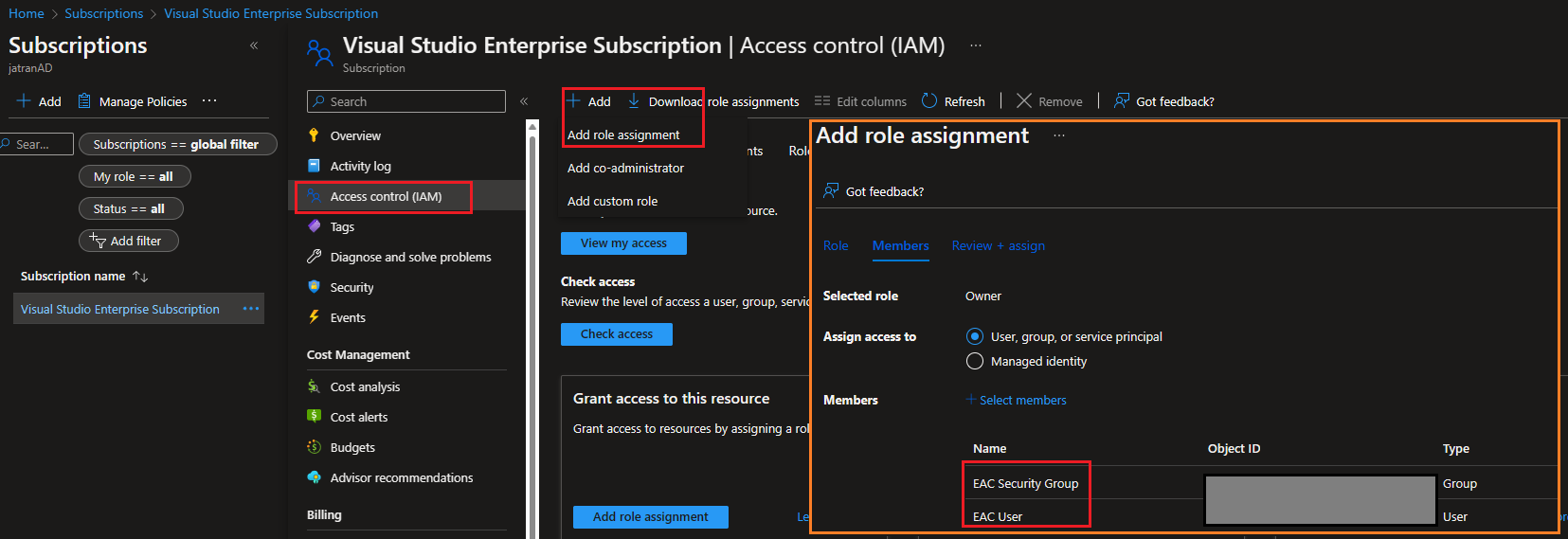
I hope this helps!
If you have any other questions, please let me know. Thank you for your time and patience throughout this issue.
Please remember to "Accept Answer" if any answer/reply helped, so that others in the community facing similar issues can easily find the solution.
I just wanted to check in and see if you had any other questions or if you were able to resolve this issue?
If you have any other questions, please let me know.
Thank you for your time and patience throughout this issue.
Please remember to "Accept Answer" if any answer/reply helped, so that others in the community facing similar issues can easily find the solution.
@Glenn Maxwell
Thank you for your post!
From the create and manage distribution list groups in Exchange Online documentation, the only way to assign Owner permissions to a distribution group would be through the Exchange admin center and not through Azure RBAC (IAM).
Use the new EAC to create distribution list groups:
Additional Lins:
Azure built-in roles
I hope this helps!
If you have any other questions, please let me know.
Thank you for your time and patience throughout this issue.
Please remember to "Accept Answer" if any answer/reply helped, so that others in the community facing similar issues can easily find the solution.
I have a DL( iam DL owner) and DL has the members and i want to make this DL owner to Azure subscription i.e all the DL members will be the owner of the azure subscription is this possible.