Developer technologies | Windows Presentation Foundation
A part of the .NET Framework that provides a unified programming model for building line-of-business desktop applications on Windows.
This browser is no longer supported.
Upgrade to Microsoft Edge to take advantage of the latest features, security updates, and technical support.
' cx='32' cy='32' r='32' /%3E%3Ctext x='50%25' y='55%25' dominant-baseline='middle' text-anchor='middle' fill='%23FFF' %3EZ%3C/text%3E%3C/svg%3E)
Hi All.
I have WPF project that need use API to search according record by entered value in the TextBox of the form. I know how to manipulate data if form binding to SQL Server database. But I don't have experience to work with API. I will appreciate for sample and detail explanation how to use API in WPF project .
Thanks.

@zleug You can add the dataSource which you researched into a collection then bind it to the ItemsControl's ItemsSource. Could you show me which API do you want to use?And which control do you want to show the data?
@DaisyTian-MSFT The form is very simple. Two radio button and two text boxes. If selected one radio button appear the textbox1. If selected other radio button appear the textbox2. Base on entered value in textbox according record should be found. That all. I just never work with API and don't know how to use it.
Thanks
To implement the display of relevant record by inputing value , you can use AutoCompleteBox.Here is my steps to do it.
Step 1: Search and install DotNetProjects.Input.Toolkit in your project Nuget Package
Step 2: Add xmlns:tookit="clr-namespace:System.Windows.Controls;assembly=DotNetProjects.Input.Toolkit" to import the dll
Step 3: The code for xaml:
 <Grid>
        <tookit:AutoCompleteBox x:Name="searchTextBox"  ValueMemberPath="SerchString" Margin="10" FontSize="20" Height="50" Foreground="Black">
            <tookit:AutoCompleteBox.ItemTemplate>
                <DataTemplate>
                    <TextBlock Margin="5,5" FontSize="26">
                        <Run Text="{Binding SerchString}" Foreground="Blue"/>
                        <Run Text="{Binding Name}" Foreground="Gray"/>
                    </TextBlock>
                </DataTemplate>
            </tookit:AutoCompleteBox.ItemTemplate>
        </tookit:AutoCompleteBox>
    </Grid>
Step 4: Code for cs:
  public MainWindow()
        {
            InitializeComponent();
            this.searchTextBox.Populating += new PopulatingEventHandler(AutoCompleteBox_Populating);
        }

        private void AutoCompleteBox_Populating(object sender, PopulatingEventArgs e)
        {
            e.Cancel = true;
            List<AutoCompleteModel> data = new List<AutoCompleteModel>();
            for (int i = 0; i < 10; i++)
            {
                AutoCompleteModel model = new AutoCompleteModel();
                Random radom = new Random();
                model.SerchString = radom.Next(1,30).ToString();
                model.Name = "TestName" + i;
                data.Add(model);
            }
            this.searchTextBox.ItemsSource = data;
            this.searchTextBox.FilterMode = AutoCompleteFilterMode.Contains;
            this.searchTextBox.PopulateComplete();
        }
The code for AutoCompleteModel:
  public class AutoCompleteModel : INotifyPropertyChanged
    {
        public void OnPropertyChanged(string propname)
        {
            if (this.PropertyChanged != null)
            {
                PropertyChanged(this, new PropertyChangedEventArgs(propname));
            }
        }


        public event PropertyChangedEventHandler PropertyChanged;
        private string searchString = string.Empty;
        private string name = string.Empty;

        public string SerchString
        {
            get { return searchString; }
            set
            {
                searchString = value;
                this.OnPropertyChanged("SerchString");
            }
        }


        public string Name
        {
            get { return name; }
            set
            {
                name = value;
                this.OnPropertyChanged("Name");
            }
        }
    }
Step 5: The result is like below shown:
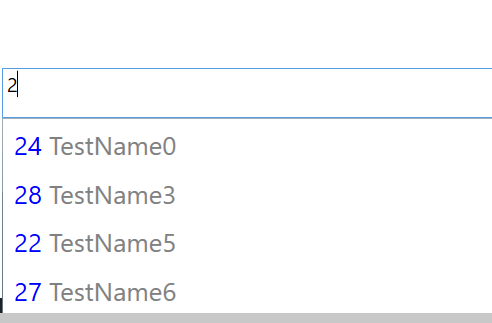
If the response is helpful, please click "Accept Answer" and upvote it.
Note: Please follow the steps in our documentation to enable e-mail notifications if you want to receive the related email notification for this thread.
Hi DaisyTian-MSFT. Thanks for reply.
That is Interesting decision. But where here API? I have API function ready. I tested it using the Postman. How to use API data in my form? What do I need to do for that?
Thanks
@zleug Did your API data come from Postman?Could you show a detailed description of your Base on entered value in textbox according record should be found.?