Unable to resize partition - Virtual Disk Manager, Access is Denied.

Jung Choi 37 Reputation points
2020-12-15T06:50:45.387+00:00

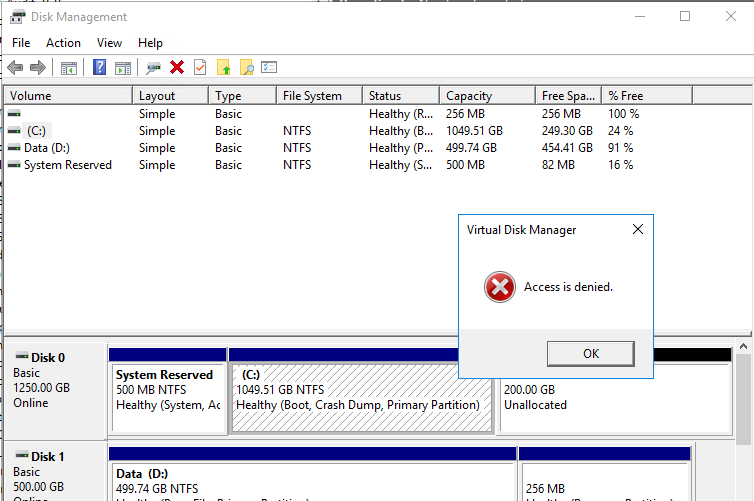
I am trying to resize a partition that contains the OS files. When I try to use the Disk Management interface, I am able to see the partition, right click and select Extend Drive. Walks me through the screens but returns "Virtual Disk Manager, Access is Denied" error when I hit Finish.
48210-image.png

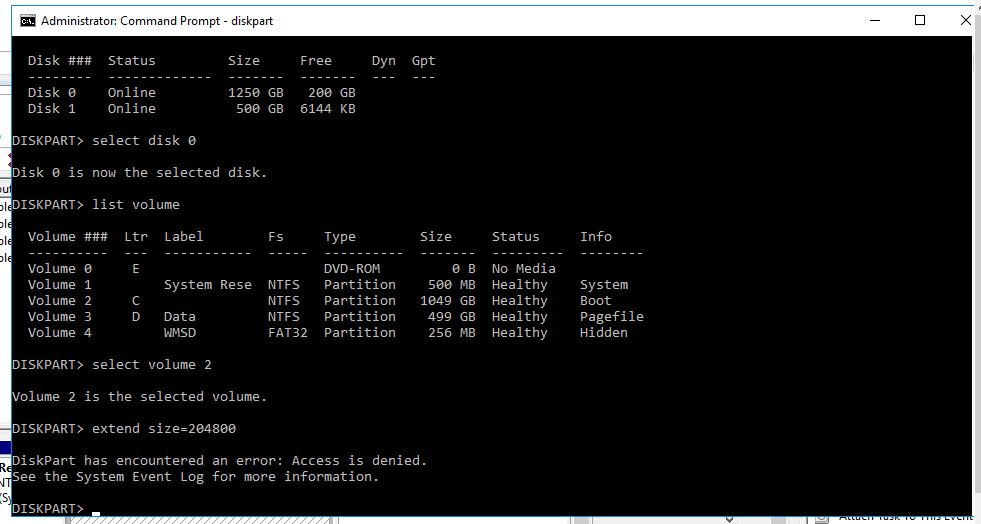
I have tried taking ownership of the C drive and all the sub folders, tried diskpart, tried Powershell but everything returns an error that Access is denied.
48263-image.png

I have tried booting in to Safe Mode, moving the pagefile over to another disk but nothing seems to work.

This is an OS drive for our Exchanage server so formatting or blowing it away in any fashion is out of the question. I am able to drill in to every folder and create files, delete files, basically do everything except expand the drive out.

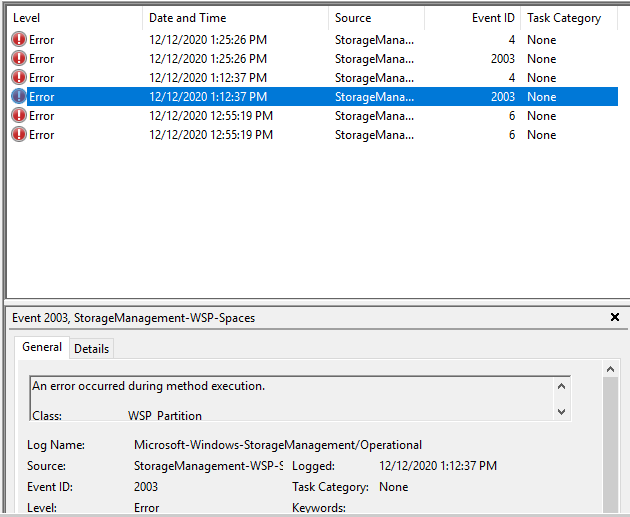
These are the only errors related to the issue that I can find in the logs under, Application and Service Logs > Microsoft > Windows > StorageManagement
48272-image.png

Is there something obvious that I am missing as to why Disk Manager is denying my access?

Windows for business | Windows Server | User experience | Other
0 comments No comments
{count} votes

2 answers

Sort by: Most helpful
  1. Xiaowei He 9,936 Reputation points
    2020-12-15T09:11:47.307+00:00

    Hi,

    What is the account we used to extend the C drive? Please check if we can use local administrator account to extend the volume.

    Thanks for your time!
    Best Regards,
    Anne

    -----------------------------

    If the Answer is helpful, please click "Accept Answer" and upvote it.

    Note: Please follow the steps in our documentation to enable e-mail notifications if you want to receive the related email notification for this thread.


  2. Xiaowei He 9,936 Reputation points
    2020-12-18T07:59:40.343+00:00

    Hi,

    Please show the screenshot of the commands below:

    DISKPART> list disk
    DISKPART> list volume
    DISKPART> select volume 2
    DISKPART> extend filesystem

    Best Regards,
    Anne

    0 comments No comments

Your answer

Answers can be marked as 'Accepted' by the question author and 'Recommended' by moderators, which helps users know the answer solved the author's problem.