I too have been struggling with this issue for probably a year or more. Basically since starting to build replacement 2022 servers for our infrastructure (replacing 2016 / 2019 machines).
I stumbled upon this thread, which did not solve my issue immediately, but did lead me down the right path.
I would absolutely perform the recommended steps from the original post mentioning verifying that services are running / started, the permissions, folder contents, etc.
What I found was that my Task Scheduler service was not running (as expected), and of course, if I opened the Task Scheduler I received "the remote computer could not be found".
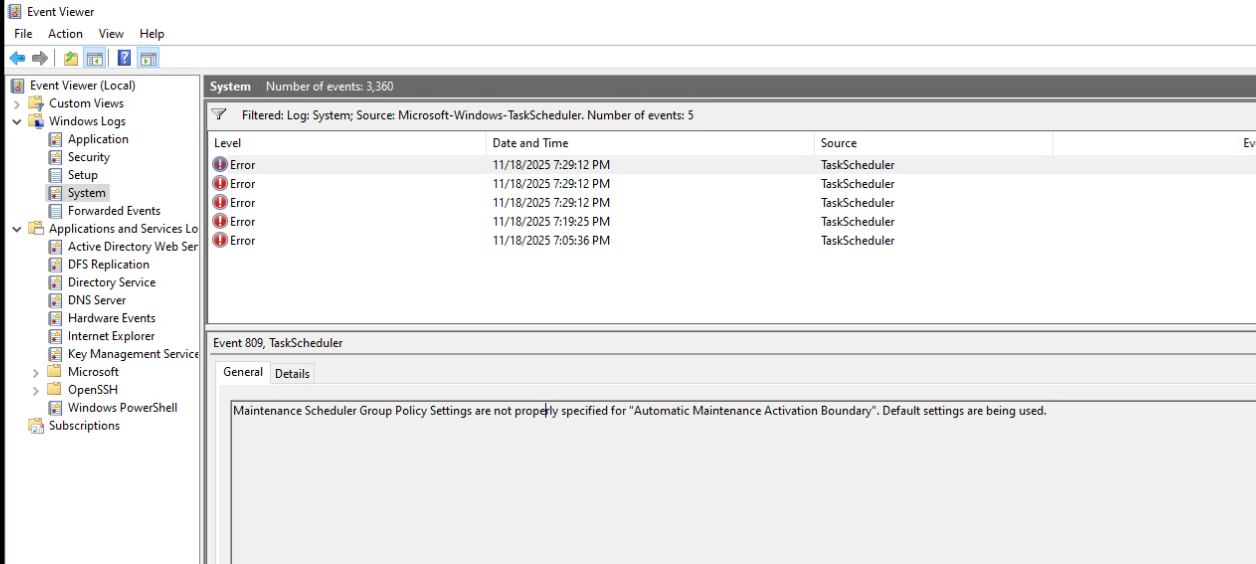
Looking at the Windows event logs, I started searching one by one through the logs (starting with the Application log, and then the System log, etc.) I decided to filter by Event Sources and chose TaskScheduler. What I found very quickly was the following:
Maintenance Scheduler Group Policy Settings are not properly specified for "Automatic Maintenance Activation Boundary". Default settings are being used.
This being a domain joined machine, I thought to myself "let me check that policy". On the policy that was specifically applied to this machine, I found the following setting configured as such:
Computer Configuration > Administrative Templates > Windows Components > Maintenance Scheduler > Automatic Maintenance Activation Boundary was set to Enabled and a time was set as: 1:00
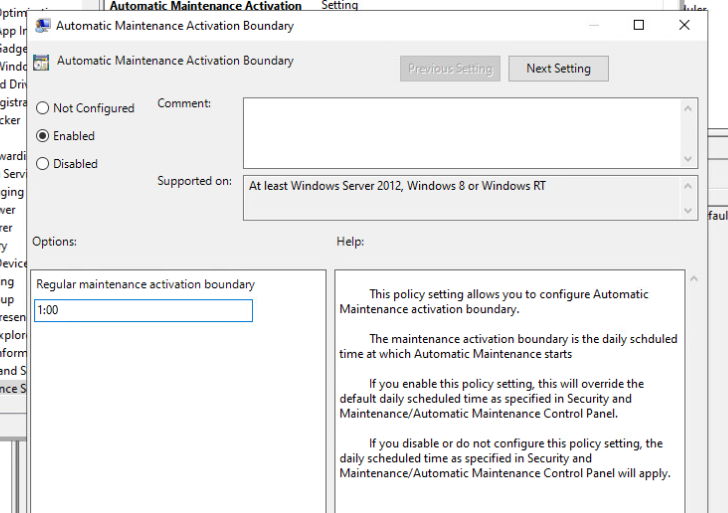
This did not appear to be an issue. Other computers in the same OU as this server did not seem to have Task Scheduler issues. However, the other computers in the same OU were Windows Server 2016 and not Windows Server 2022. So I decided to do a quick search online to see what could possibly be wrong with this setting in its current configuration. I found a chart that showed basically the intended time (in my example, 1:00 AM) and the correct corresponding setting for that time, which is not 1:00. Instead it should be represented in the following way:
2001-01-01T01:00:00
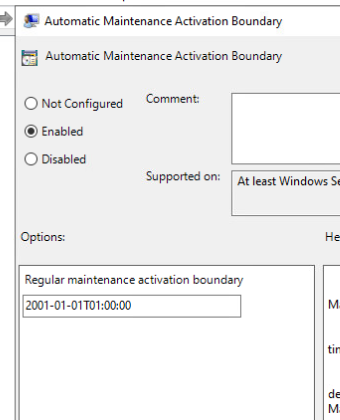
I made this change, performed a gpupdate / force and rebooted the problematic machine. After rebooting, I am happy to report that not only does the Task Scheduler service start properly (and I am able to access the Task Scheduler) but this also seemed to fix another issue I have been having with Windows Server 2022 machines, which is that the windows search functionality does not work (it does after applying this change).
Prior to this, I was wondering if there had been issues with the way I was deploying images (I use MDT / sysprep), so I tried building a Windows Server 2022 VM from the Windows ISO (this resulted in the same problem). I thought it might be group policy, but hesitated, since as I mentioned previously that other machines in the same OU (receiving the same policies) were not having this issue. I hope this helps someone!
Note: I did also test performing a gpupdate /force and reboot on a previously working Server 2016 server in the same OU to verify that this change did not unintentionally break the Server 2016 machines. I can confirm that things are still working properly.
Note: The chart I mentioned that maps the intended time to the correct configuration can be found at this link: https://www.tenforums.com/tutorials/125655-specify-automatic-maintenance-time-run-windows-10-a.html
' cx='32' cy='32' r='32' /%3E%3Ctext x='50%25' y='55%25' dominant-baseline='middle' text-anchor='middle' fill='%23FFF' %3ED%3C/text%3E%3C/svg%3E)


' cx='32' cy='32' r='32' /%3E%3Ctext x='50%25' y='55%25' dominant-baseline='middle' text-anchor='middle' fill='%23FFF' %3EA%3C/text%3E%3C/svg%3E)