Microsoft 365 and Office | SharePoint | For business | Windows
A group of Microsoft Products and technologies used for sharing and managing content, knowledge, and applications.

This browser is no longer supported.
Upgrade to Microsoft Edge to take advantage of the latest features, security updates, and technical support.
' cx='32' cy='32' r='32' /%3E%3Ctext x='50%25' y='55%25' dominant-baseline='middle' text-anchor='middle' fill='%23FFF' %3ESV%3C/text%3E%3C/svg%3E)
Hi Folks,
I'm running into an issue using getDate in a JSON used or Column Formatting.
We crated a custom JSON to format date with a specific format but for some users the date shown is one day ahead. The column formatting is supposed to show the date in the format DD MMM YYYY.
So the problem is: when a date is saved as 15/12/2020, for most users it shows: 15 Dec 2020 but for some users it shows 14 Dec 2020.
The Site Regional settings is in EN-UK. Time Zone: UTC+1. The JSON is not using locale functions.
To show the day for the date we use getDate([$mydatefield]
As I understand it should use the regional settings of the site to get the date? But it seems to take into account the user local machine Time Zone as the issue is occuring for users who have a different Time Zone in their Windows machine. And I could reproduce that by changing the Time Zone of my Windows session.
Is there a way to go around that?
Thanks,

I am testing in my environment and will get back to you as soon as possible. Thanks for your patience and time.
Hi @Sebastien Virgilio ,
The JSON code I used:
{
  "$schema": "https://developer.microsoft.com/json-schemas/sp/v2/column-formatting.schema.json",
  "elmType": "span",
  "txtContent": "=getDate([$DateFormatting]) + ' ' + if(getMonth([$DateFormatting])==0,'Jan',if(getMonth([$DateFormatting])==1,'Feb',if(getMonth([$DateFormatting])==2,'Mar',if(getMonth([$DateFormatting])==3,'Apr',if(getMonth([$DateFormatting])==4,'May',if(getMonth([$DateFormatting])==5,'Jun',if(getMonth([$DateFormatting])==6,'Jul',if(getMonth([$DateFormatting])==7,'Aug',if(getMonth([$DateFormatting])==8,'Sept',if(getMonth([$DateFormatting])==9,'Oct',if(getMonth([$DateFormatting])==10,'Nov','Dec'))))))))))) + ' ' + getYear([$DateFormatting])"
}
If I changed my system time zone which is (UTC+08:00) to (UTC-12:00), I reproduced your issue in my end, all displayed dates were one day ahead.
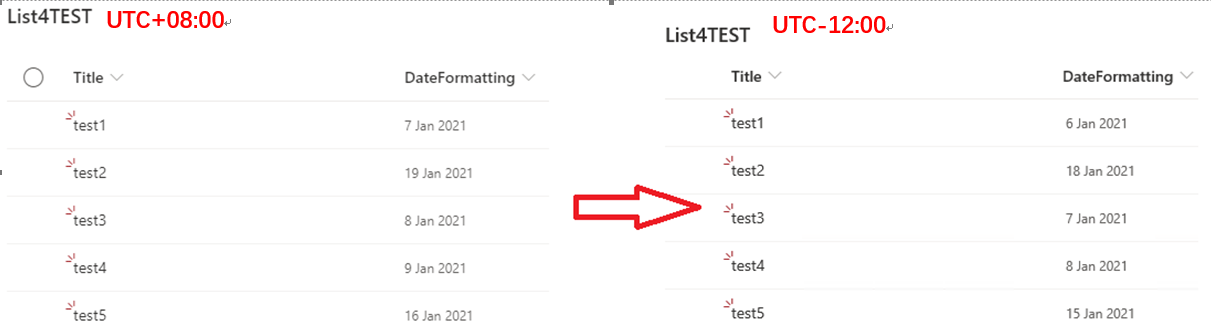
As said in this article: https://learn.microsoft.com/en-us/sharepoint/dev/declarative-customization/column-formatting#operators,
getMonth returns the month in the specified date according to local time.
Per my test, if you use getDate( ), getMonth( ) and getYear( ) functions in your JSON code, they return date, month or year according to local time(system time).
As a workaround, I suggest you to add a calculated column using the below formula instead.
=TEXT([DateColumnName],”dd mmm yyyy”)
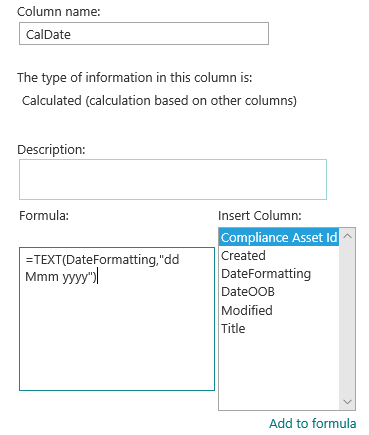
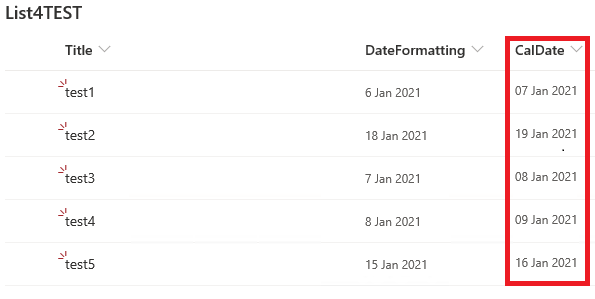
The date displayed in the calculated field will not change according to the system time.The calculated fields of existing items in the list will be automatically populated. You can hide the previous date column if you only want to have a column to display the date in the view. Of course you are still able to use JSON code to customize the new calculated column.
If an Answer is helpful, please click "Accept Answer" and upvote it.
Note: Please follow the steps in our documentation to enable e-mail notifications if you want to receive the related email notification for this thread.
Is there any update on this thread? I am looking forward to your reply.
Hi AllenXu.
Thanks for your answer.
Indeed I reached the same conclusion about getDate even if the documentation doesn't say it's returning the date based on the local time.
Is there a way to convert the date to UTC? So I could standardize the formating?
Using a calculated field is not really a solution as we would like to show the dates in this format in all our list and libraries in our tenant, so we would have to duplicate all Date fields which would be quite heavy.
Thanks for your help.
Sébastien
Per my research, No such a function can convert the date to UTC by JSON. Except using calculated fields, no OOB solution can meet this requirement currently.
OK, thanks for your feedback.
If an answer helps you, please remember to accept it as answer via "Accept Answer" button. Thanks for your understanding :-)
' cx='32' cy='32' r='32' /%3E%3Ctext x='50%25' y='55%25' dominant-baseline='middle' text-anchor='middle' fill='%23FFF' %3ECM%3C/text%3E%3C/svg%3E)
I had a similar issue about getdate(), getmonth() and getyear() in JSON returning months and date the wrong way around. I had two identical columns, and an exact duplicate of the JSON code. I then realised that my View didn't have the column included in it. When I added it then it was resolved.