Microsoft 365 and Office | SharePoint | For business | Windows
A group of Microsoft Products and technologies used for sharing and managing content, knowledge, and applications.

This browser is no longer supported.
Upgrade to Microsoft Edge to take advantage of the latest features, security updates, and technical support.
' cx='32' cy='32' r='32' /%3E%3Ctext x='50%25' y='55%25' dominant-baseline='middle' text-anchor='middle' fill='%23FFF' %3ECE%3C/text%3E%3C/svg%3E)
Hello everybody,
after I have created a document set in SharePoint and then go to "Edit Properties" (see screenshot) I could change the content type. How can I hide the content type? I don't want it to be changeable. It should be hidden. I use SharePoint 2019
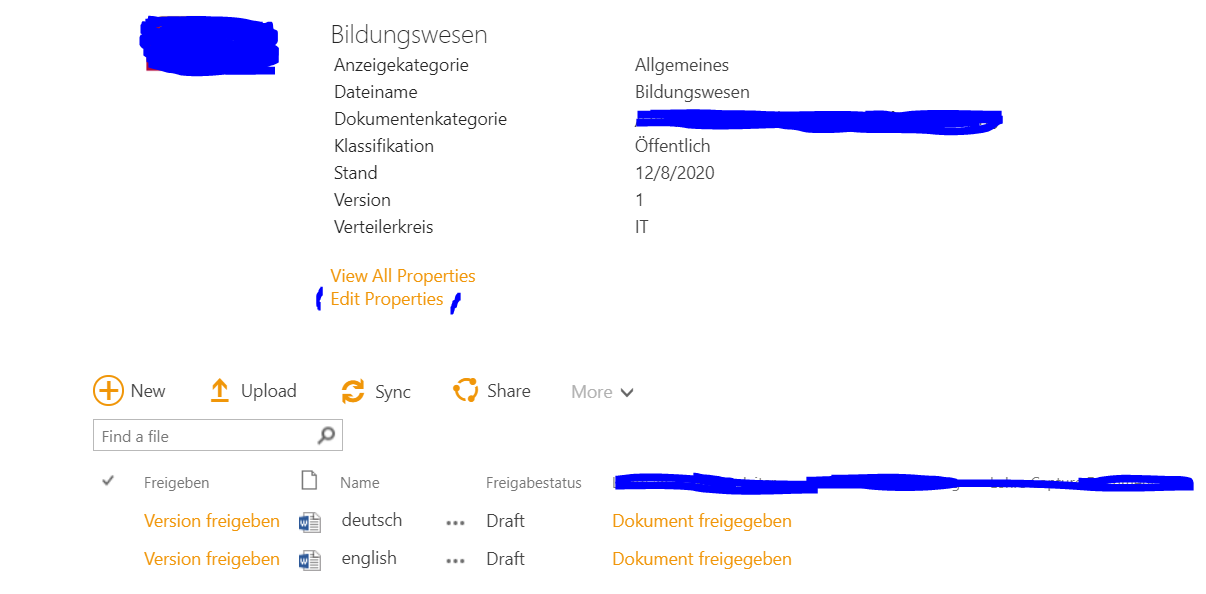
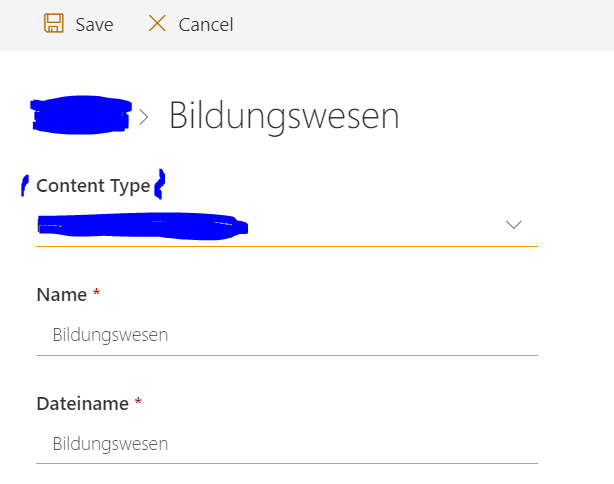

Hi @Christian Ebert ,
Would you tell me whether your issue has been resolved or have any update ?
I am looking forward to your reply.
Have a nice day!
Hi @Christian Ebert ,
Please follow steps:
1.Sign in List as an admin, click on Library settings under the Setting menu
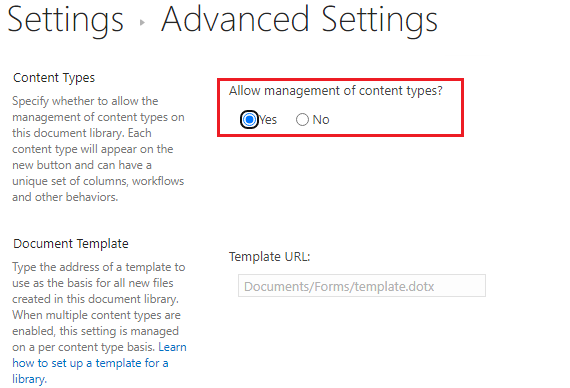
2.Go to Library Settings page, click on Advanced settings, enable "Allow management of content type" option.
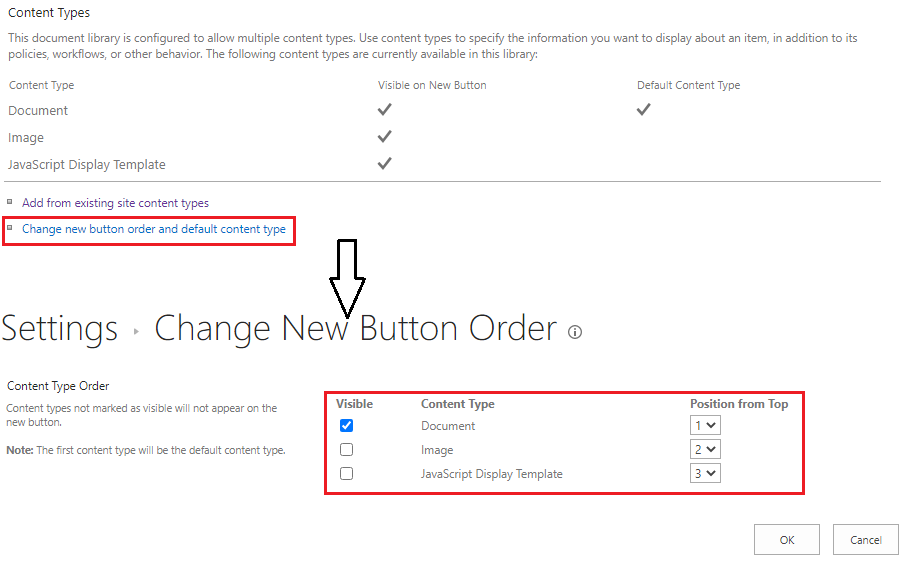
3.Go back Library Settings page, scroll to Content Types section, and then click on "Change new button order and default content type".
4.Go to Change New Button Order, just keep the Content Type you wanted and cancel other Content Types. For example, I only keep the Document Content Type and cancel other Content Types.
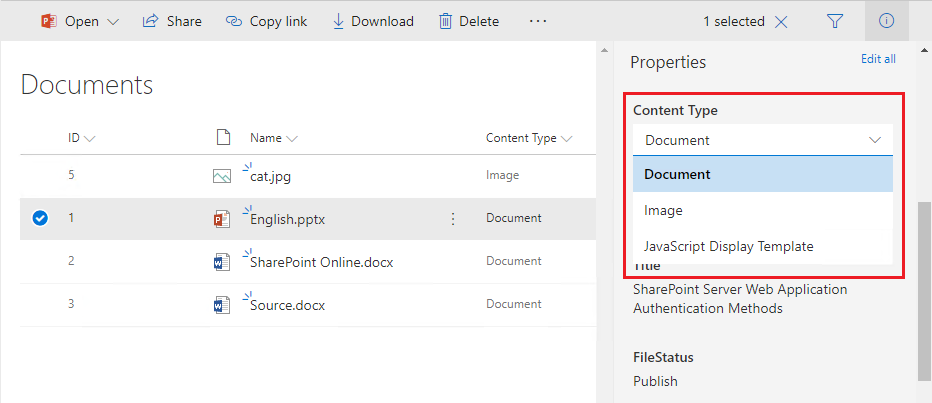
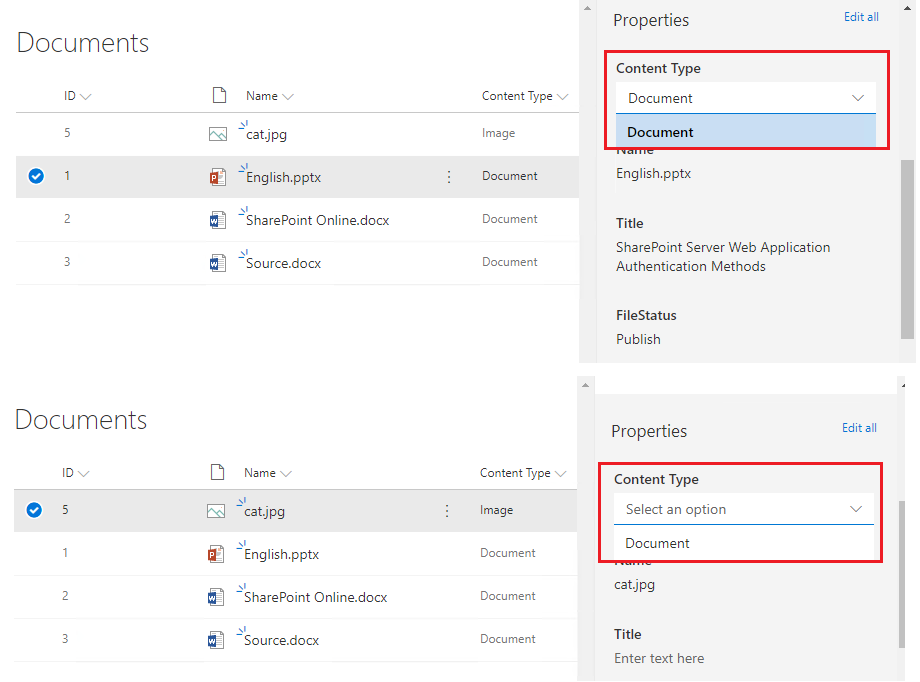
5.Go back List and go to "Edit Properties" panel, the Content Type drop-down box only displays you just selected and reserved the Content Type.
Thanks,
Echo Du
================
If an Answer is helpful, please click "Accept Answer" and upvote it.
Note: Please follow the steps in our documentation to enable e-mail notifications if you want to receive the related email notification for this thread.
Thank you for the quick feedback and the effort!
But you can't make everyone invisible, can you? There always remains a content type like in your case "Document" ?!
Hi @Christian Ebert ,
Thanks for your reply.
If youwant to make everyone invisible the Content Type, please execute the following steps:


Have a nice day!
Thanks,
Echo Du
============================
You can directly click “Comment” option under ”My Answered“ to put forward your opinions and thoughts about solution that I propose.