' cx='32' cy='32' r='32' /%3E%3Ctext x='50%25' y='55%25' dominant-baseline='middle' text-anchor='middle' fill='%23FFF' %3EA%3C/text%3E%3C/svg%3E)

Hi androman,
First, I'd suggest you to get into disk management(type diskmgmt.msc in Start, Search box) and see if the Hard Disk Drive (HDD) is listed.
Second, Boot in to BIOS and check if the HDD is listed.
Third, Perform System Restore to a point prior to the updates and manually download and install Windows Updates.
Access the link below
http://windows.microsoft.com/en-us/windows7/What-is-System-Restore
http://windows.microsoft.com/en-US/windows7/System-Restore-frequently-asked-questions
Install updates one by one and check which update is causing the issue to occur. If the issue occurs again due to a particular update, repeat the process and refrain from installing the issue causing update.
Also you may check which update caused the issue to occur in Windows Update history.
Follow the steps to check which update caused the issue:
- Open the Control Panel (All items view), and click on the Windows Update icon.
- Click on the View update history link.
- To View Details of a Single Windows Update -
A) Select and right click on a listed Windows Update, then click on View details.
B) Click on Close when done.
You may also uninstall the update that is causing the issue to occur, though it is not recommended.
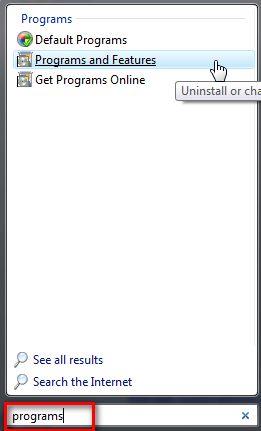
- To uninstall any Windows update you need to go to Programs and Features. There are several ways to find it. One of the simplest is to use the search box from the Start Menu.
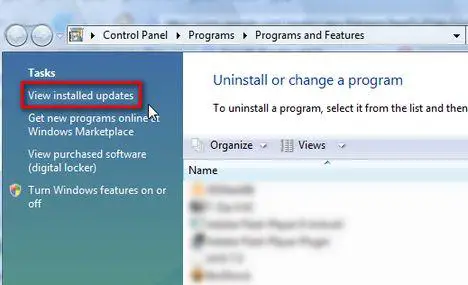
- In the Programs and Features window, click on the View installed updates link.
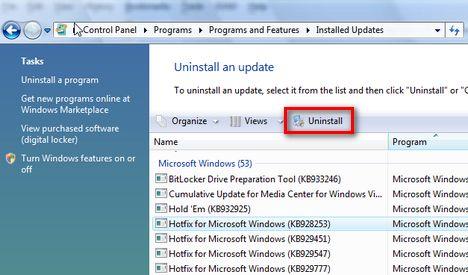
- After a few seconds, Windows 7will load the list of installed updates. Scroll down until you find the update you want to remove, select it with the mouse and then click on Uninstall.
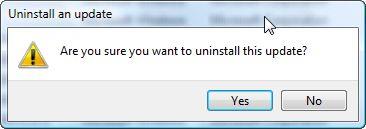
- Windows 7 will ask you to confirm that you want to uninstall the update you selected. Click on Yes and the uninstall procedure will start.
- Depending on the size of the update, the uninstall procedure can take from a few seconds up to several minutes.
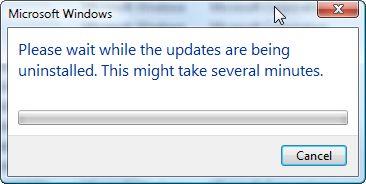
- Wait until the above window disappears and then, if needed, reboot your PC. The update is now removed.
Azeez Nadeem - Microsoft Support