Developer technologies | VB
An object-oriented programming language developed by Microsoft that can be used in .NET.
This browser is no longer supported.
Upgrade to Microsoft Edge to take advantage of the latest features, security updates, and technical support.
' cx='32' cy='32' r='32' /%3E%3Ctext x='50%25' y='55%25' dominant-baseline='middle' text-anchor='middle' fill='%23FFF' %3EL%3C/text%3E%3C/svg%3E)
I have the following output onto a picturebox that I would like to home in on a specific part of the image so I can zoom in on that part. I am not familiar much with the Transform property and am wondering if I am approaching what I am trying to achieve properly. If you look at the following picture that whole image is on a picturebox surface and the square black box I placed there I would like to focus in on it and have it fill the picturebox in essence zooming in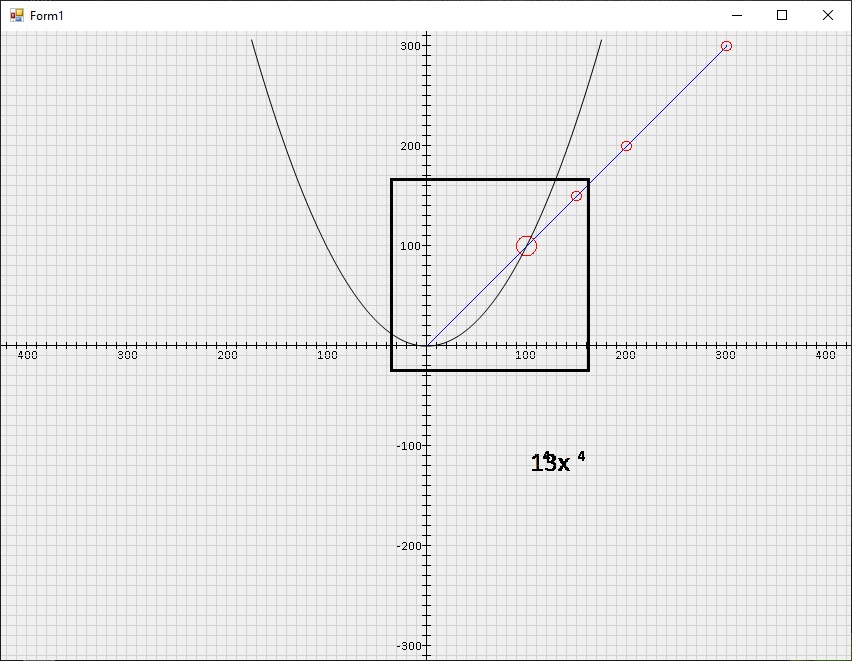 . Hopefully I am making myself clear.
Thanks
Les
' cx='32' cy='32' r='32' /%3E%3Ctext x='50%25' y='55%25' dominant-baseline='middle' text-anchor='middle' fill='%23FFF' %3EXZ%3C/text%3E%3C/svg%3E)
Hi @Les ,
how to we find all posts that I have made here like the old site did?
You can see them in 'Activity'.

For picture zoom, also check : https://www.codeproject.com/Articles/21097/PictureBox-Zoom
In Visual Basic, the code looks like:
    Private _ZoomFactor As Integer
    Private Sub Form1_Load(sender As Object, e As EventArgs) Handles MyBase.Load
        TrackBar1.Minimum = 1
        TrackBar1.Maximum = 3
        TrackBar1.Value = 2
        _ZoomFactor = TrackBar1.Value
        PictureBox2.SizeMode = PictureBoxSizeMode.StretchImage
        PictureBox1.Image = Image.FromFile("your picture path")
    End Sub
    Private Sub TrackBar1_ValueChanged(sender As Object, e As EventArgs) Handles TrackBar1.ValueChanged
        _ZoomFactor = TrackBar1.Value
        Label1.Text = String.Format("x{0}", _ZoomFactor)
    End Sub

    Private Sub PictureBox1_MouseMove(sender As Object, e As MouseEventArgs) Handles PictureBox1.MouseMove
        If PictureBox1.Image Is Nothing Then Return
        UpdateZoomedImage(e)
    End Sub
    Private Sub UpdateZoomedImage(ByVal e As MouseEventArgs)
        Dim zoomWidth As Integer = PictureBox2.Width / _ZoomFactor
        Dim zoomHeight As Integer = PictureBox2.Height / _ZoomFactor
        Dim halfWidth As Integer = zoomWidth / 2
        Dim halfHeight As Integer = zoomHeight / 2
        Dim tempBitmap As Bitmap = New Bitmap(zoomWidth, zoomHeight, PixelFormat.Format24bppRgb)
        Dim bmGraphics As Graphics = Graphics.FromImage(tempBitmap)
        bmGraphics.InterpolationMode = InterpolationMode.HighQualityBicubic
        bmGraphics.DrawImage(PictureBox1.Image, New Rectangle(0, 0, zoomWidth, zoomHeight), New Rectangle(e.X - halfWidth, e.Y - halfHeight, zoomWidth, zoomHeight), GraphicsUnit.Pixel)
        PictureBox2.Image = tempBitmap
        bmGraphics.DrawLine(Pens.Black, halfWidth + 1, halfHeight - 4, halfWidth + 1, halfHeight - 1)
        bmGraphics.DrawLine(Pens.Black, halfWidth + 1, halfHeight + 6, halfWidth + 1, halfHeight + 3)
        bmGraphics.DrawLine(Pens.Black, halfWidth - 4, halfHeight + 1, halfWidth - 1, halfHeight + 1)
        bmGraphics.DrawLine(Pens.Black, halfWidth + 6, halfHeight + 1, halfWidth + 3, halfHeight + 1)
        bmGraphics.Dispose()
        PictureBox2.Refresh()
    End Sub
Result of my test.
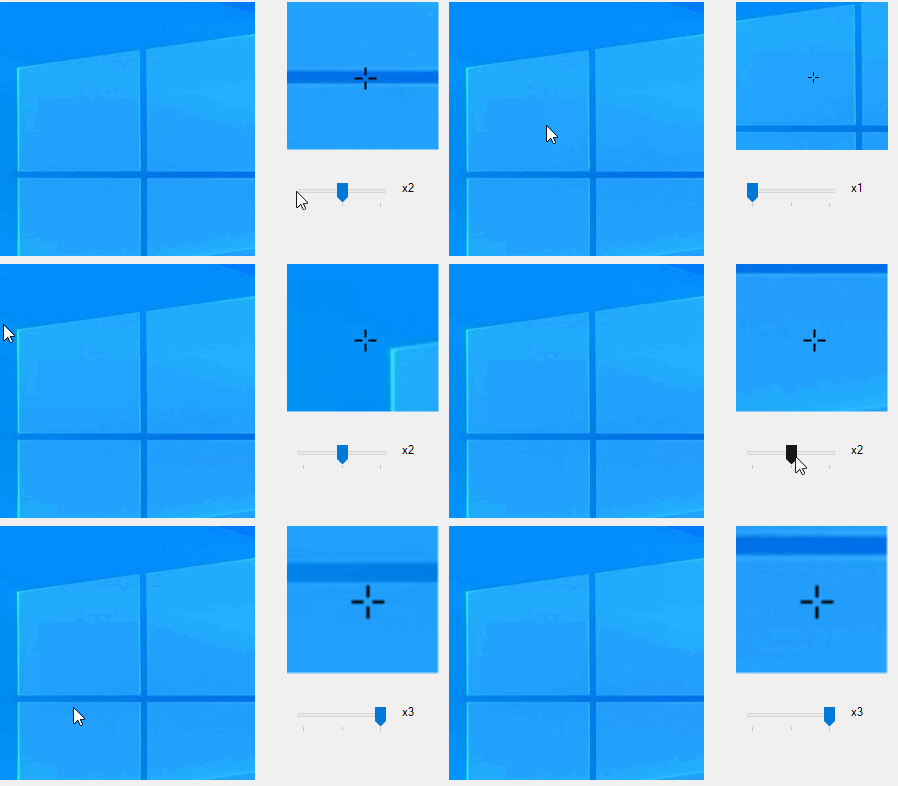
Hope it could be helpful.
Best Regards,
Xingyu Zhao
*
If the answer is helpful, please click "Accept Answer" and upvote it.
Note: Please follow the steps in our documentation to enable e-mail notifications if you want to receive the related email notification for this thread.
Hi XZ,
You mention Overview and Activity but for some reason I can not seem to find where that is????
Secondly thank you for the additional references I will check them out tomorrow. Thank you for responding.
Please let me know how to find the Overview and Activity
Les
One more thing XZ I just took a quick peek at the link you gave me and the code is not VB.net?? Can you please supply me with pertiniet additional information that will help me get a clearer understanding how this whole zooming topic is about ?
Thanks
Les
Hi XC I apologize for misunderstanding about the link you sent me, I see you converted it into VB for me thank you. Can you please let me know where this Overview and activity is.
Thanks
Les
Hi @Les ,
Click you 'Face', then click 'Profile' and you can see all your activities in 'Activity'.

Hi XC
Thank you so much for the info

You can zoom by resizing an image with DrawImage
Like in the second example in MSDN at Cropping and Scaling Images in GDI+
I am not sure how to do things in this forum. First how to we find all posts that I have made here like the old site did? In the past the forum allowed you to view all posts made by me, how do I do that now?
Anyway Cast I thank you for your response but I am interested in learning much more about this functionality. The link you supplied me with provides a simple example but where do I go to learn all about this functionality and get a real understanding as to what can be done with this?
Thanks for your guidance,
Les
Hi Cast
I mistakenly added to what looks like answers that I did wrong
I am not sure how to do things in this forum. First how to we find all posts that I have made here like the old site did? In the past the forum allowed you to view all posts made by me, how do I do that now?
Anyway Cast I thank you for your response but I am interested in learning much more about this functionality. The link you supplied me with provides a simple example but where do I go to learn all about this functionality and get a real understanding as to what can be done with this?
Thanks for your guidance,
Les
Hi Cast
I mistakenly added to what looks like answers that I did wrong
I am not sure how to do things in this forum. First how to we find all posts that I have made here like the old site did? In the past the forum allowed you to view all posts made by me, how do I do that now?
Anyway Cast I thank you for your response but I am interested in learning much more about this functionality. The link you supplied me with provides a simple example but where do I go to learn all about this functionality and get a real understanding as to what can be done with this?
Thanks for your guidance,
Les
No one has answered this post. I need to know what I am doing thanks
Les