Share via

KERNEL_DATA_INPAGE_ERROR

Anonymous
2015-10-13T19:31:02+00:00

Hello,

I saw the next error many times (look at the photo). In addition, physical memory dump failed to create so i coudn't analysis it. 

I have tried CHKDSK /F /Rcommand, but the error still have a place

Could anyone help with this problem?

Windows for home | Previous Windows versions | Devices and drivers

Locked Question. This question was migrated from the Microsoft Support Community. You can vote on whether it's helpful, but you can't add comments or replies or follow the question.

0 comments No comments

Answer accepted by question author

Anonymous
2015-10-17T15:04:04+00:00

Did you remove all that ADW Cleaner found?

Please use Autoruns to delete 10 entries where the words “File not found” appear. With Autoruns you can uncheck an item, which disables it from starting, or you can right click an item and then delete it. Click the Everything tab and look for the rows highlighted in yellow. To delete a disabled item you need to recheck it before you can delete it.

Run the Kaspersky Removal Tool: http://support.kaspersky.com/common/service.aspx?el=1464

Run Autoruns again and select the Everything tab. Click File, Save and, using the scroll to the right, change the “Save as type” option from Autoruns Data (*.arn) to Text (*txt). The file name changes to AutoRuns.txt. Click the Save button and upload the file to your OneDrive as a shared file and post as a link here.

Was this answer helpful?

1 person found this answer helpful.
0 comments No comments

Answer accepted by question author

Anonymous
2015-10-16T21:58:31+00:00

Please download and run ADWCleaner and upload a copy of the report produced to your OneDrive. Remove all that it finds. : http://www.bleepingcomputer.com/download/adwcleaner/

To identify what loads when you boot use Autoruns (freeware from Microsoft). http://technet.microsoft.com/en-us/sysinternals/bb963902

With Autoruns you can uncheck an item, which disables it from starting, or you can right click an item and then delete it. If you uncheck you can recheck to re-enable the item. It is a much safer approach than editing the Registry and better than using msconfig.

Run Autoruns and select the Everything tab. Click File, Save and, using the scroll to the right, change the “Save as type” option from Autoruns Data (*.arn) to Text (*txt). The file name changes to AutoRuns.txt. Click the Save button and upload the file to your OneDrive as a shared file and post as a link here.

To eliminate recurring Event ID: 10 errors in your Application log please run the Fix it in this KB Article http://support.microsoft.com/kb/2545227

Log Name:      System

Source:        Server

Date:          16/10/2015 20:18:21

Event ID:      2505

Level:         Error

Description:

The server could not bind to the transport \Device\NetBT_Tcpip_{5C9FE686-0D56-4268-8B9D-F420E82E38ED} because another computer on the network has the same name.  The server could not start.

This report indicates that you have two computers on the same network with the same name. You need to rename one so that they do not conflict.

Select Start, Control Panel, System and click Change settings (right side of window), Computer Name tab and click the Change button. Modify the name in Computer name box and click OK.

Changing your computer name: http://windows.microsoft.com/en-gb/windows/change-computer-name#1TC=windows-7

Was this answer helpful?

0 comments No comments

11 additional answers

Sort by: Most helpful
  1. Anonymous
    2015-10-15T13:36:31+00:00

    That STOP error and the error underneath it looks like it might be some corruption in the Windows paging file and perhaps deleting the paging file, rebooting without a paging file (and checking to be sure it is gone), recreate a new paging file, rebooting to be sure it gets created properly might help.

    A corrupted paging file is one thing that could cause your system to not be able to generate a crash dump file.

    The crash dump file you uploaded is dated 9/24/2015 - a couple weeks ago.

    Do you recall making any system configuration changes involving the Windows paging file around that time and if you did make adjustments, what was the issue that you were trying to resolve that brought about the adjustments?

    Here are some instructions on how to replace a corrupted/suspicious paging file which I modified from Windows XP to Windows 7 so if they are not perfectly clear tell us what needs adjusting in the instructions to make it perfectly clear and I will change them.

    First adjust your Windows Explorer settings so you can see all system files and extensions:

    Open Control Panel, Folder Options, View, in the Advanced Settings, check "Show hidden files, folders, drives", UNcheck "Hide extensions for known file types", then click OK.

    If there are any warning messages, acknowledge them - you can change things back later if it is your desire.

    Right click My Computer, Properties, Advanced system settings, Advanced tab, under Performance click Settings, Advanced tab, Under Virtual memory, click Change.

    Uncheck Automatically manage paging file size...

    Click "No paging file", be sure to click Set, Click Yes to the warning message, then click OK, OK, OK then restart the computer:
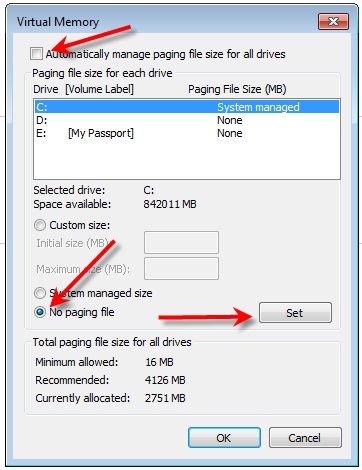
    Now you need to check to see if the old suspicious paging file has really been deleted and if it has not been deleted you must delete it manually, so using Explorer,  navigate to this folder:

    C:\

    Look for a file called "pagefile.sys" and if it is there, select it and delete it (acknowledge any warnings)

    If it is not there, continue.  

    Now adjust the paging file setting to "System managed size" so a new paging file will be created on the next reboot.

    Right click My Computer, Properties, click "Advanced system settings", click Advanced tab, under Performance click Settings, click Advanced tab, Under Virtual memory, click Change.

    Make sure the drive on which Windows is installed is highlighted (usually C:), then click "Automatically manage paging file size for all drives"

    Click OK (acknowledge any warnings), OK, OK, OK and close the System Properties Window.

    If you are prompted to "Restart Now", do so.

    Depending on your settings, you may be reminded that you need to restart your computer, so keep clicking through the messages and restart the computer.

    If you are not prompted to restart the computer after setting "Automatically manage paging file size", restart the computer anyway.

    Now check in the C:\ folder again and verify that there is a new pagefile.sys file in the folder with the current date and time.

    If it is your desire, undo the settings in Control Panel, Folder Options, View so you don't see the hidden files and folders and to hide extensions for known file types.

    In Control Panel, Folder Options, View, click "Do not show hidden files, folders or drives" and tick Hide extensions for known file types and click OK.

    Restart the system one more time and check the Virtual memory settings to be sure the changes "stick".

    The do this so we can see what you have:

    Click the Start button/orb in the lower-left corner of your screen. Or, press the Windows logo key on your keyboard.

    In the box enter:

    msinfo32

    Select/click msinfo32.exe and the System Information dialog box will open.

    Click on System Summary, click Edit, Select All (Ctrl-A), Copy (Ctrl-C) and then paste (Ctrl-V) the information back here in your next reply.

    There will be some personal information (like System Name and User Name), and whatever appears to be private information to you, just delete it from the pasted information.

    Was this answer helpful?

    0 comments No comments
  2. Anonymous
    2015-10-14T20:04:57+00:00

    First, thanks for soon respond!

    Here the only minidump, DriverView and system information (in russian):

    https://onedrive.live.com/redir?resid=1C20AC040A003B7A!106&authkey=!ACNmDL\_9PINLoX0&ithint=folder%2cdmp

    Laptop model is Samsung NP700Z5AH-S04RU.

    I believe, this is all necessary information

    Was this answer helpful?

    0 comments No comments
  3. Anonymous
    2015-10-13T21:16:33+00:00

    Please upload copies of your dump files as shared files (excluding any more than one month old or before you used a system restore point) to your OneDrive with a link here.

    The dump file will be created at c:\windows\minidump. You may need to change your settings in Windows to be able to see the file. To show hidden files type Folder Options in the search box above the Start button and select View, Advanced Settings and verify that the box before "Show hidden files and folders" is checked and "Hide protected operating system files" is unchecked. You may need to scroll down to see the second item. You should also make certain that the box before "Hide extensions for known file types" is not checked.

    What is your computer make and model? If not a branded computer what is your motherboard make and model?

    Please download and run Driver View and upload a copy of the report it produces to your OneDrive. To get a report on all drivers select Edit, Select All followed by File, Save Selected Items.

    http://www.nirsoft.net/utils/driverview.html

    Please provide a copy of your System Information file. Type System Information in the Search Box above the start Button and press the ENTER key (alternative is Select Start, All Programs, Accessories, System Tools, System Information). Select File, Export and give the file a name noting where it is located. Do not place the cursor within the body of the report before exporting the file. The system creates a new System Information file each time system information is accessed. You need to allow a minute or two for the file to be fully populated before exporting a copy. Please upload the file to your OneDrive, share with everyone and post a link here. Reports in normal mode preferred. Please say if the report has been obtained in safe mode. The request for a copy of this file is additional to answering the question about make and model.

    For help with OneDrive see paragraph 9.3:

    http://www.gerryscomputertips.co.uk/MicrosoftCommunity1.htm

    Was this answer helpful?

    0 comments No comments
