If you're so confident of Norton's efficacy, why are you concerned about suspicious behavior?
I repeat, PowerShell itself is perfectly safe; script files that use PowerShell may be malicious.
Based on your descriptions, I doubt very much that you'll find anything that was added, updated or changed on your computer at any of those specific dates and times. It seems much more likely that there is a script file that is being triggered, either by
time or by some event. Whenever the script tries to run, your security software detects it and issues the alert.
I'm a bit surprised that the Norton alert only mentions PowerShell without also giving you information about the script file. If that is indeed the case, this is yet another substantial failure of Norton security software.
Although you can't, in fact, remove PowerShell v.2 from Windows 7, you can do a few things to prevent it from running unauthorized scripts, although a determined attacker can probably circumvent these measures.
Method 1
PowerShell is supposed to default to a state in which running scripts is not permitted. Check this as follows:
Click Start, type powershell into the Search box, and press Enter
Type the following in the blue PowerShell Window
get-executionpolicy
It should return the word "Restricted"

If your system is something other than "Restricted" enter the following command
set-executionpolicy Restricted
You'll get a warning. Respond by typing Y to make the change.
Method 2
If that isn't sufficient, or if your setting was already Restricted and you are getting the warnings anyway, you can do the following if you have Windows 7 Pro or better.
Click Start, type gpedit.msc into the Search box, and press Enter.
In the left pane, navigate to User Configuration > Administrative Templates > System
In the right pane, double-click on "Don't run specified Windows applications"
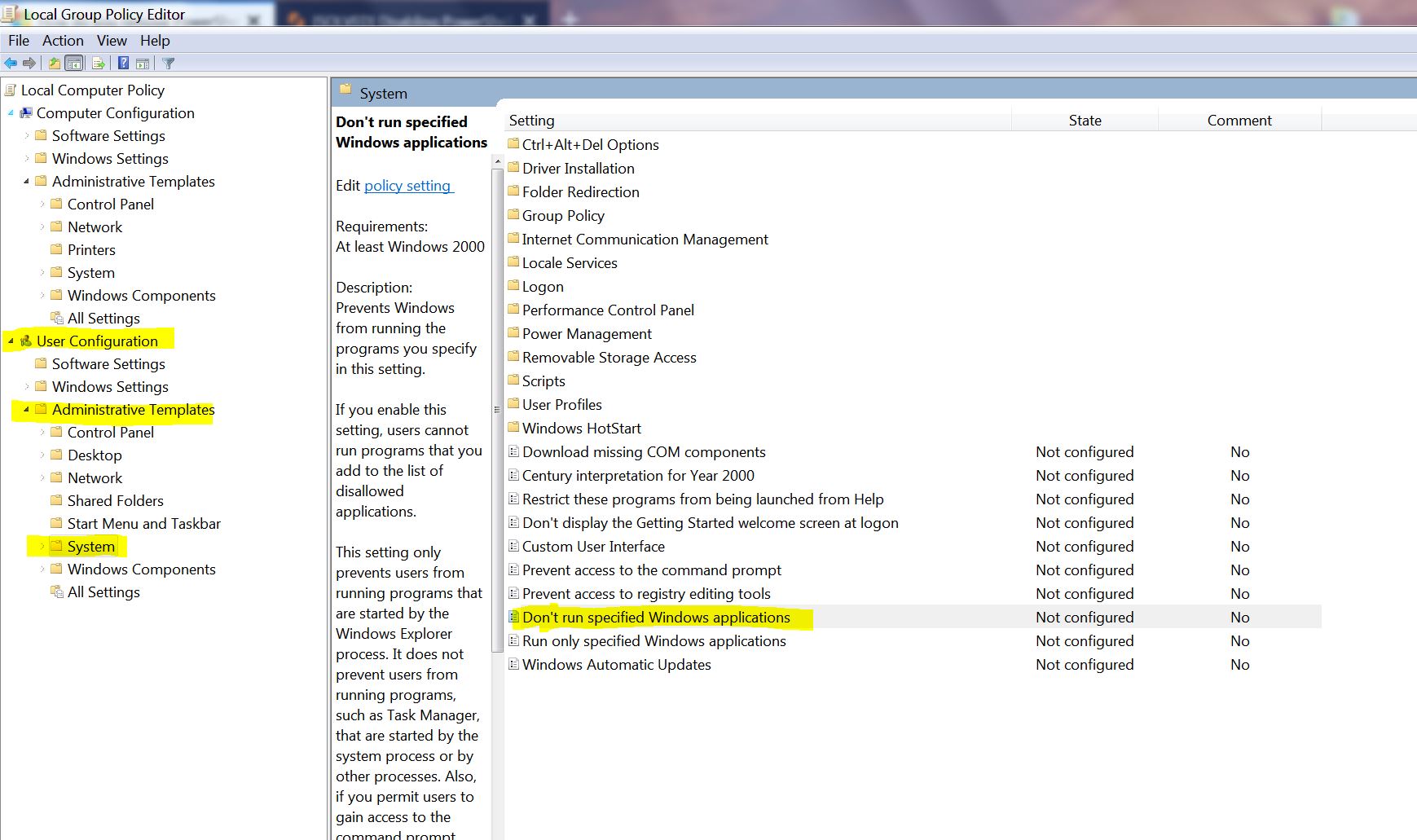
Click the "Enable" radio button, and then click "Show"
Enter the following items in the list and then OK your way out
C:\Windows\System32\WindowsPowerShell\v1.0\powershell.exe
C:\Windows\System32\WindowsPowerShell\v1.0\powershell_ise.exe
If you have a 64-bit system, add these two as well before clicking OK
C:\Windows\SysWOW64\WindowsPowerShell\v1.0\powershell.exe
C:\Windows\SysWOW64\WindowsPowerShell\v1.0\powershell_ise.exe
This is a per-user setting. If you have more than one user account on your computer, you'll have to make the change for each account. If you're making the changes in a "Standard User" account, in the first step you'll have to right-click on the shortcut
for gpedit.msc and select "Run as administrator" rather than simply pressing Enter.
If the problem recurs even after you make these changes, it means that the malicious script is running under some system account. In order to find that, you can either search manually or follow the recommendations that I gave earlier.
Method 3
Navigate in Windows Explorer to the 2 (or 4 if you have a 64-bit system) *.exe files listed in Method 2 and rename them to have an extension such a exX or the like. For example:
C:\Windows\System32\WindowsPowerShell\v1.0\powershell.exX
This method is likely to cause a different error message to occur when whatever tries to run the potentially malicious script tries to execute PowerShell. Again, you'll have to find the place where the script is being invoked.
From your initial question, it looks as if when you're in Windows Explorer, you're not seeing the file extensions. Do this in Windows Explorer:
- Click Tools > Folder Options and then select the "View" tab
- Scroll down and UNcheck the box to "Hide extensions for known file types"
- Click OK
' cx='32' cy='32' r='32' /%3E%3Ctext x='50%25' y='55%25' dominant-baseline='middle' text-anchor='middle' fill='%23FFF' %3EA%3C/text%3E%3C/svg%3E)

' cx='32' cy='32' r='32' /%3E%3Ctext x='50%25' y='55%25' dominant-baseline='middle' text-anchor='middle' fill='%23FFF' %3EL%3C/text%3E%3C/svg%3E)