Share via

Opening Task Manager Changes CPU Usage from 100% -> Normal (Windows 10). [SOLVED]

Anonymous
2018-07-02T19:26:37+00:00

This is probably one of the oddest bugs/issues I've come across on a Windows computer.

I have a high performance computer so I can hear the fans blazing when the CPU is working. For some odd reason while I'm working, the fans will randomly become very loud (indicating high CPU usage) - then, when I open the Task Manager to check what process is causing it I see 100% CPU Usage for a split second and then the usage goes back to normal before I can identify the process causing the usage.

Do I have a virus or something because it's almost as if my opening of the Task Manager tells the process to stop using up my CPU. Seems frankly kind of odd behavior.

Anyone know of what the process might be or what might be causing this odd behavior?

Computer Specifications:

Model: Alienware 17 R4

OS: Windows 10 Version 1709 [Updated].

Processor: Intel i7-7700HQ @ 2.6GHz.

UPDATE [Solution for anyone in the future]:

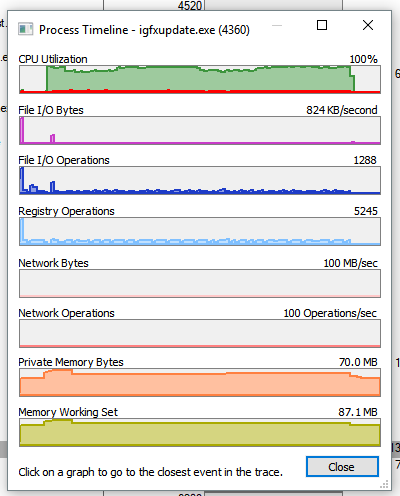
Apparently I had a Trojan disguised as igfxupdate.exe. To remove it first identify the process that is increasing CPU usage. To do this I used Process Monitor (search it up it's a Microsoft tool). I waited for the CPU usage to rise then clicked on the process timeline before momentarily opening Task Manager. It showed the behavior I expected.

Next I would advise using anti-malware to scan the folder the file is located in - if it picks up something remove it.

If it doesn't pick up on anything check if the process is necessary to Window's function - if it is not reinstall the software and associated processes (delete the problematic file). <= Only do this if it is not essential to Window's function.

Image of behavior you might see:
Windows for home | Windows 10 | Performance and system failures

Locked Question. This question was migrated from the Microsoft Support Community. You can vote on whether it's helpful, but you can't add comments or replies or follow the question.

0 comments No comments

Answer accepted by question author

Anonymous
2018-07-03T02:17:03+00:00

It's possible that your computer was joined to a botnet or a cryptominer or a torrent or some similar exploit that makes your CPU work hard enough to generate that much heat. Then, as soon as you open Task Manager, the exploit shuts itself off so you won't see its process(es) running in the background, to possibly identify them.

By itself, Windows won't run your CPU that hard. If you're not running processor-intensive applications ... then who is?

I say possible because I don't know how to check for that kind of activity. It's never happened to me - yet - so I don't quite know how you go about diagnosing it. Today's malware has progressed far beyond signature-based detection. We need different tools and techniques to discover it.

Was this answer helpful?

10+ people found this answer helpful.
0 comments No comments

14 additional answers

Sort by: Most helpful
  1. Anonymous
    2018-07-03T03:21:11+00:00

    Just for future reference this is not impossible. It's simple to make programs that monitor processes that are active on a computer then simply respond to the presence of the process.

    Was this answer helpful?

    5 people found this answer helpful.
    0 comments No comments
  2. Anonymous
    2018-07-03T03:03:26+00:00

    You were right, apparently Avira wasn't scanning System32 for some reason. I ran a scan for System32 and poof it found a Trojan.

    Nevertheless, this is pretty clever malware.

    Was this answer helpful?

    4 people found this answer helpful.
    0 comments No comments
  3. Anonymous
    2018-07-03T02:34:50+00:00

    yes, moving wireless mouse will cause little spikes too.

    But never heard of or seen the usage at 100% and then open task manager and it drops to normal. Seems IMPOSSIBLE.

    And I asked him, how does he know it is at 100% before he even opens task manager ??????????

    That is the million dollar new question. And got no reply back!

    Was this answer helpful?

    4 people found this answer helpful.
    0 comments No comments
  4. Anonymous
    2018-07-03T00:15:02+00:00

    You see the 100% for a second, because you opened Task Manager.

    And your fans, if ran off the board with speed control, it will change speeds depending on the Temp of your processors and possibly your MB too.

    I could maybe buy that the processor might spike to 100% for a moment while opening task manager. But that still doesn't explain why the processor is running at 100% before I open it. Mind that the computer is just idle. If I leave task manager open my CPU never goes over 5% while idle which definitively shows that having task manager open is preventing the CPU from going over.

    Was this answer helpful?

    3 people found this answer helpful.
    0 comments No comments
