Missing Advanced Language Settings

Anonymous
2018-06-04T17:25:03+00:00

Hi.

Summary;

I've run out of patience trying to find an answer for removing the stupid language cycling shortcut that is Alt+Shift on my computer. I've just trawled through Google for the past bloody hour trying to find out how the hell I'm meant to remove the shortcut.

TLDR;

I've been bouncing through a few design software including Blender and Inkscape, and I'm routinely screwing stuff up when my keyboard hops into another language setting. I don't want to remove the languages, I just want to remove the shortcut. I'd rather make a few clicks on my taskbar to alter the keyboard layout, not alter the input options in something like Blender. Blender for one has an enormous amount of different key combinations, the majority I'm used to.

FYI: my Control Panel is missing the entirety of Language settings, including the title. The new Windows 10 Start > Settings and then the appropriate section also doesn't present what I'm looking for, even in 'Classic' view (which is anything but 'classic').

Is this something to do with me having the Home Edition of Windows, or have Microsoft gone on another 'let's hide settings people might want' spree again? I'm good for change, but seen as these settings are even less obvious to find now since previous versions of Windows, one can only describe it as detrimental.

I've attached a screenshot of what the purported yellow-brick-road Additional date, time & regional settings button actually leads me to. I get the same result by trying to get there using the Control Panel manually. I understand that on the page in the screenshot, between Date and Time and Region, there should be more settings under the title Language.
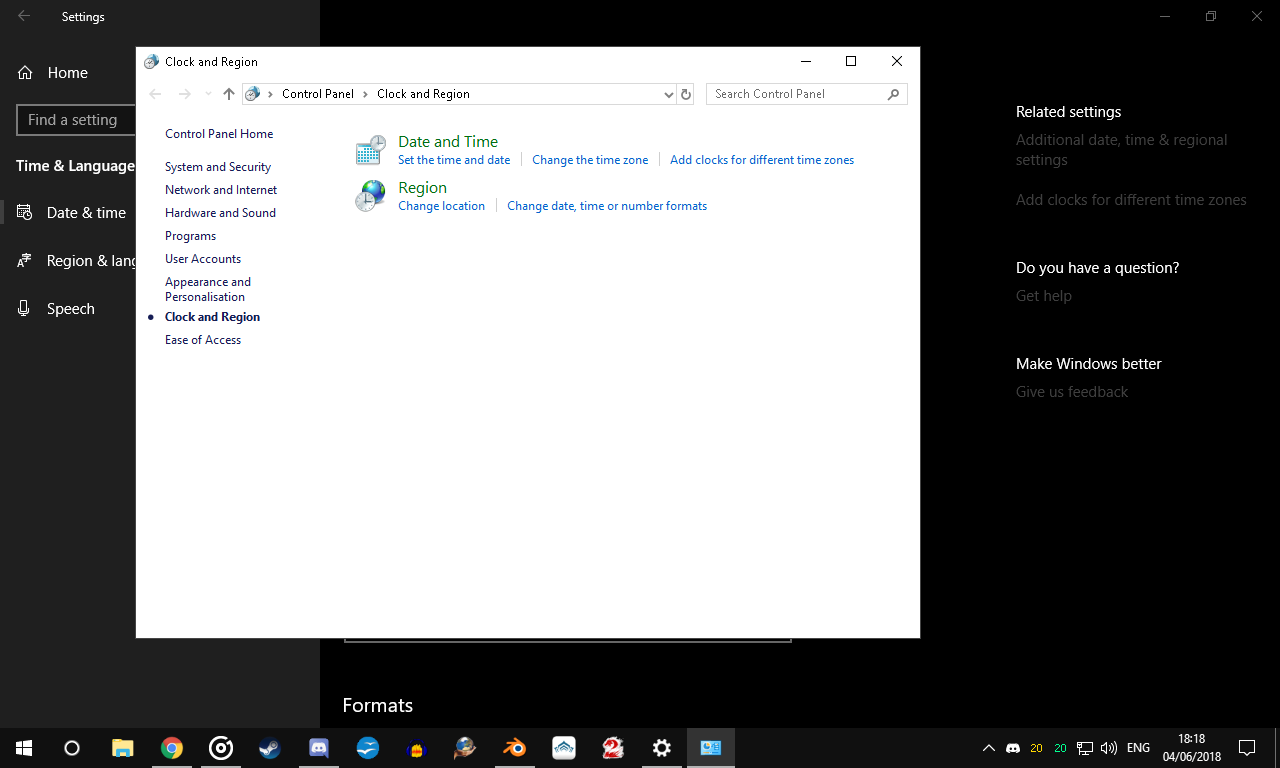
I mean, forgive my tone, but this really is extremely irritating. It's like every other new update is meant to add or take away something to piss me off even more. I empathise with users who refuse to go to 10.

Windows for home | Windows 10 | Settings

Locked Question. This question was migrated from the Microsoft Support Community. You can vote on whether it's helpful, but you can't add comments or replies or follow the question.

0 comments No comments
{count} votes

7 answers

Sort by: Most helpful
  1. Anonymous
    2018-06-04T17:54:37+00:00

    Never mind. Two hours later and I've sorted it with a CMD line to hop to settings which aren't displayed where everywhere seems to say they ought to be.

    Open Command Prompt (you'll need it in Administrator if I remember correctly) and type;`"C:\Windows\system32\rundll32.exe" Shell32.dll,Control_RunDLL input.dll,,{C07337D3-DB2C-4D0B-9A93-B722A6C106E2}{HOTKEYS}

    Here's the source link for anyone interested in what people there have to say.`

    29 people found this answer helpful.
    0 comments No comments
  2. Anonymous
    2018-06-13T10:19:23+00:00

    Never mind. Two hours later and I've sorted it with a CMD line to hop to settings which aren't displayed where everywhere seems to say they ought to be.

    I have SAME problem. What is this CMD line?

    6 people found this answer helpful.
    0 comments No comments
  3. Anonymous
    2018-06-14T05:04:11+00:00

    Hi PillowThief,

    Were you able to found a solution for the said issue? It would be helpful, especially for those who has the same concern, if they would know which cmd line did the trick for you.

    Kind regards

    0 comments No comments
  4. Anonymous
    2018-09-05T17:58:32+00:00

    I found a solution.

    Step 1. Open your start menu

    Step 2. Select the Cog Symbol to open up Windows Settings

    Step 3. Select Time and Language

    Step 4. Select Region and language on the left side of the window.

    Step 5. Select Advanced keyboard settings

    Step 6. Select Language Bar options

    Step 7. Select the Advanced Keys Settings and you've arrived.

    16 people found this answer helpful.
    0 comments No comments
  5. Anonymous
    2018-09-05T20:18:49+00:00

    Sorry, I should have gone ahead and added that. Go figure.

    Anyway, here's the link I found the source material in, if it interests you. And before anyone asks, yes, I tried the screenshotted 'best answer' with no luck. I'm not sure why my version seems to be missing what ought to be an integral part of the operating system, but there we go. Sod's Law and all that.

    Open Command Prompt (you'll need it in Administrator if I remember correctly) and type;"C:\Windows\system32\rundll32.exe" Shell32.dll,Control_RunDLL input.dll,,{C07337D3-DB2C-4D0B-9A93-B722A6C106E2}{HOTKEYS}

    Hope this helped. Sorry it was late...would you believe me if I told you I just received a desktop notification of an email telling me your response today? I've had it signed up since I installed Windows 10. I wonder what the next issue's going to be.

    5 people found this answer helpful.
    0 comments No comments
