easy way to create alerts in scom 2019 installed Microsoft windows 2019 server

mahesh palem 41 Reputation points
2021-02-25T10:16:05.96+00:00

I want to test SCOM 2019 integration with other systems. So I want lot of alerts to be present in SCOM 2019 environment.

Can someone please let me know easy way to create multiple scom alerts

Thanks,
Mahesh

System Center Operations Manager
A family of System Center products that provide infrastructure monitoring, help ensure the predictable performance and availability of vital applications, and offer comprehensive monitoring for datacenters and cloud, both private and public.
0 comments No comments
{count} votes

5 answers

Sort by: Most helpful
  1. CyrAz 5,181 Reputation points
    2021-02-25T10:20:57.373+00:00

    Import the Management Packs corresponding to the roles/features/applications that are running in your environment.
    (AD, PKI, IIS, SQL, Exchange, whatever).

    0 comments No comments

  2. SChalakov 10,666 Reputation points MVP Volunteer Moderator
    2021-02-25T11:05:23.697+00:00

    HI @mahesh palem ,

    what Cyril suggested will do the job. Another easy way would be to configure one Alert Generating Rule for an event and then generate the event wioth PowerShell. Each time when an event ios genarted, SCOM will pick it up and fire an alert.
    Here is some info on the topic:

    You can check Leon's article om how to create alert genarating tule in SCOM:

    SCOM - Alert basics
    https://social.technet.microsoft.com/wiki/contents/articles/53579.scom-alert-basics.aspx#Rule

    and here is also how you can generate any event with any ID and from any source, suing PowerShell:

    How to Use PowerShell to Write to Event Logs
    https://devblogs.microsoft.com/scripting/how-to-use-powershell-to-write-to-event-logs/

    Hope we could help!

    Regards,
    Stoyan


  3. SChalakov 10,666 Reputation points MVP Volunteer Moderator
    2021-02-25T20:36:05.39+00:00

    Hi @Alankar Vishnoi ,

    the most likely reason for this is that you haven't created the rule properly. Let me give you some guidances:

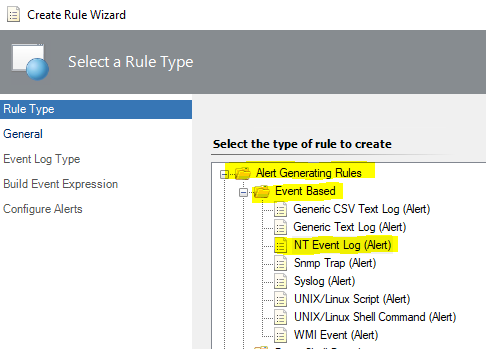
    • You need to create an event based alert generating rule for NT Event Logs:

    72098-image.png

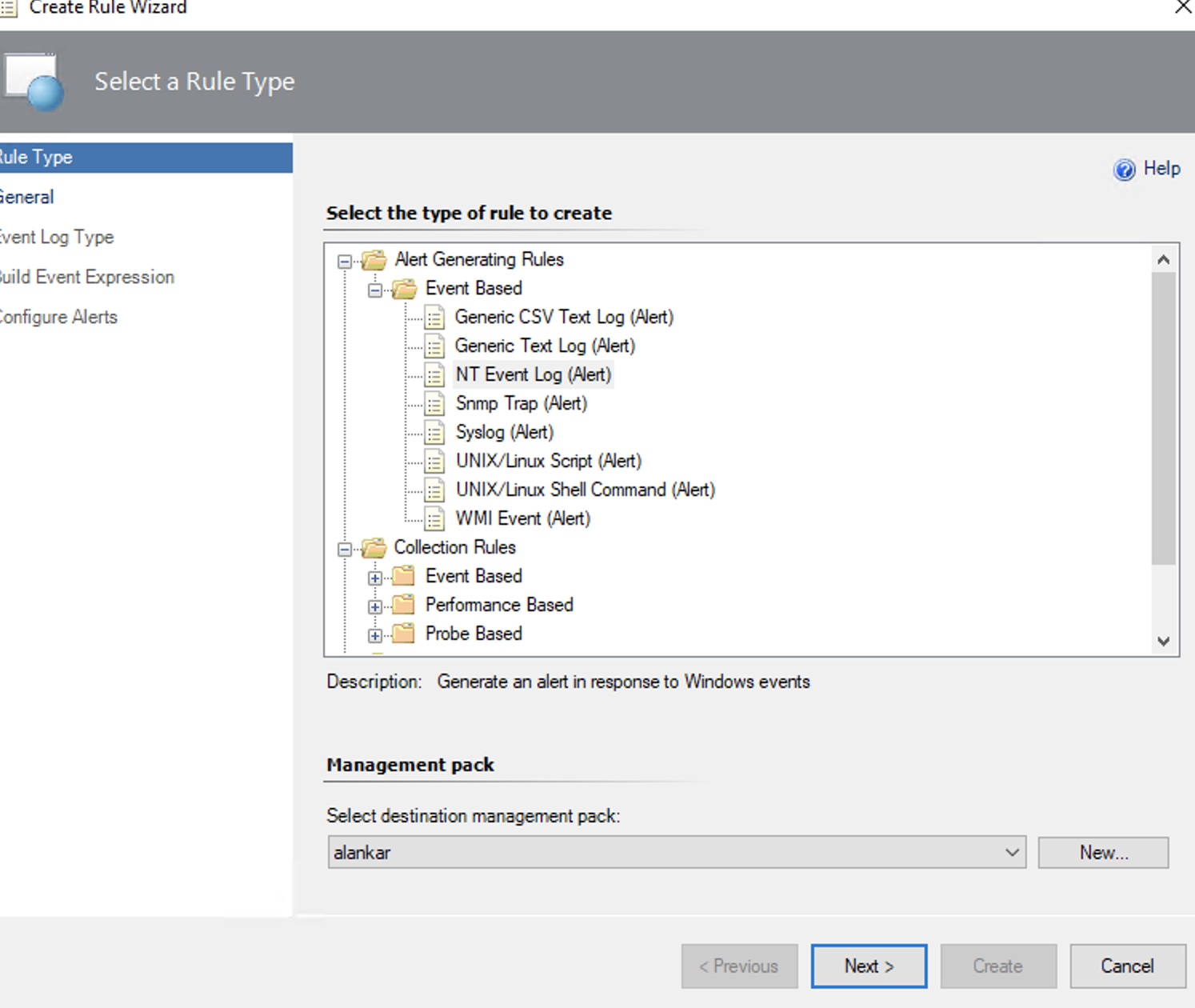
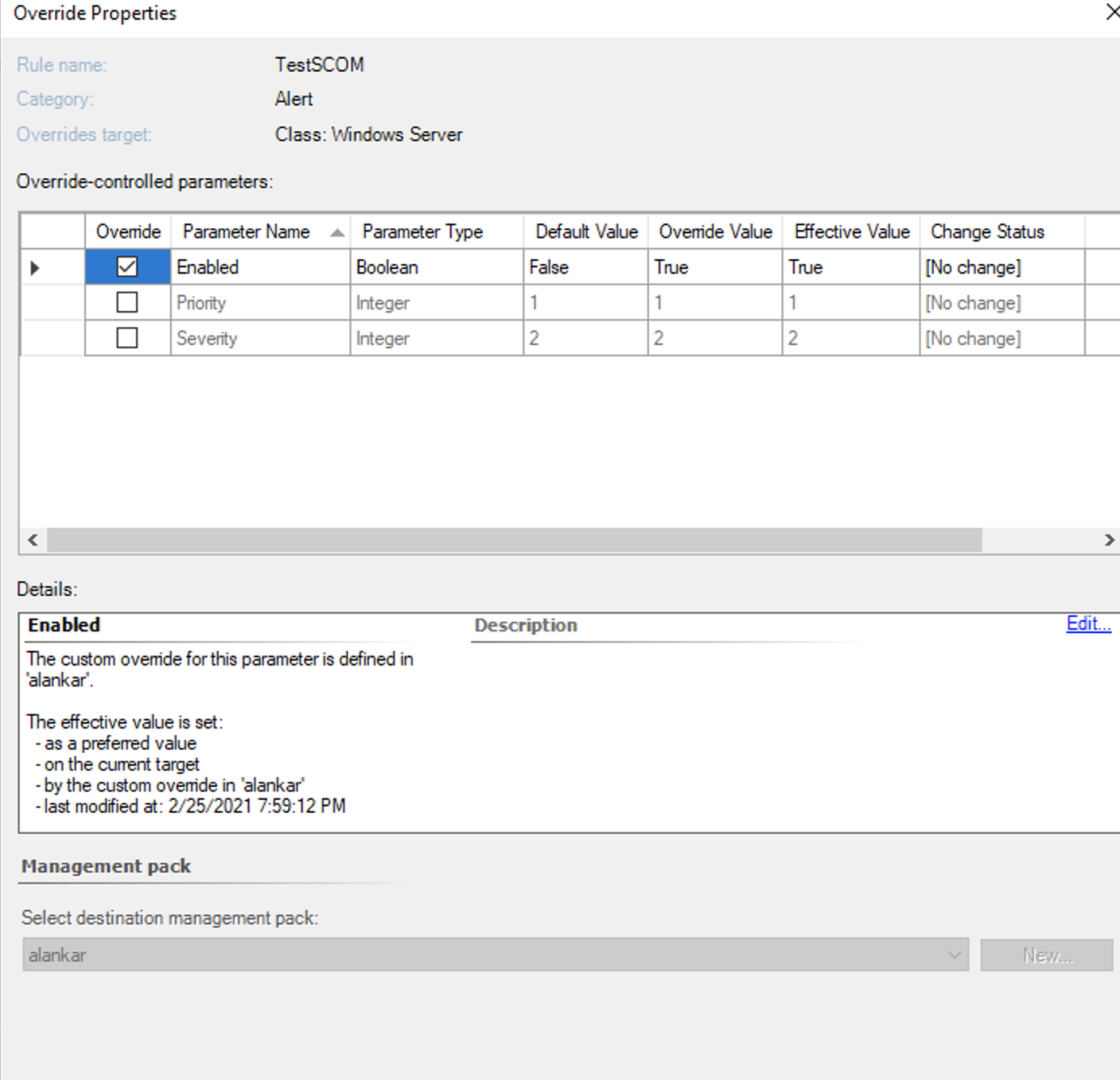
    • Target the rule at a class, which the server you are creating the events is member of, but leave the rule disabled, so that you avoid all servers generating alerts. Later you will enable to rule for only the specific server you are generating the events on:

    72168-image.png

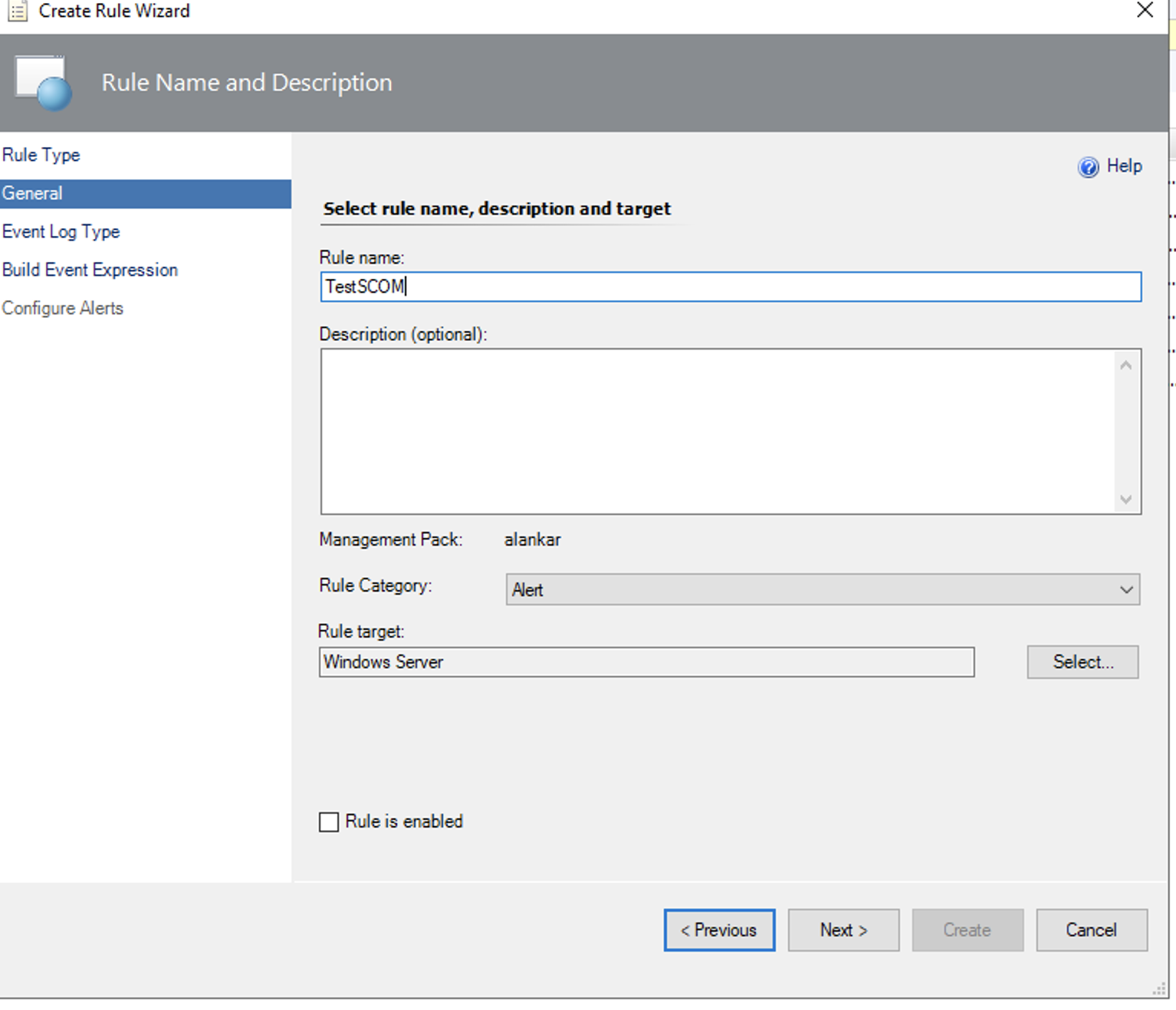
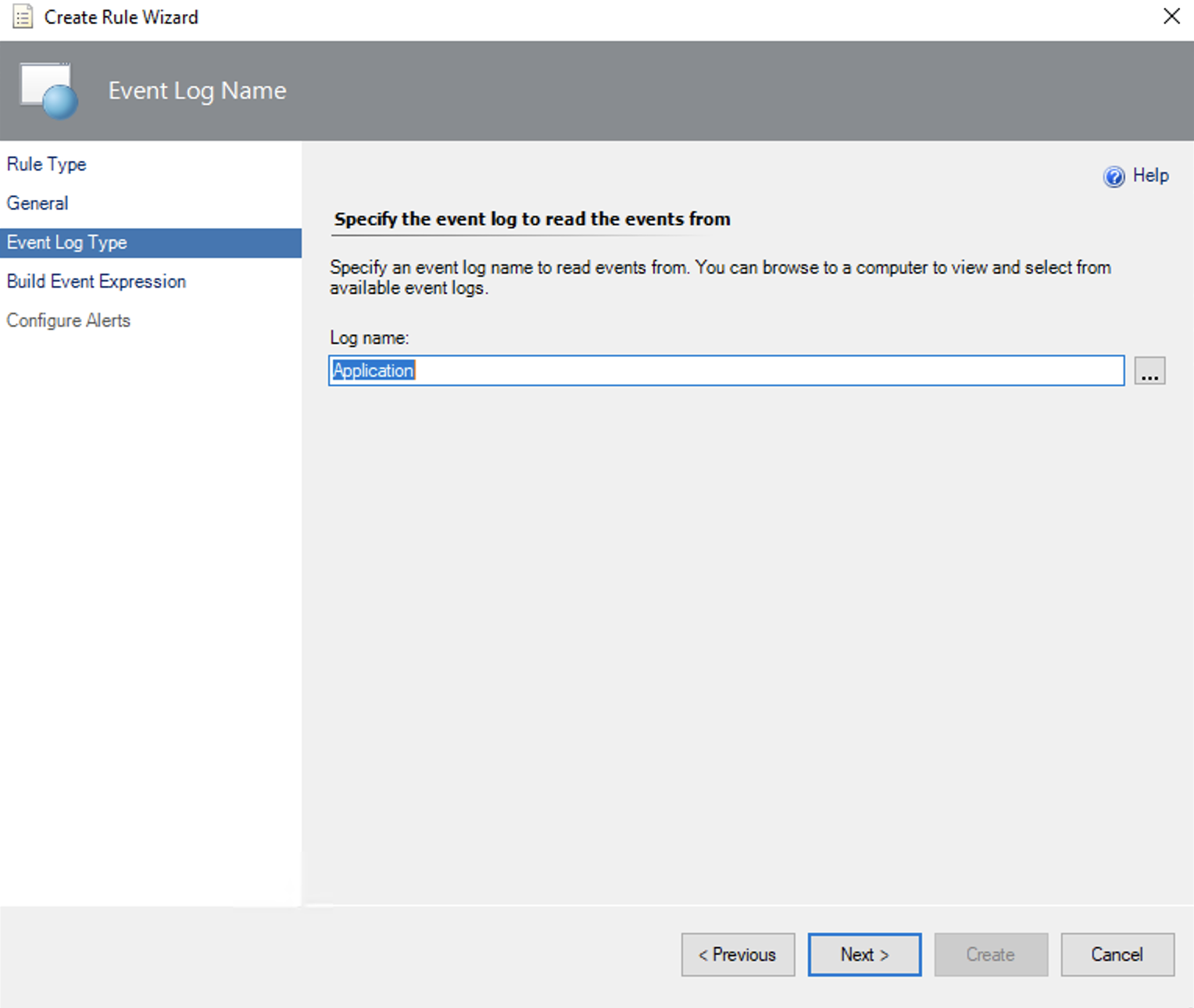
    • Chose in which Log the events will be picked up from. This will be the same log that you give in the "-LogName" parameter in PowerShell. In my example I chose "Application" and will later generate the event in this same log.

    72177-image.png

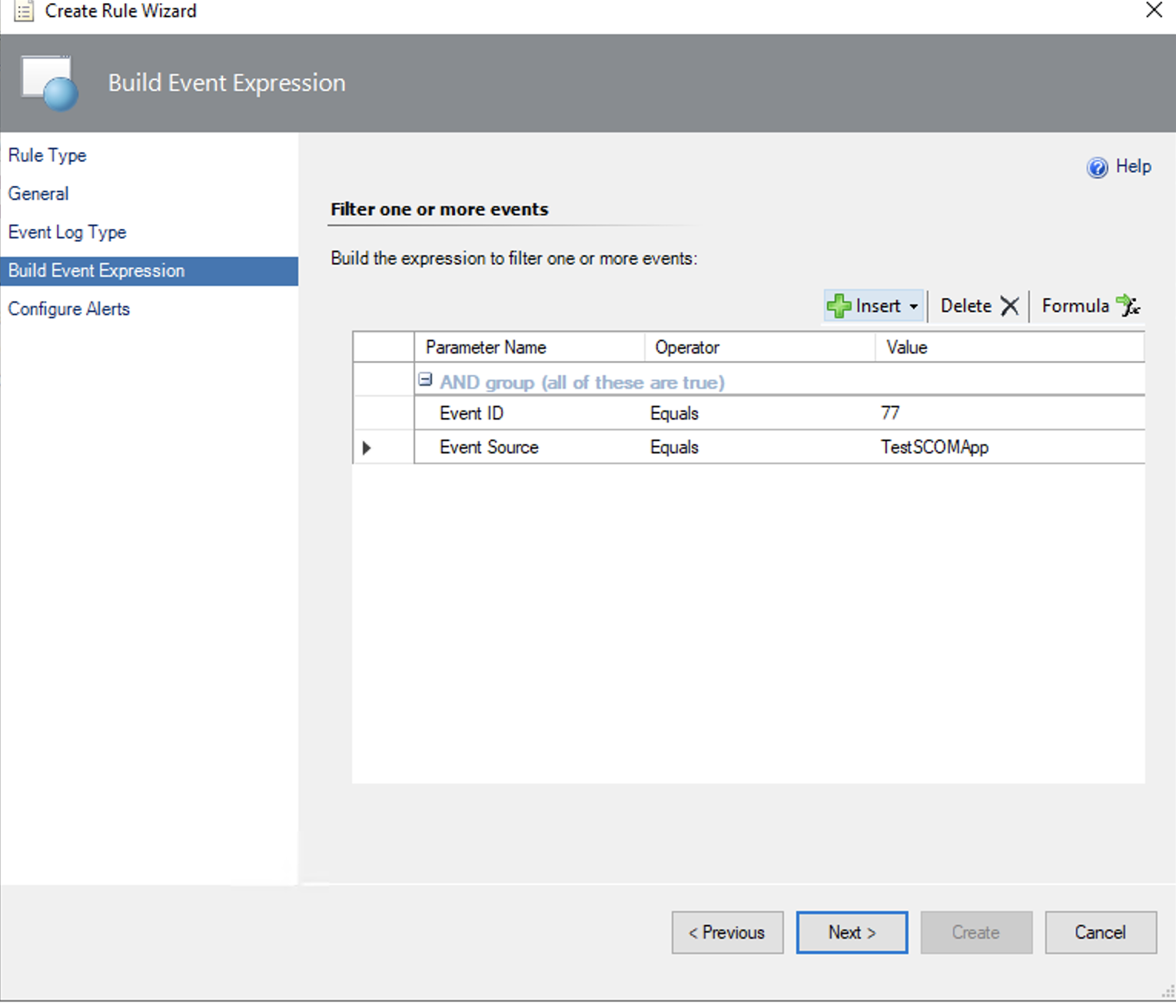
    • Specify the event parameters like Event Id and Source:

    72204-image.png

    • Chose serverity and Priority at the next step and click on "Create"
    • The last step in SCOM would be to enable the rule for the server, on which you are generating the events. In my example, this is the SCOM01.demo.local:

    72178-image.png

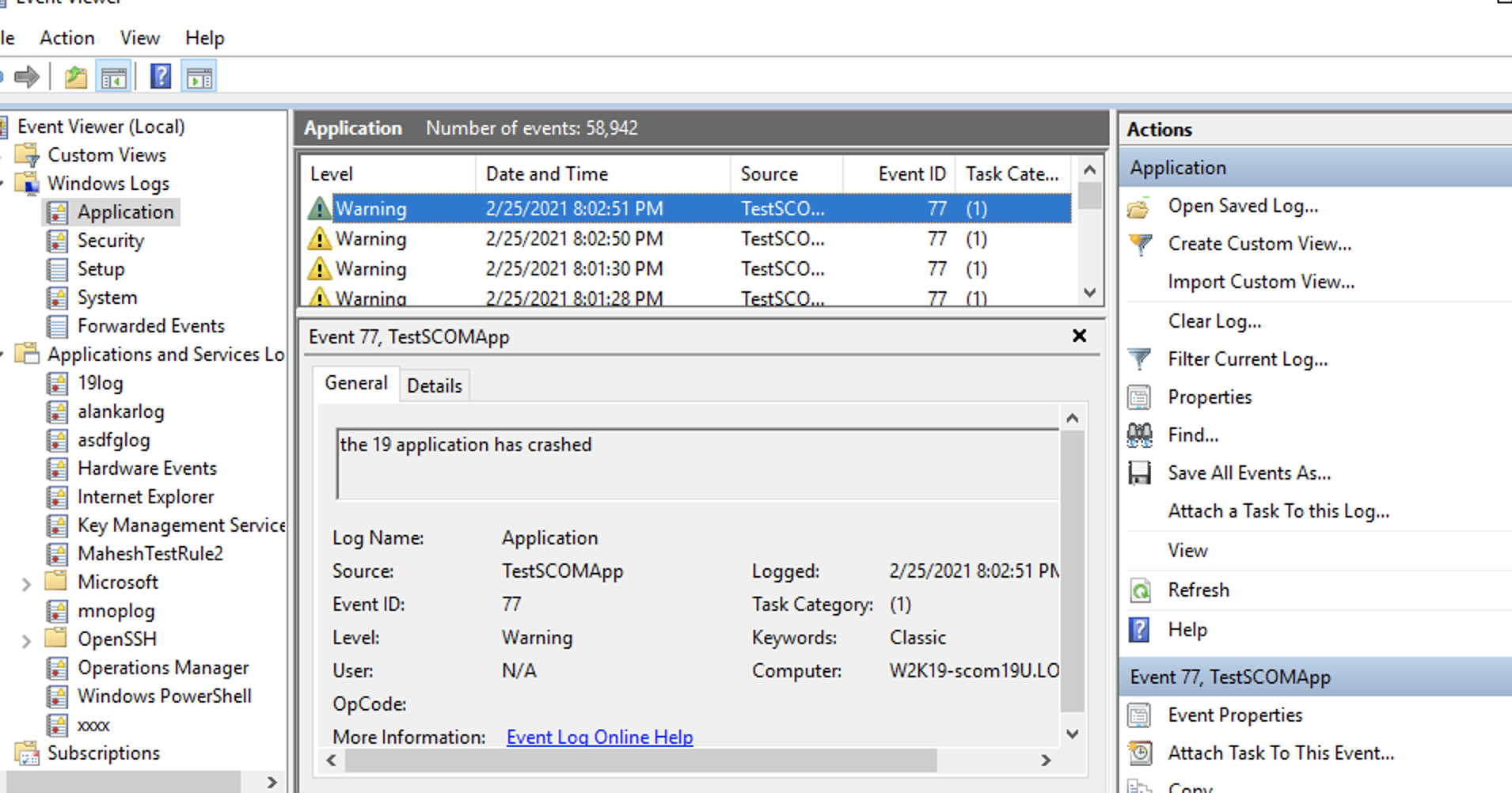
    • The last step would be to use powershell on this same server and create an event in the Application Log with the ID 777 and source DEMOQANDA":

    72234-image.png

    And there are your alerts in SCOM:

    72241-image.png

    ----------

    (If the reply was helpful please don't forget to upvote and/or accept as answer, thank you)

    Best regards,
    Stoyan

    0 comments No comments

  4. Alankar Vishnoi 1 Reputation point
    2021-02-26T06:46:17.077+00:00

    Hi @SChalakov

    I followed all steps you have given, to create a rule, still, I am not able to get those events(NTlog events) in SCOM 2019 Operation Console.

    Please check the attached screenshots.

    72279-screenshot-2021-02-26-at-91636-am.png

    72335-screenshot-2021-02-26-at-91721-am.png72290-screenshot-2021-02-26-at-91749-am.png72361-screenshot-2021-02-26-at-91831-am.png72260-screenshot-2021-02-26-at-92556-am.png72362-screenshot-2021-02-26-at-92928-am.png72371-screenshot-2021-02-26-at-93921-am.png

    I have a doubt. currently, we have 3 Windows Computer where the Windows Operating system part is showing "Not Monitored". So is it the reason the operation console not synching with our windows 2019 server Event Viewer?
    If this is the reason how can we change Windows Operating system status to Monitored for a specific host.

    72280-screenshot-2021-02-26-at-94415-am.png

    0 comments No comments

  5. SChalakov 10,666 Reputation points MVP Volunteer Moderator
    2021-02-26T13:15:34.473+00:00

    Hi,

    the Windows OS shows as not monitored most probably because you haven't installed the Windows Server OS MP:

    Microsoft System Center Management Pack for Windows Server Operating System 2016 and 1709 Plus
    https://www.microsoft.com/en-us/download/details.aspx?id=54303

    The problem is somewhere else, though... On the screenshot you have 3x systems and 2 of them are not monitpored - one has the state "not monitired" and the other is greyed out. This means that you cannot get alerts from both of them. Additionaly you have an issue with your management server.
    Please make sure you get all your agents and management servers green and healthy again, it should work then.
    Use the Health Explorer to check what is wrong with the management server.
    Make sure you fix the agent that is greyed out.

    Regards,
    Stoyan

    0 comments No comments

Your answer

Answers can be marked as 'Accepted' by the question author and 'Recommended' by moderators, which helps users know the answer solved the author's problem.