Exchange Online
A cloud-based service included in Microsoft 365, delivering scalable messaging and collaboration features with simplified management and automatic updates.
This browser is no longer supported.
Upgrade to Microsoft Edge to take advantage of the latest features, security updates, and technical support.
' cx='32' cy='32' r='32' /%3E%3Ctext x='50%25' y='55%25' dominant-baseline='middle' text-anchor='middle' fill='%23FFF' %3EMK%3C/text%3E%3C/svg%3E)
Hi there,
It is panic to send emails from Outlook to hundreds of users.
I am looking for a PowerShell script to send email to around 400 hundred external Email addresses saved in a csv file. script should take the input from csv file. my mailbox in Office365.
any help.
' cx='32' cy='32' r='32' /%3E%3Ctext x='50%25' y='55%25' dominant-baseline='middle' text-anchor='middle' fill='%23FFF' %3ELL%3C/text%3E%3C/svg%3E)
Hi @Muhammad Khan ,
1.Create a CSV file in the same format as the screenshot below and fill in the recipients.
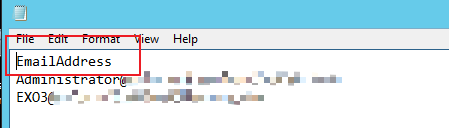
2.If you've enabled security defaults in your organization, SMTP AUTH is already disabled in Exchange Online. Run the following command to enbale the SMTP AUTH for the specific mailbox.
Set-CASMailbox -Identity <> -SmtpClientAuthenticationDisabled $false
3.Run the following command to make sure powershell is using TLS v1.2 and send email from specific mailbox:
[Net.ServicePointManager]::SecurityProtocol = [Net.SecurityProtocolType]::Tls12
$UserCredential1 = Get-Credential
Import-CSV "<Path toCSV file>" | Foreach {Send-MailMessage -To $_.EmailAddress -from <The sender email address> -Subject '<>' -Body '<>' -BodyAsHtml -smtpserver "smtp.office365.com" -usessl -Credential $UserCredential1 -Port 587}
Please noted that the Send-MailMessage cmdlet is obsolete. This cmdlet does not guarantee secure connections to SMTP servers. While there is no immediate replacement available in PowerShell, Microsoft recommend you do not use Send-MailMessage.
For more information you could refer to: Send-MailMessage and Enable or disable authenticated client SMTP submission (SMTP AUTH) in Exchange Online
If the response is helpful, please click "Accept Answer" and upvote it.
Note: Please follow the steps in our documentation to enable e-mail notifications if you want to receive the related email notification for this thread.
Hi @Muhammad Khan ,
Do suggestions above help? If the issue has been resolved, please click “Accept as answer” to mark helpful reply as an answer, this will make answer searching in the forum easier and be beneficial to other community members as well.
Thanks for your understanding.
----------
If the response is helpful, please click "Accept Answer" and upvote it.
Note: Please follow the steps in our documentation to enable e-mail notifications if you want to receive the related email notification for this thread.
Hi @Muhammad Khan ,
I am writing here to confirm with you how thing going now? If the above suggestion helps, please click “Accept as answer” to mark helpful reply as an answer.Your action would be helpful to other users who encounter the same issue and read this thread.
Thanks for your understanding.
----------
If the response is helpful, please click "Accept Answer" and upvote it.
Note: Please follow the steps in our documentation to enable e-mail notifications if you want to receive the related email notification for this thread.